



Molecular modelers often face the challenge of accurately extracting atomic coordinates along specific paths to prepare input files for further analysis, such as reaction coordinate studies or free energy calculations. If you’ve ever struggled with exporting these trajectories or couldn’t find a streamlined approach, SAMSON’s Export Along Paths extension offers an accessible and powerful solution.
Let’s explore how you can utilize this tool to enhance your workflows by exporting atomic trajectories that matter most to your research.
Why Exporting Atom Trajectories Matters
Whether conducting simulations of ligand unbinding, reaction pathways, or structural conformations, having precise atomic trajectories is often essential. For instance, you may want to track a ligand’s movement along an unbinding pathway or generate intermediate frames for visualization or energy calculations. SAMSON’s Export Along Paths extension enables you to do exactly this in just a few easy steps.
Ready, Set, Export!
Here’s a simple walkthrough of the exporting process:
Step 1: Load the Sample System
If you’re new to exporting paths, starting with a sample document can be immensely helpful. Follow these steps:
- Navigate to Home > Download within SAMSON.
- Paste the link: https://www.samson-connect.net/documents/046f1acd-c799-40f6-8185-cb4847eff795.
- Click on Download to access the preloaded system containing Lactose permease (1PV7), its ligand Thiodigalactosid (TDG), and example paths.

Step 2: Open the Export Along Paths App
The next step is locating the export app:
- Go to Home > Apps > All > Export Along Paths.
- You can also find it via the Find everything… feature (Shift+E).
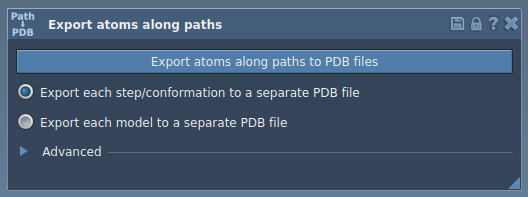
Step 3a: Export All Atoms Along a Path
If you want to export the full atomic trajectory:
- Select the desired path(s) in the Document view.
- Choose between:
- All frames in a single PDB file.
- Each frame as a separate PDB file.
- Click Export atoms along paths to PDB files and specify a destination folder and file prefix.
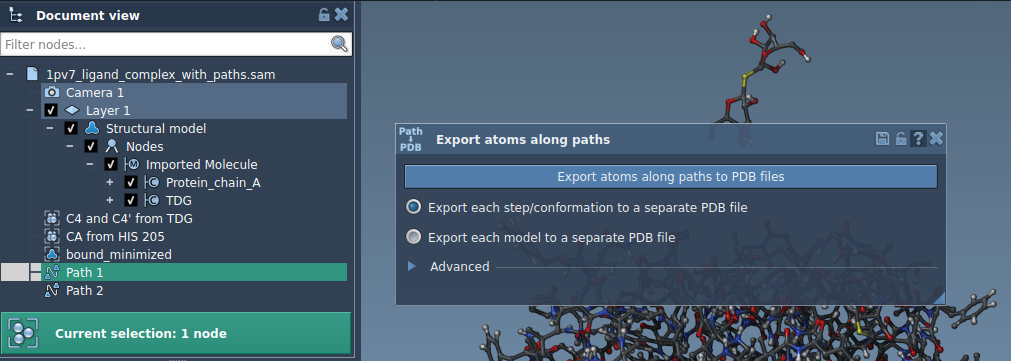
Step 3b: Customize and Export a Subset of Atoms
Sometimes, you might only need a specific subset, such as a ligand or structural backbone:
- Expand the Advanced panel in the Export Along Paths app.
- Select your desired subset (e.g., ligand TDG) in the Document view.
- Click Add to define this selection as a model for export.
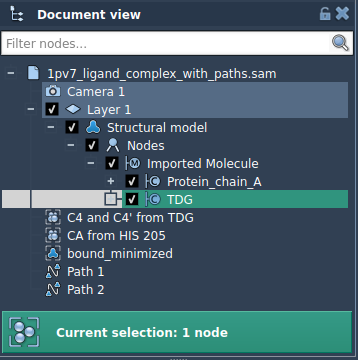
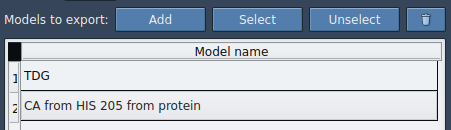
You can add multiple groups of atoms using the same procedure, rename models, and modify or reset selections if needed. Once ready, select the paths and click Export atoms along paths to PDB files.
Applications in Molecular Modeling
The Export Along Paths extension simplifies workflows and opens up new possibilities:
- Create reaction coordinate files for free energy profiling.
- Generate ligand exit or entry trajectories for advanced sampling techniques.
- Export intermediate states for visualizations or other downstream processes.
- Focus exclusively on key structures like ligands or binding sites.
For detailed guidance, visit the full documentation at this link.
SAMSON and all SAMSON Extensions are free for non-commercial use. Download SAMSON today at SAMSON Connect!