



Molecular modelers often face the challenge of preparing input data for downstream analyses, such as free energy profiling or reaction coordinate studies. If you’re addressing these tasks, the “Export Along Paths” extension in SAMSON provides an effective and streamlined way to export atomic coordinates along predefined paths. This blog post will guide you through a practical use case and highlight solutions to common bottlenecks.
Why Export Atomic Coordinates?
When working with molecular systems, especially those involving ligand pathways or reaction trajectories, understanding atomic movements is critical. Exporting atomic coordinates along paths helps you perform advanced workflows, such as generating reaction coordinate files, visualizing intermediate states, or conducting enhanced sampling in simulations. For example, you might compute and optimize the extraction path of a ligand and subsequently need the coordinates for free energy calculations.
Step-by-Step: Exporting Atomic Coordinates Along a Path
Using SAMSON’s “Export Along Paths” extension makes this process straightforward. Here’s how you can do it:
1. Open the Export Along Paths App
First, locate the app by navigating to:
- Home > Apps > All > Export Along Paths
You can also access it quickly using the shortcut Shift + E. This opens the user-friendly interface designed specifically for path-based atomic coordinate export.
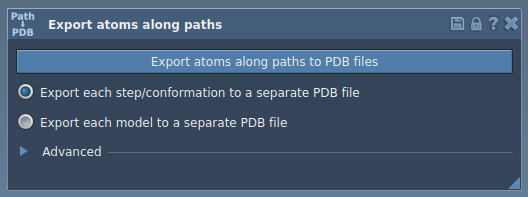
2. Export All Atom Coordinates
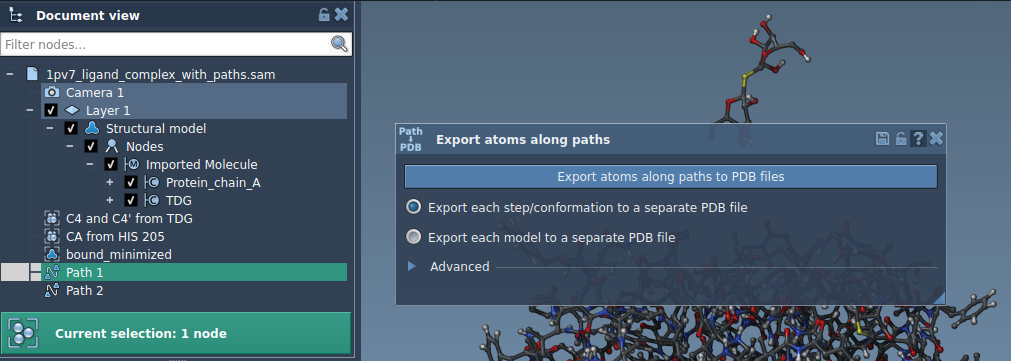
If you want to export the coordinates of all atoms along a selected path:
- Select the path(s) in the Document view.
- Decide your export format:
- All frames in a single PDB file, or
- Each frame in separate PDB files.
- Click Export atoms along paths to PDB files.
You’ll then be prompted to choose a destination folder and a file prefix for the exported data, making file organization seamless.
3. Export a Subset of Atoms
Sometimes, you might only need data for a specific subset of atoms, like a ligand or binding site. Here’s how to do it:
- Expand the Advanced panel in the app.
- Select the subset of atoms you want to export—for example, the ligand
TDG—in the Document view. - Add this selection as a model by clicking Add.
Your selected subset will appear in a table within the app interface, which allows for easy renaming and management of multiple models. You can even highlight included atoms or reset selections via the context menu or existing buttons.
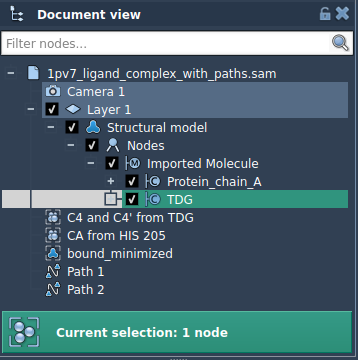
Once configured, choose your export format, select the relevant path(s), and click Export atoms along paths to PDB files. This approach ensures you focus only on the necessary molecular information for your study.
Why Choose the Export Along Paths Extension?
Whether you’re conducting free energy studies, tracking ligand trajectories, or visualizing molecular interactions, this extension offers flexibility and precision. With options to export all atoms or specific subsets, you can tailor your output to exactly what your project demands.
To explore these features in more detail, visit the comprehensive documentation page.
*Note: SAMSON and all SAMSON Extensions are free for non-commercial use. You can get SAMSON by visiting SAMSON Connect.