



When working on complex molecular systems, navigating and managing different selections can become a daunting task. Whether you’re analyzing ligands, receptors, or specific residues, keeping track of multiple regions of interest can slow down your workflow and distract you from your modeling objectives. Enter Quick Groups—a simple yet powerful feature in SAMSON that allows for seamless selection management and switching, bringing efficiency to your molecular design process.
What are Quick Groups?
Quick Groups are temporary and easy-to-use selection sets that enable you to rapidly save, toggle, and zoom between various molecular selections within a SAMSON document. Using numeric shortcuts or the Document view, Quick Groups make it easy to organize and recall key structural elements during your workflow.
Unlike permanent groups, Quick Groups are highly flexible—they can be cleared or redefined at any moment, making them ideal for iterative workflows or exploratory design sessions.
Why Use Quick Groups?
Molecular modelers often need to switch between different structural elements for visualization, analysis, or simulation preparation. Manually recreating selections every time can be time-consuming. Quick Groups solve this problem by letting you save specific selections and retrieve them instantly. This comes in handy for:
- Navigating between structural elements such as ligands, receptors, and water molecules.
- Comparing different parts of molecular structures without losing context.
- Applying distinct visual styles or transformations to selected regions.
- Streamlined workflows, whether for teaching, designing, or analyzing molecular systems.
How to Create a Quick Group
- Make a selection: Choose atoms, residues, or any other nodes you want to save as a group.
- Assign to a Quick Group:
- Using the mouse, hover over a Quick Group slot in the Document view and press Shift + click to assign the selection.
- Using the keyboard, press Shift + a number key (e.g., Shift + 2) to assign to Quick Group 2.
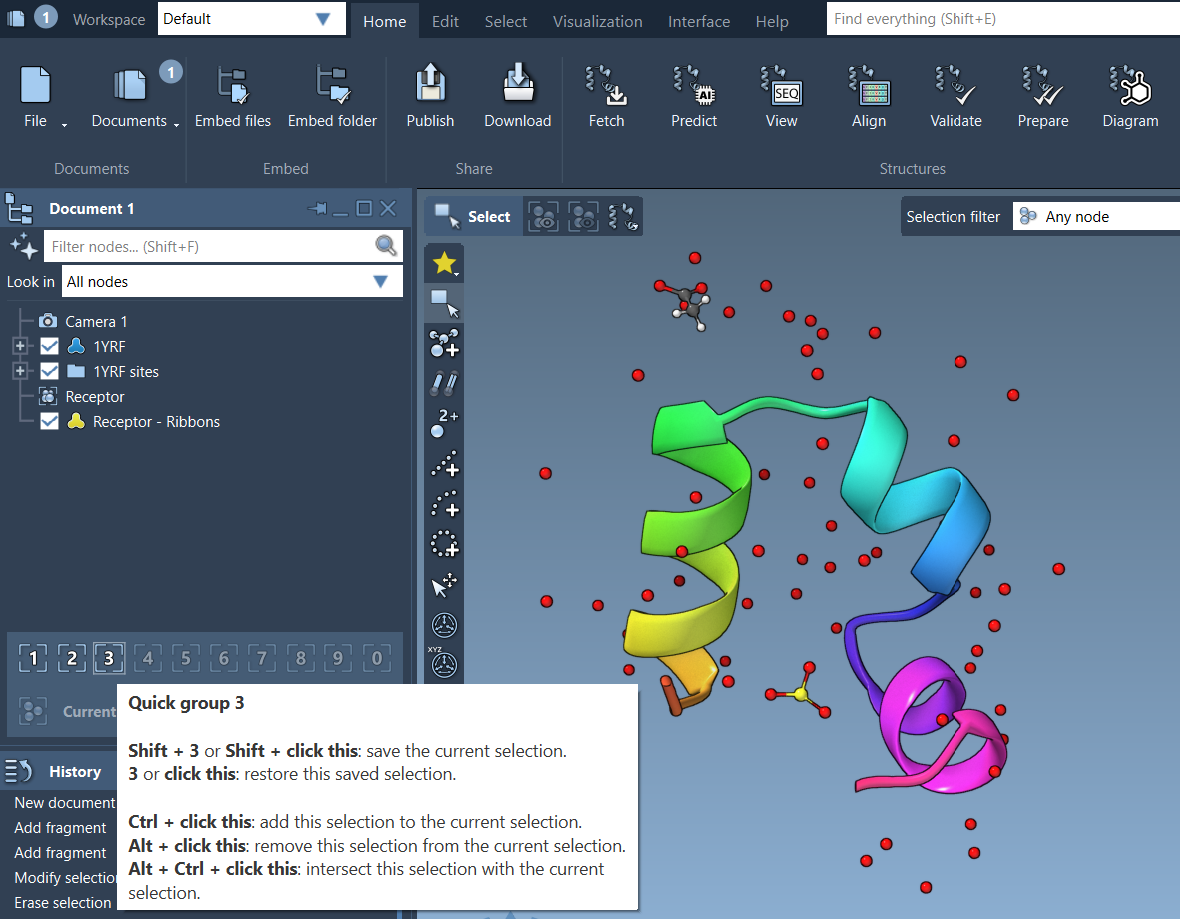
You can create up to 10 Quick Groups (indexed 1–10), and each Quick Group will appear in the lower section of the Document view for easy identification and retrieval.
Switching and Navigating Quick Groups
Once Quick Groups are assigned, toggling between them is straightforward:
- Keyboard shortcut: Press the assigned number key (e.g., 1) to activate a specific Quick Group.
- Double-press: Quickly press the number key twice (e.g., 1 1) to zoom in on the corresponding selection.
- Document view: Click on the Quick Group icon directly to activate it.
These options make Quick Groups a versatile tool, offering the convenience of real-time switching reminiscent of control groups in strategy games.
Example Workflow
Here’s a practical example of how Quick Groups can simplify your molecular modeling:
- Select a ligand and assign it to Quick Group 1.
- Select a receptor and assign it to Quick Group 2.
- Select water molecules and assign them to Quick Group 3.
- Toggle between these selections using 1, 2, and 3.
- Apply different visual styles, such as ribbons for the receptor and ball-and-stick for the ligand, to enhance your analysis.
Flexibility for Dynamic Workflows
Quick Groups are designed to adapt to your workflow. If priorities shift, you can easily clear or reassign groups without disrupting your project. Simply reselect the relevant nodes and overwrite the Quick Group assignment using Shift + click (mouse) or Shift + number (keyboard).
Learn More
Quick Groups are just one of many tools SAMSON offers to enhance your molecular design experience. To delve further into SAMSON’s selection capabilities, visit the official documentation page.
Note: SAMSON and all SAMSON Extensions are free for non-commercial use. You can get SAMSON at https://www.samson-connect.net.