



If you’re a molecular modeler striving to refine your simulations with precise control, then customizing atom typization in SAMSON using the Universal Force Field (UFF) could be exactly what you need. However, it’s not just about flipping a switch—it requires understanding, precision, and a solid workflow. This guide walks you through the key options for atom typization customization in SAMSON, ensuring you get the most out of your molecular simulations.
What is Atom Typization, and Why Does It Matter?
Atom typization refers to assigning specific types to atoms based on their chemical properties, which determines how they interact within a simulation. Having control over this process can significantly influence the accuracy of your simulation results. While UFF automatically calculates atom types, there are times when you might want to adjust these parameters manually to address unique modeling needs or specific molecular configurations.
Customizing Typization with UFF: Step-by-Step
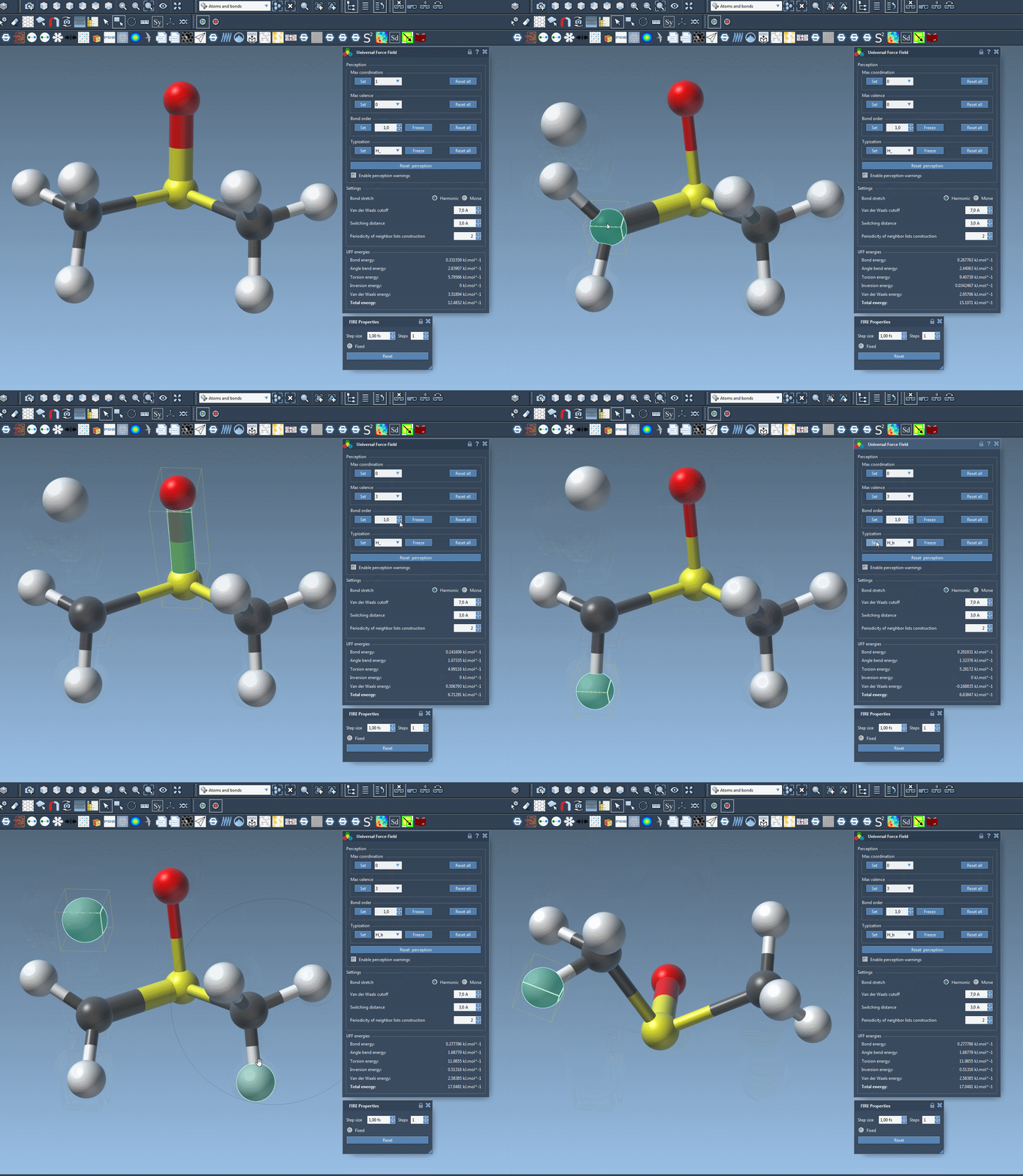
With SAMSON, you can fully customize atom types, bond orders, and other parameters for advanced control over your models. Here’s a breakdown of the process:
1. Modify Atom Coordination and Valence
- Atoms in UFF come with default maximum coordination (number of neighbors) and maximum valence (neighbors weighted by bond order).
- To modify these, select an atom, choose a new value from the combo box, and click the Set button. The new value is applied during the next perception round.
- Keep in mind: Coordination or valence values can only be reduced relative to their defaults.
2. Fine-Tune Bond Orders
Adjusting bond orders can make a significant difference in molecular geometry and energy calculations. This can be done in the following steps:
- Select a bond (or multiple bonds), set a desired bond order value (between 0.1 and 3.9), and click Set to apply it.
- To prevent bond orders from being modified after subsequent perception rounds, select the bonds and click the Freeze button.
- Non-integer bond orders can also be set for greater flexibility.
3. Control Atom Typization
You can override UFF’s automatic atom typing to force specific atom types:
- Select the atom(s) you wish to alter and assign a new atom type from the UFF parameter window. Hit Set to lock it in.
- If you’d like this type to remain unchanged in future perception rounds, use the Freeze button under the Typization group.
Resetting and Recomputing Typization
If your customizations stray too far or lead to inconsistencies, SAMSON provides simple tools for resetting:
- Use Reset all buttons to undo all customizations.
- For a fresh perception based on current settings and atom positions, click Reset perception. Note that new bond creations may occur depending on atomic distances.
Why Approach Custom Typization with Caution?
While the ability to customize atom types and bond parameters opens up exciting possibilities, it can also introduce errors if not handled carefully. Keep the following in mind:
- Incorrect settings can lead to unstable or inaccurate molecular structures.
- Only advanced users with a deep understanding of molecular modeling should modify default atom typizations.
Conclusion
Customizing typization in SAMSON with UFF is a powerful feature that allows advanced users to fine-tune their molecular simulations. By understanding and utilizing these options, you can gain greater control over your modeling processes and achieve highly accurate results. To dive deeper into customizing typizations and other UFF features, visit the full documentation.
Note: SAMSON and all SAMSON Extensions are free for non-commercial use. You can get SAMSON at https://www.samson-connect.net.