



Molecular modeling often involves studying the transitions between different conformations of a system, such as ligand unbinding pathways or chemical reactions. A major challenge is to refine rough or preliminary pathways into physically meaningful transitions that accurately represent the intermediate states. The Parallel Nudged Elastic Band (P-NEB) method in SAMSON offers a solution to this pain point, enabling researchers to optimize transition paths efficiently.
Using the P-NEB app in SAMSON, you can take a rough path or a set of conformations and relax it into a smoother, energy-minimized path. This is especially useful for determining transition pathways between local energy minima, such as protein-ligand interactions or chemical reaction intermediates.
Why Use the P-NEB App?
The P-NEB method optimizes the conformations of intermediate states while ensuring that the spacing between neighboring states remains even, thanks to spring forces. This leads to a more realistic and physically meaningful transition path compared to linear interpolation or other simple methods of creating pathways.
For example, if you already have a ligand unbinding pathway generated with SAMSON’s Ligand Path Finder app, P-NEB can be applied to refine the pathway further. By minimizing energy along the path while maintaining consistent state distribution, you can gain insights into transitions’ energetics and mechanistics.
Quick Start Guide
Here’s how to begin optimizing molecular transition paths with P-NEB:
- Add Extensions: Make sure the P-NEB and FIRE state updater extensions are installed in SAMSON.
- Load a Path or Set of Conformations: You can either load a sample path, such as a Zinc ligand unbinding trajectory (example link), or create your own path using linear interpolation or other SAMSON apps.
- Launch the App: From the Home menu, go to Apps > All > P-NEB. Alternatively, use the Find everything… search bar in SAMSON to locate the app quickly.
Setting Up the P-NEB Optimization
Within the P-NEB app, configure the following parameters:
- Spring constant: Default to 1.00, but this can be fine-tuned based on your system.
- Number of loops: Set the number of optimization iterations (e.g., 100).
- Interaction model: Choose the force field, such as the “Universal Force Field (UFF),” for calculating energies and forces.
- Optimizer: Select the animation optimization algorithm, such as “FIRE” (Fast Inertial Relaxation Engine).
- Climbing image: Uncheck this initially for faster computations, although it can be useful for refining saddle points later.
- Parallel execution: Enable this option to accelerate computations if working with conformations.
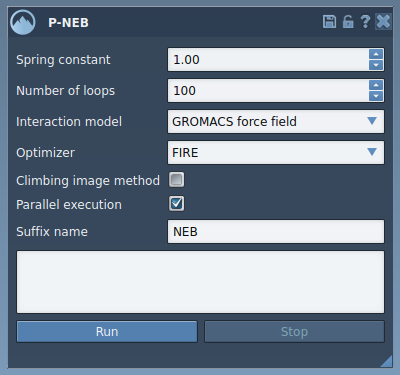
Once all settings are configured, select your path or conformations in the Document view, and hit the Run button in the app. The optimization process will begin, with real-time progress visible in the status bar.
Results and Next Steps
When the computation is complete, a new optimized path or a refined set of conformations will appear in the Document view. You can inspect the new path, animate it, or analyze it using SAMSON’s Inspector and other tools. By refining transition paths with P-NEB, you can proceed with greater accuracy in further simulations or free-energy workflows.

For more detailed steps and settings on how to use P-NEB, visit the official documentation.
SAMSON and all SAMSON Extensions are free for non-commercial use. Get SAMSON at https://www.samson-connect.net.