



For molecular modelers, bridging 2D molecular design with 3D visualization often feels cumbersome, especially when ensuring real-time synchronization between the two. SAMSON’s Interaction Designer solves this problem, offering seamless integration to create and modify molecular structures in 2D while staying synchronized with 3D models. This post dives into the core workflow of designing new molecules using this intuitive tool.
Building Molecules: A Smooth Start
With the Interaction Designer, creating molecules in 2D has never been easier. To begin, navigate to Edit > Design to activate the design interface. Here’s how you can build molecules in a variety of ways:
- From scratch: Simply begin designing without any prior molecules in your workspace.
- Using existing structures: Start with molecules from the active document or any selection already in use.
The result? A consistent 2D workspace where each action instantly reflects in the 3D viewport, keeping both dimensions in sync for accurate modeling.
Add Atoms, Fragments, and More
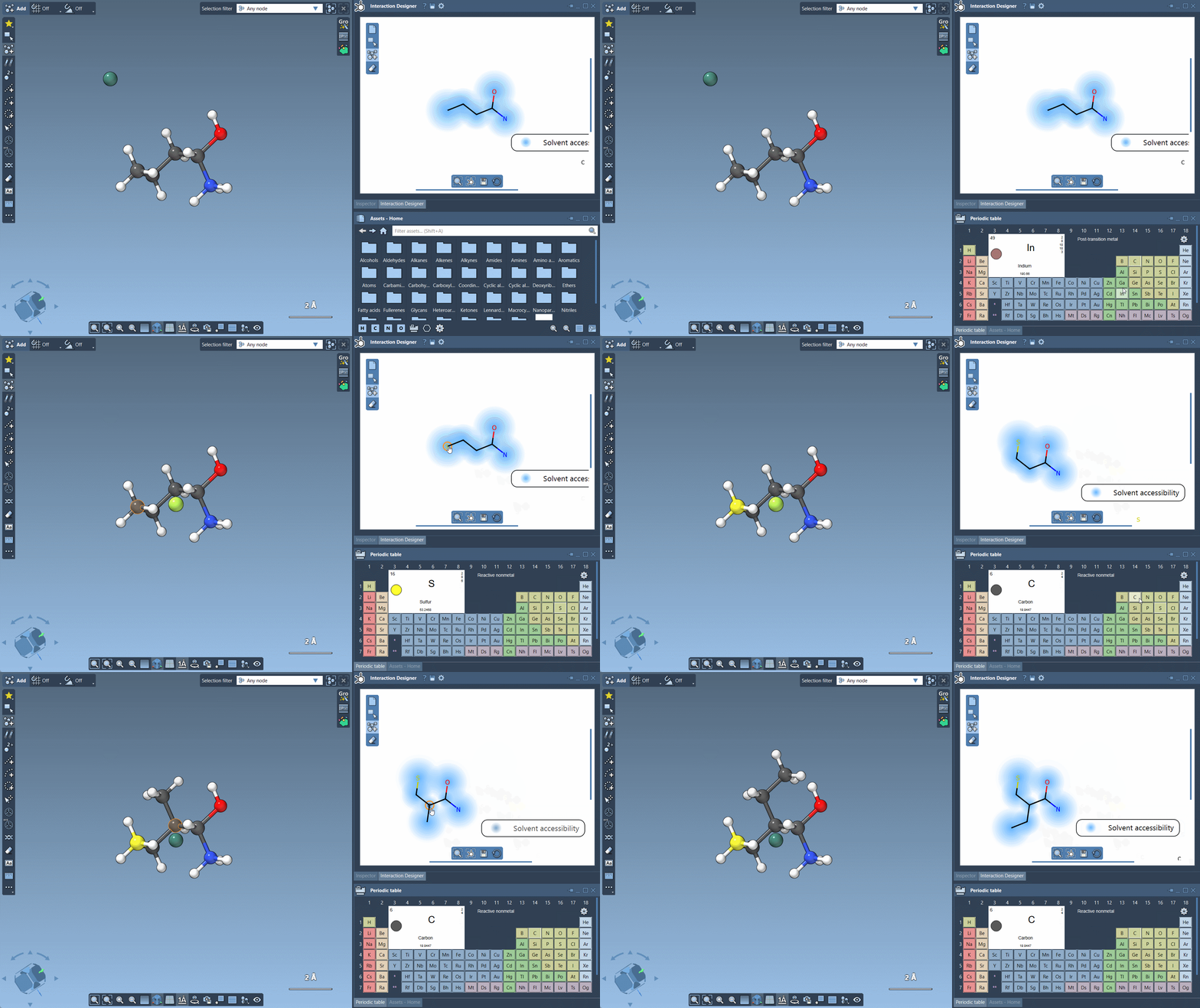
The Interaction Designer simplifies every step of molecule creation. In the left panel, click on the  Add button to activate “building mode” (defaulted to Carbon atoms). From here, you can:
- Add atoms: Click anywhere to place an atom, and click on already placed ones to extend your molecular structure.
- Change atom types: Utilize accessible shortcuts for elements like H, C, N, and O at the bottom of the Asset Browser. For other elements, simply open the
 Periodic Table and select the desired element.
 - Use fragments: Explore the Asset Browser to choose molecule fragments for quick placement. Adjust fragment pivot points by holding
Ctrl(orCmd) and selecting the desired atom within the fragment.
Want a glimpse of how intuitive this process is? Here’s a demonstration of building with available atoms from the periodic table:
Modify, Delete, and Refine
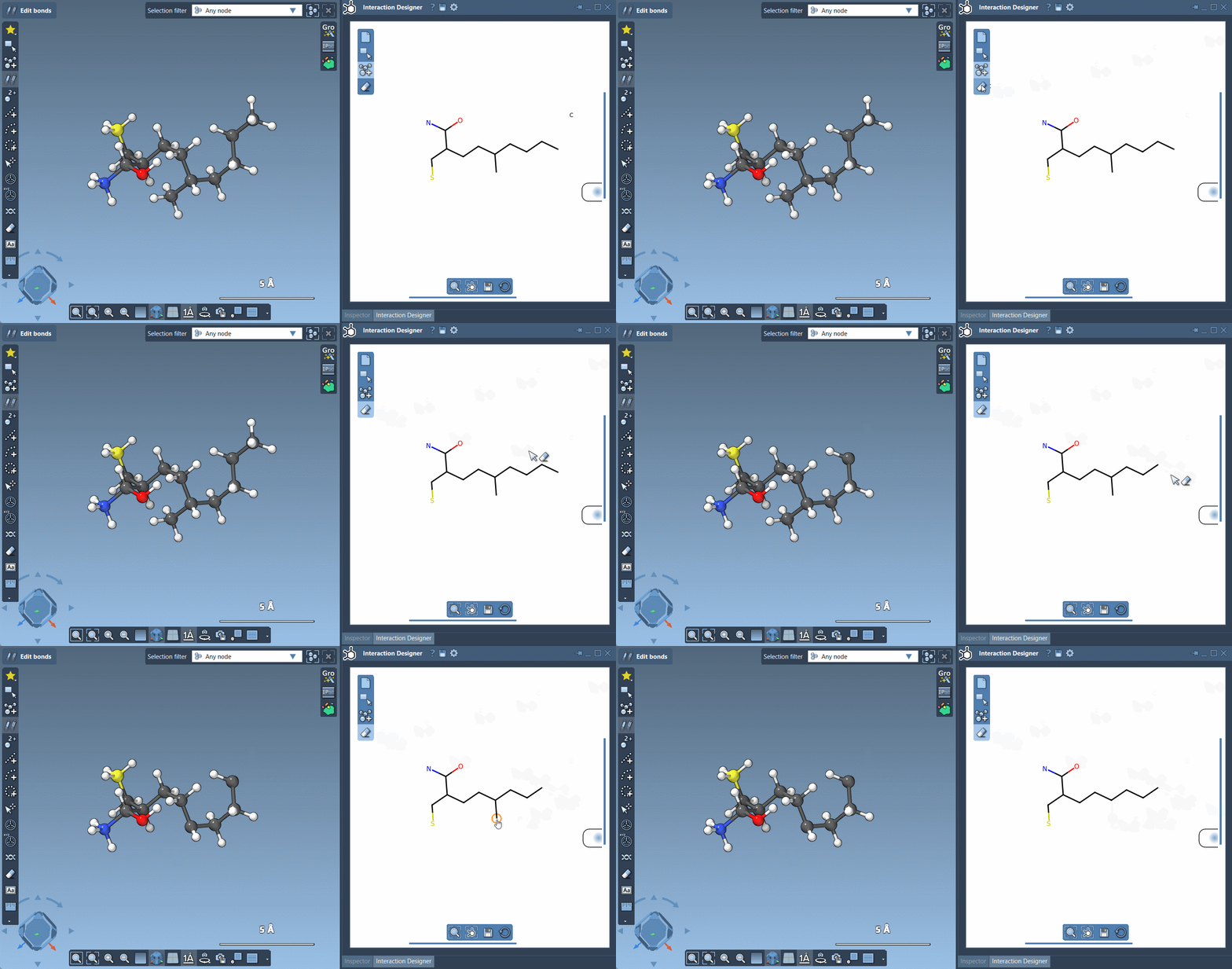
The Interaction Designer lets you adjust molecular structures effortlessly:
- Modify atom types: Simply select an existing atom and replace it by selecting a new one from the periodic table or the asset browser.
- Erase atoms: Activate the
 Erase mode to click on and delete unwanted atoms with ease.
This level of control ensures that both beginners and experts can refine their molecular designs effectively.
Export Your Work
Once your design is complete, the Interaction Designer allows you to export your 2D sketches and interaction diagrams in various image formats such as PNG, JPEG, BMP, or SVG. This feature makes sharing your work with collaborators or integrating visuals into publications a breeze.
Why Modelers Should Care
The beauty of the Interaction Designer lies not just in its advanced features but in how it connects 2D and 3D modeling seamlessly. Whether you are designing molecules from scratch, tweaking existing structures, or working on a large system, this tool simplifies your workflow while enabling precision.
Learn more about SAMSON’s Interaction Designer to take your molecular modeling experience to the next level.
SAMSON and all SAMSON Extensions are free for non-commercial use. You can get SAMSON at https://www.samson-connect.net.