



Reconstructing and analyzing symmetric protein structures is a crucial step in molecular modeling and design workflows, yet achieving it efficiently can often be a pain point. If you’ve ever struggled to visualize biological assemblies, reconstruct quaternary structures, or explore protein interfaces from crystallographic data, SAMSON’s Symmetry Mate Editor can save you time and effort!
This article walks you through key functionality of the Symmetry Mate Editor and how you can generate, manipulate, and analyze symmetric protein replicas from PDB data. Let’s uncover how this tool can support your molecular design workflows.
Why Symmetry Matters for Molecular Modelers
Symmetry data in protein structures helps to:
- Visualize full biological assemblies from crystallographic units.
- Explore protein-protein interfaces and potential binding sites.
- Reconstruct quaternary structures crucial for simulation and design.
- Create symmetric protein nanostructures in design pipelines.
For instance, symmetry mates provide essential insight into how proteins interact and aggregate, whether for studying molecular dynamics or designing complex assemblies like protein cages.
Getting Started with the Symmetry Mate Editor
Follow these basic steps to enable the editor and explore its power:
- Install the Tool: Ensure you’ve added the Symmetry Mate Editor extension to your SAMSON installation.
- Load Symmetry Data: Open a PDB file with symmetry information (e.g., CRYST1 records for crystal structures or BIOMT records for biological assemblies).
How to Interact with Symmetry Mates
Once activated, control nodes appear in the viewport, representing symmetry transformations. Here are three valuable ways to interact with symmetry mates:
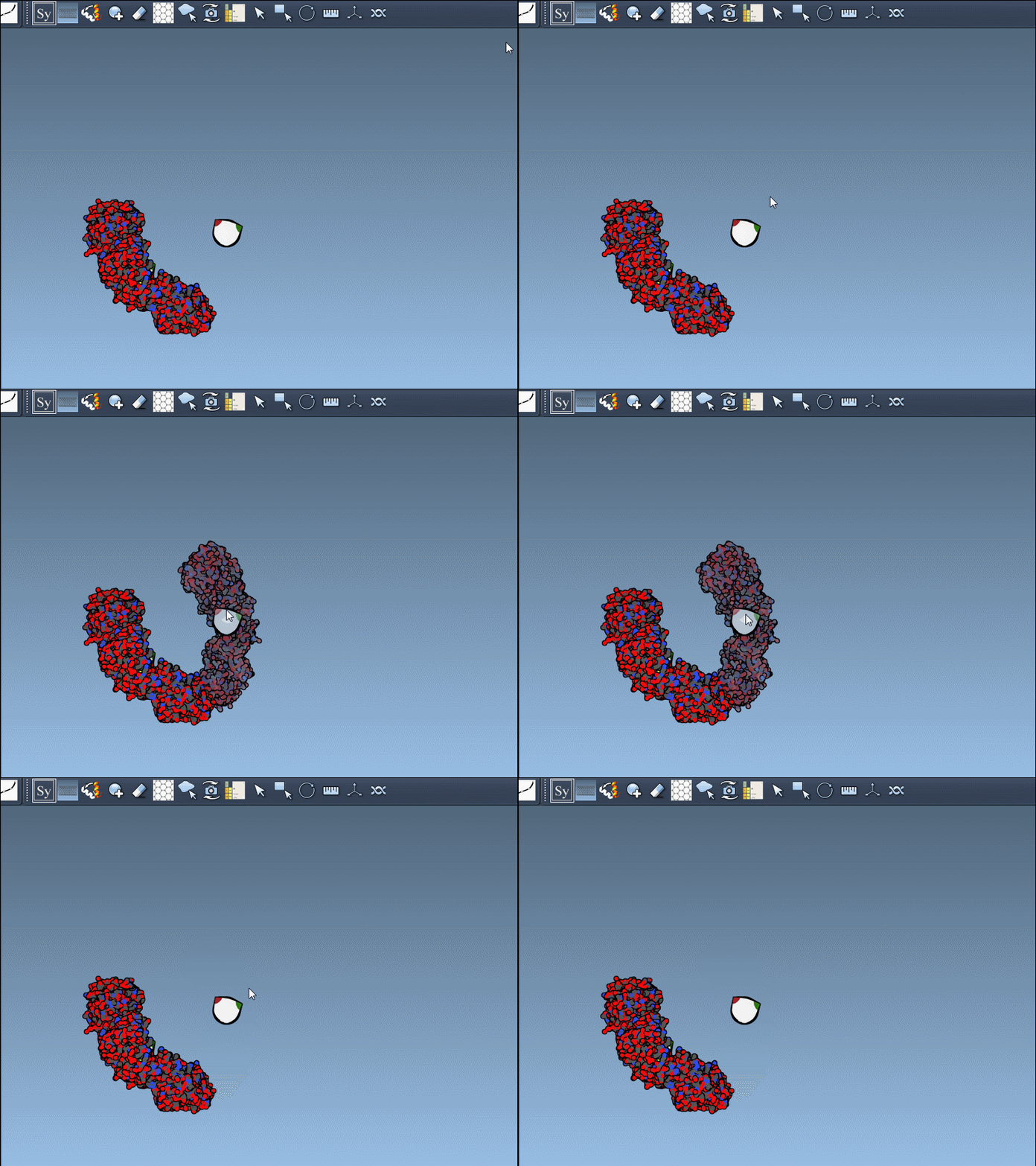
- Preview replicas: Hover over control nodes to visualize the structure of a replica in real time.
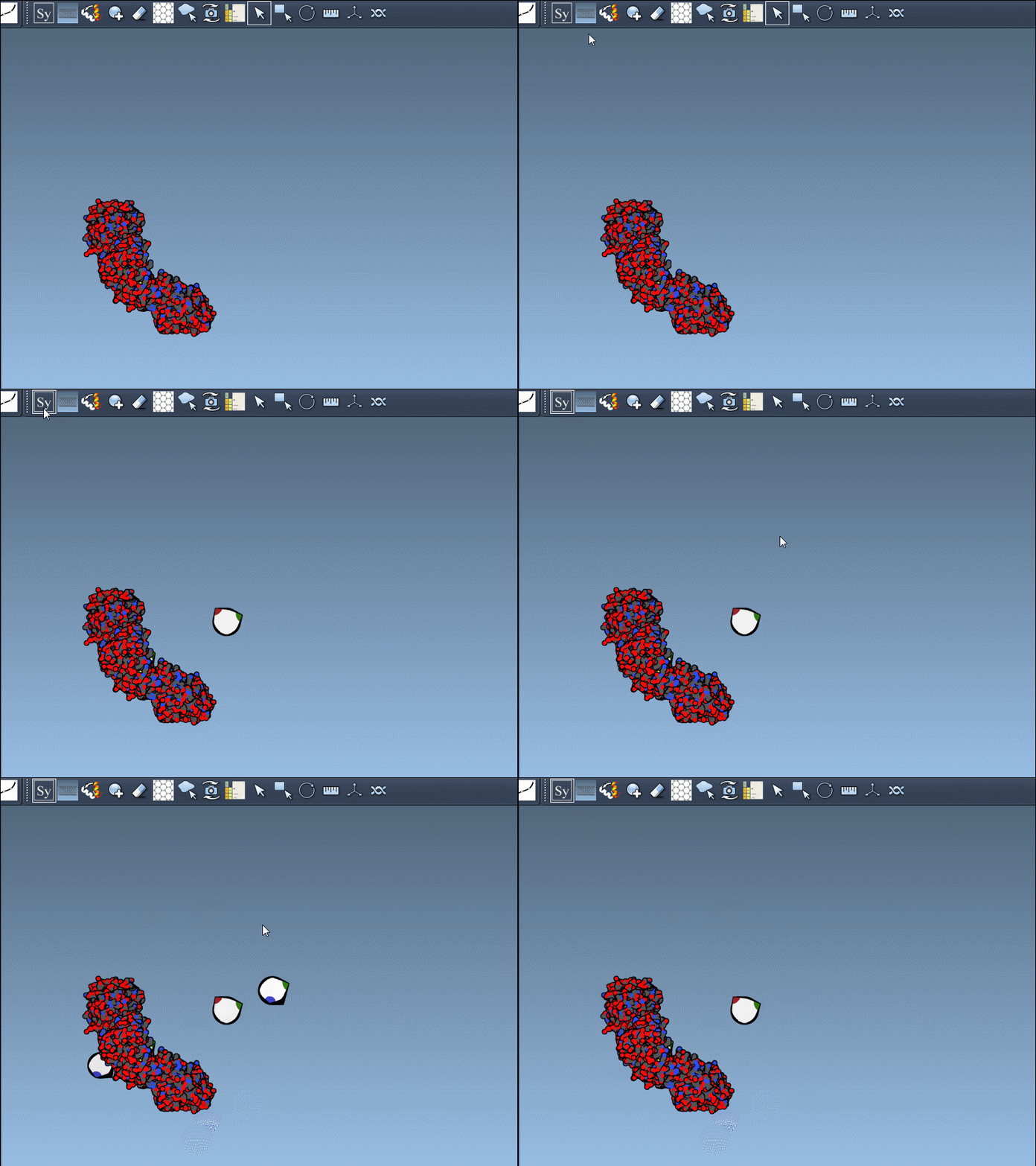
- Generate specific mates: Left-click on a node to permanently generate a particular replica.
- Generate all mates: Hold Ctrl/Cmd and click on a control node to populate all replicas in one action.
You can even scale the visibility of control nodes interactively using the Ctrl/Cmd + mouse wheel. Below is an illustration showcasing the generation workflow:
And here’s how previews work (hovering for feedback):
CRYST1 vs. BIOMT: Two Symmetry Types
The Symmetry Mate Editor supports two key symmetry records found in PDB files:
| Record Type | Description | Widget Color |
|---|---|---|
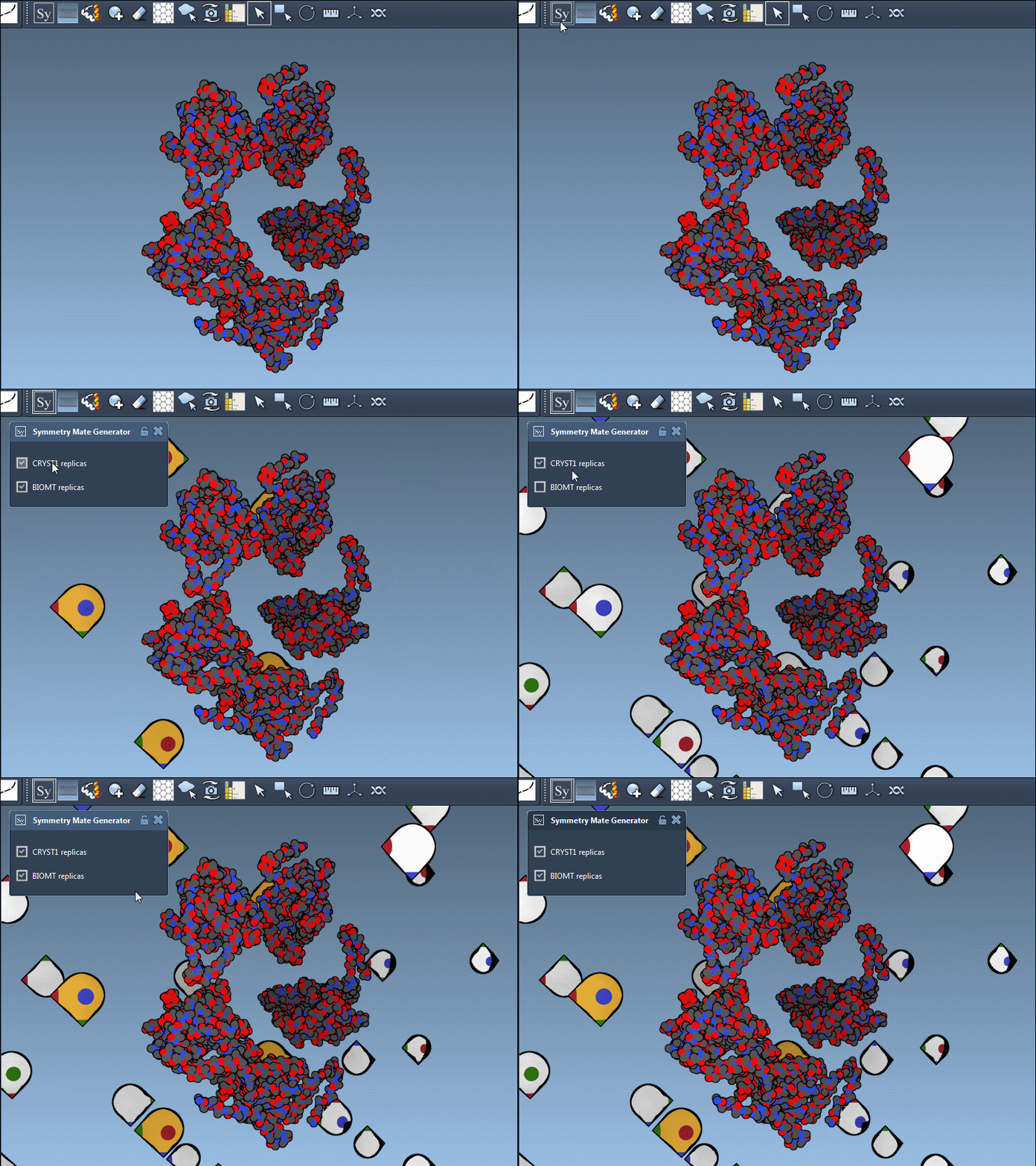
| CRYST1 | Symmetry from crystal lattice data | White |
| BIOMT | Biological assembly symmetry | Yellow |
You can toggle between these symmetry types using the editor interface. Here’s an animation showing the difference when working with dataset 1B5S:
Applications in Molecular Design
Symmetry mate generation is incredibly versatile for molecular modelers. You can:
- Reconstruct oligomeric assemblies for accurate biologically relevant models.
- Analyze repeating structural patterns within symmetric sites.
- Build stable protein scaffolds or symmetric nanostructures.
- Simulate symmetric interactions in molecular dynamics tools like GROMACS.
Ready to Dive Deeper?
The full tutorial provides a more detailed explanation of features and specific tips for using the Symmetry Mate Editor in SAMSON. Whether you’re designing molecular assemblies or testing structural hypotheses, this extension offers critical insights for your research.
Note: SAMSON and all SAMSON Extensions are free for non-commercial use. You can learn more and download SAMSON from here.