



Understanding protein structures and their interactions is a fundamental task for molecular modelers. Yet, reconstructing biologically meaningful assemblies from raw structural data can sometimes feel like piecing together a puzzle with missing edges. This is where SAMSON’s Symmetry Mate Editor comes to the rescue, offering tools for generating symmetric replicas of proteins based on PDB symmetry data. Let’s take a closer look at why this process is important and how you can use the editor effectively.
Why Does Generating Symmetry Mates Matter?
Symmetry mates are not just about creating visually appealing models. They are essential for:
- Visualizing biological assemblies: PDB files often contain information about how crystallographic units pack into larger, biologically significant structures.
- Exploring protein-protein interfaces: By generating symmetry mates, modelers can identify potential binding sites and better understand molecular interactions.
- Reconstructing quaternary structures: Use these reconstructed assemblies to prepare for molecular simulations or evaluate potential designs.
- Building nanostructures: Symmetric replicas are common in designing repeating units for scaffolds or complexes.
Whether it’s predicting interactions, simulating dynamics, or assembling new designs, symmetry mates unlock critical insights for molecular design workflows.
Step-by-Step: Activating the Symmetry Mate Editor
Getting started with the Symmetry Mate Editor is simple:
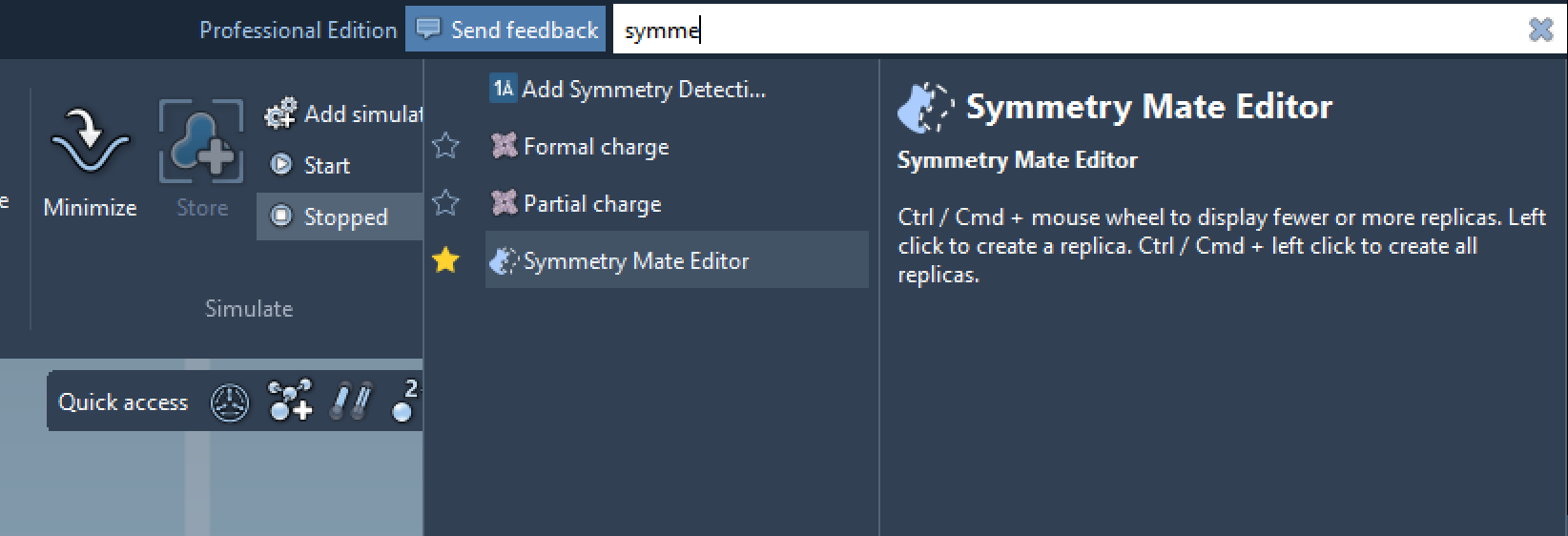
- Access via shortcut: Press Shift + E and type "Symmetry Mate Editor" into the search field.
- Access via the menu: Navigate in the left-side viewport menu to … > General > Symmetry Mate Editor.
Upon activation, the editor introduces control nodes into your viewport, representing symmetry transformations. These nodes are interactive, making the generation process intuitive and highly visual.
Exploring and Generating Symmetry Mates
Once control nodes appear in your viewport, a broad range of possibilities becomes available:
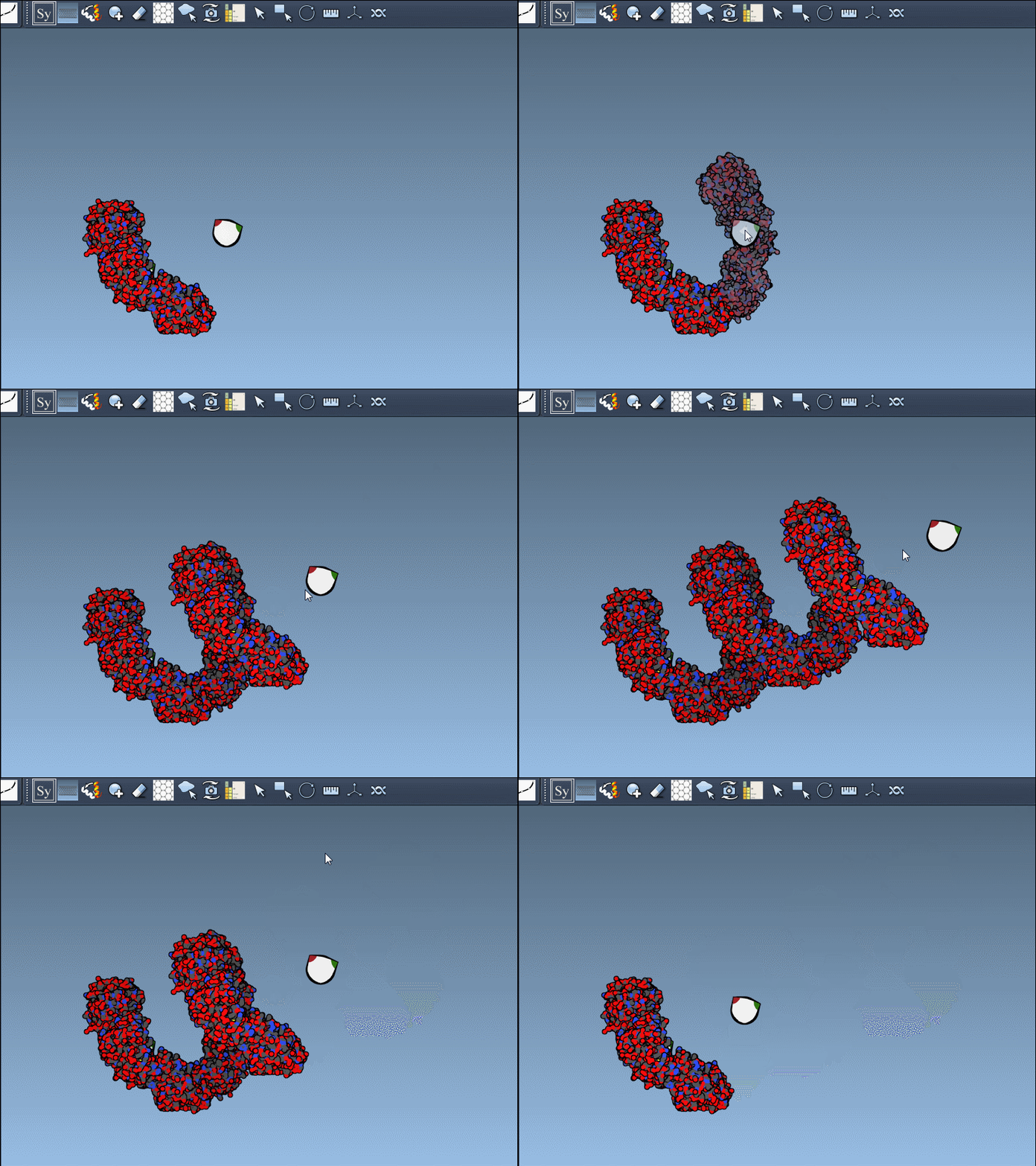
- Preview in real-time: Hover over a node to visualize a possible replica in your structure. This real-time feedback helps you decide which replica to generate next.
- Generate selectively: Left-click on nodes to create permanent replicas only where they’re needed.
- Generate everything at once: Press and hold Ctrl/Cmd before clicking to create all transformations simultaneously. This is incredibly useful for assembling symmetric complexes quickly.
Example: In the gif below, you can see how users can dynamically generate and undo replicas with simple gestures:
Crystallographic vs. Biological Symmetry
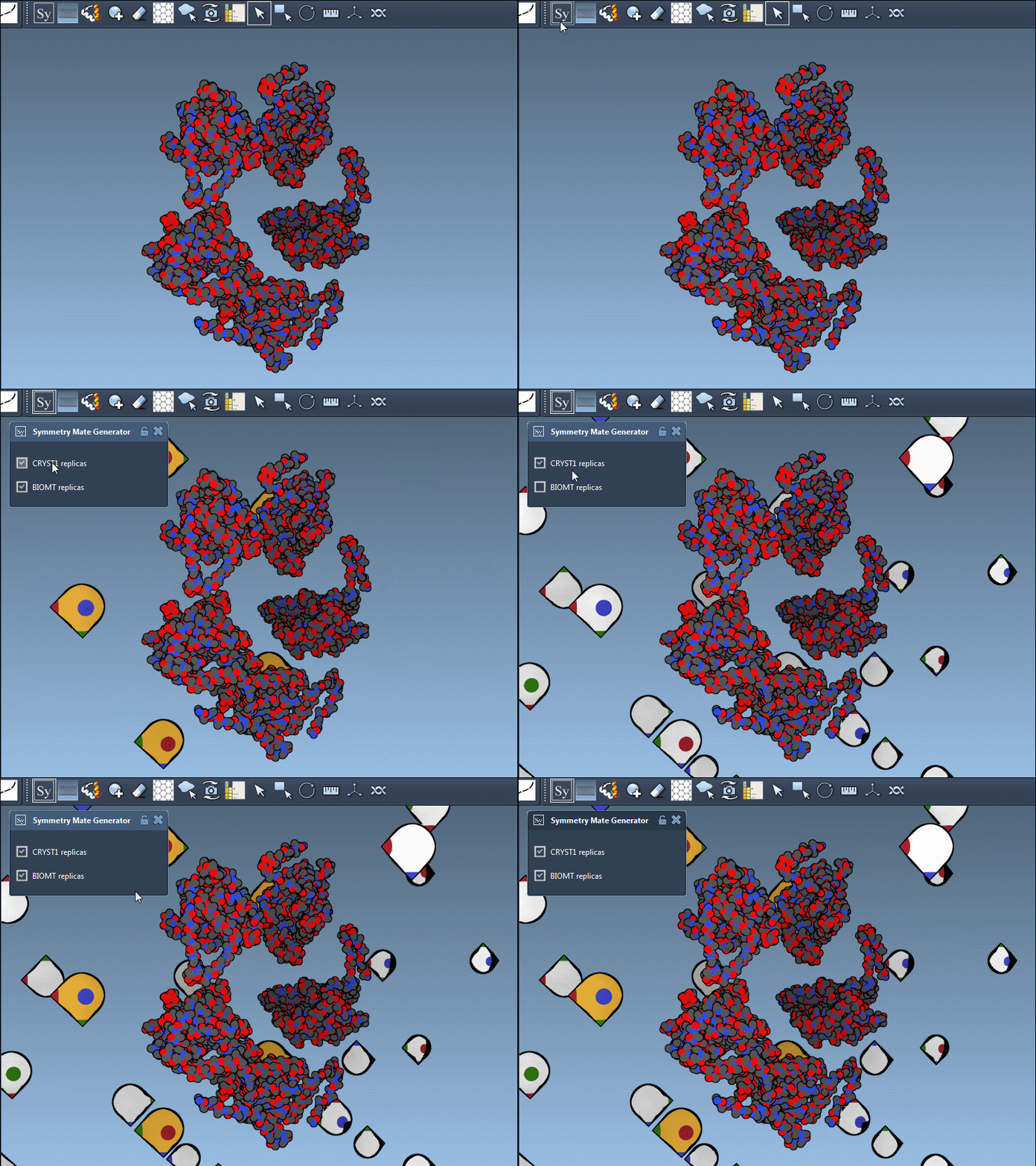
The editor makes it simple to distinguish between two common types of symmetry transformations:
| Record Type | Description | Widget Color |
|---|---|---|
| CRYST1 | Derived from the crystal lattice | White |
| BIOMT | Based on biological assembly annotations | Yellow |
Toggling between CRYST1 and BIOMT symmetries gives you the flexibility to reconstruct either precise lattice arrangements or biologically relevant assemblies. Here is an equal emphasis on both types (example with 1B5S):
Tips for Best Results
To make the most of the Symmetry Mate Editor:
- Color distinct chains using Ribbon visual models to better track transformations.
- Pair with symmetry detection tools for in-depth analyses of symmetry axes and RMSD.
- Use Undo (Ctrl/Cmd + Z) to remove unnecessary replicas without resetting your workflow.
If you’re looking to enhance your protein structure workflows or want to explore symmetric designs, this documentation page offers detailed guidance and further information.
SAMSON and all SAMSON Extensions are free for non-commercial use. Get SAMSON today at SAMSON Connect.