



Building a crystal model can be deceptively difficult. A CIF file may contain symmetry information, partial occupancies, and unit-cell details that are easy to overlook. Or you may know the structure you want but need a reliable way to define its cell and atomic positions. The result can be a model that looks plausible but is hard to inspect, modify, or reproduce.
Crystal Creator in SAMSON supports both routes: import an existing crystal from a CIF file, or define a crystal from its unit cell and atoms. The key is to keep the unit cell, coordinate convention, and any occupancy information clear from the start.
Start with a CIF when the structure already exists
For an existing material, download a CIF from a crystal structure database such as the American Mineralogist Crystal Structure Database or the RRUFF Project Database. Open the file in SAMSON with the Crystal Creator Extension. The import window lets you choose how many unit cells to load, whether to import the data without symmetries, and whether to display the mesh.
After loading, SAMSON adds the structural model and a property model to the data graph. Use the property model to inspect the crystal and its settings. If the CIF describes defects or substitutions, the imported model can represent them; the property window also provides a check of whether the ratios of atom presence or absence are respected.
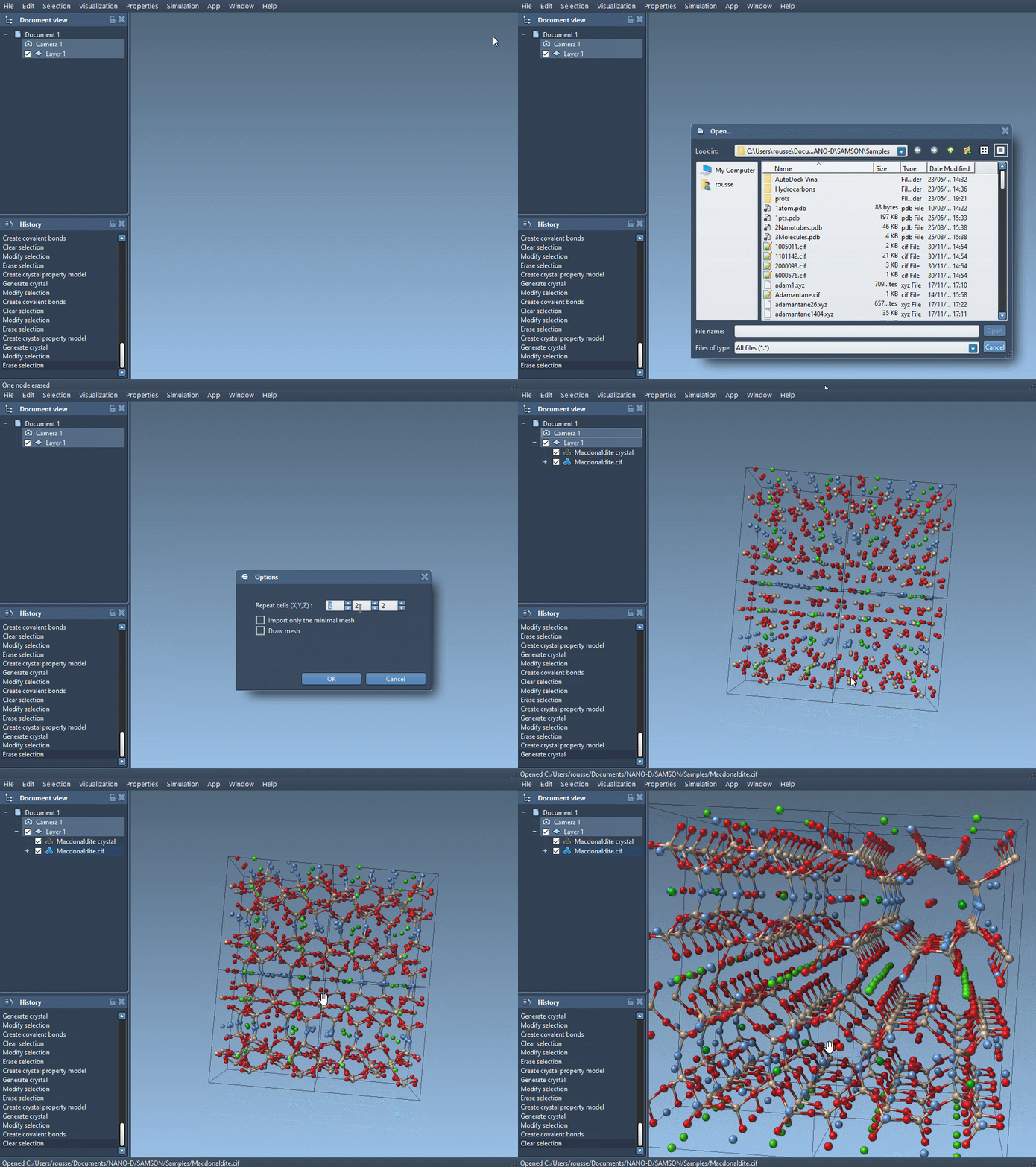
This step is useful for more than getting atoms on screen: it gives you a starting point for checking what the file actually describes before you cut or otherwise modify the crystal.
Cut the crystal with a defined direction
To create a slab or inspect a particular face, open the property model’s properties. In the cutting controls, the first three values specify the direction using Miller indices; the fourth specifies the distance from position 0 where the cut is made. For example, the documentation suggests cutting a diamond crystal along [111] to see its compact hexagonal structure.
![Cutting a crystal in the [111] direction](https://documentation.samson-connect.net/tutorials/crystal-creator/images/CC-cutCrystal.gif)
Think of these inputs as a way to describe the cut, rather than as a visual selection made by dragging. Keeping the direction and offset recorded makes it easier to reproduce the same cut later.
Define a crystal from its unit cell
When you need a custom model, open Crystal Creator from Home > Apps > Materials > Crystal Creator, or search for the app. You can define the cell using its parameters or its vectors, then switch between those notations with Write Matrix/Write Vectors. You also set the position 0, the number of unit cells, and the atoms in the cell.
Each atom entry uses a symbol followed by three coordinates, one atom per line. The symbol must begin with the element symbol; extra characters can identify an atom, as in C0 or C1. Pay attention to the coordinate convention selected in the app: relative coordinates describe proportions of the unit-cell vectors, while absolute coordinates are given in angstroms. Mixing these conventions is an easy way to enter positions that do not mean what you intended.
For example, an FCC aluminum cell with a cubic lattice parameter of 4.05 Å uses these relative positions:
|
1 2 3 4 |
Al 0 0 0 Al 0 0.5 0.5 Al 0.5 0 0.5 Al 0.5 0.5 0 |
The diamond example uses a cubic cell with a lattice parameter of 3.60 Å and eight listed carbon positions:
|
1 2 3 4 5 6 7 8 |
C0 0 0 0 C1 0.25 0.25 0.25 C2 0 0.5 0.5 C3 0.5 0 0.5 C4 0.5 0.5 0 C5 0.25 0.75 0.75 C6 0.75 0.25 0.75 C7 0.75 0.75 0.25 |
Once the structure is set up, save its settings from the property window so you can load the same crystal configuration again. If you are working with defects, the tutorial also shows how a CIF occupancy value such as 0.95 can describe a 95% probability that an atom site is occupied. After importing, use the atom-ratio check to inspect whether the generated model reflects the specified presence and absence ratios.
The practical sequence is simple: choose or define a unit cell, verify the coordinate convention and occupancy information, generate the desired number of cells, and only then cut or further process the model. For the complete walkthrough and additional examples, read the Crystal Creator documentation.
Note: SAMSON and all SAMSON Extensions are free for non-commercial use. Get SAMSON.