



A molecular path can be easy to inspect and surprisingly awkward to reuse. You may have a ligand moving along an unbinding route, but a downstream analysis needs coordinates for the ligand alone—not every atom in the protein. Or you may need a sequence of structures rather than an animation trapped inside a modeling session.
SAMSON’s Export Along Paths extension addresses this practical handoff: it exports atomic coordinates along selected paths as PDB files. The key choice is whether to export every atom represented by the path or define a specific set of atoms, such as a ligand, for export.
First, think about what the next step needs
Before opening the export tool, decide what your output should represent. If the goal is to preserve the complete atomic movement stored in a path, export all atoms. If the question concerns a particular moving group—for example, a ligand’s exit route—export a subset. That distinction can make the resulting files more focused and easier to use in later analysis.
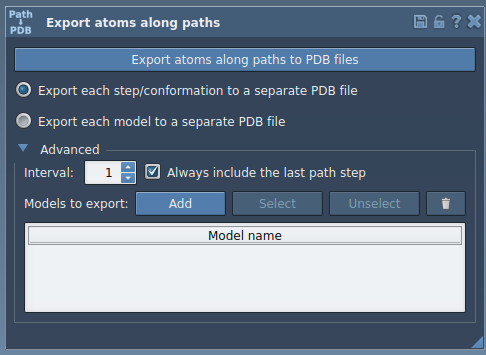
Also choose how you want the frames organized. The extension offers two options: all frames in a single PDB file, or each frame as a separate PDB file. Select the organization that fits the workflow you are preparing. The Advanced section also lets you change the frame export interval, which is useful when you want to control how frequently frames are included.
Exporting a ligand without exporting everything
Open the Export Along Paths app from Home > Apps > All, or find it with Find everything… using Shift+E. In the app, expand Advanced, then select the atoms you want in the Document view. Click Add to register that selection as a model to export.
For example, the tutorial’s sample contains lactose permease (1PV7), the ligand thiodigalactoside (TDG), and two paths. Selecting TDG and adding it as a model creates a ligand-only export selection. You can rename a model by double-clicking its name, and you can add more than one set of atoms if your analysis needs separate groups. The app also provides Select and Unselect controls to highlight the atoms in a listed model, and a Reset option to redefine it.
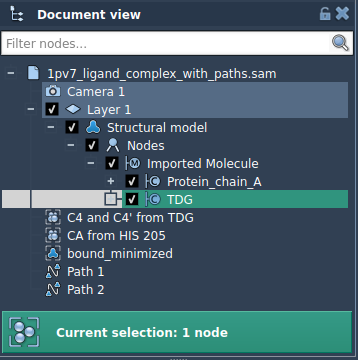
Once the model list is ready, choose the PDB output arrangement, select the relevant path or paths in the Document view, and click Export atoms along paths to PDB files. You will be prompted for a destination folder and file prefix.
Why paths and atom selections matter
In SAMSON, a path is a node that stores atomic trajectories for a group of atoms. Double-clicking a path in the Document view starts or stops movement along it. Exporting turns that stored movement into coordinate data you can take into another step of your work. This can be useful when preparing reaction-coordinate data for free-energy calculations, exporting ligand entry or exit trajectories for enhanced-sampling workflows, or saving intermediate states for visualization.
A useful habit is to verify both parts of the export before starting: the path selection determines which trajectory is being used, while the model list determines which atoms are included. If you intend to export a ligand only, check that the ligand is listed as a model; if you need the full path, use the all-atoms option instead. This small check helps ensure the files you create match the question you are trying to answer.
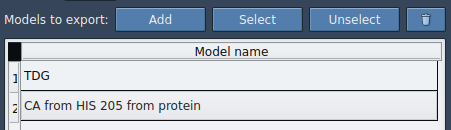
For a complete walkthrough, including loading the sample system and exporting all atoms, see the Export atom trajectories along paths tutorial.
Note: SAMSON and all SAMSON Extensions are free for non-commercial use. Get SAMSON at samson-connect.net.