



A molecular path can be easy to inspect on screen and surprisingly awkward to use in a downstream workflow. If you need a ligand’s changing coordinates for a reaction-coordinate analysis, for example, exporting every atom may leave you with far more data than you need. The practical challenge is to turn a path into coordinate files while keeping the output focused on the atoms and frames relevant to your question.
SAMSON’s Export Along Paths extension exports coordinates along selected paths as PDB files. You can export all atoms represented by a path, or define one or more specific atom groups—such as a ligand—for export. Choosing the right scope before exporting can make the resulting files easier to inspect and use.
Start with the scientific question
Before opening the exporter, decide what you want the coordinates to help you examine. Are you following a ligand as it leaves a binding site? Do you need intermediate structures for visualization? Or are you preparing a ligand-only coordinate series for a later calculation? The answer helps determine whether to export the whole path or a subset of atoms.
For example, the sample system in the tutorial contains lactose permease (1PV7), the ligand thiodigalactoside (TDG), and two paths. If your analysis concerns the ligand’s motion, exporting TDG alone can keep the export list centered on that molecule rather than the entire system. If you need to examine the ligand in the context of its surroundings, exporting all atoms may be more suitable.
Choose an output organization
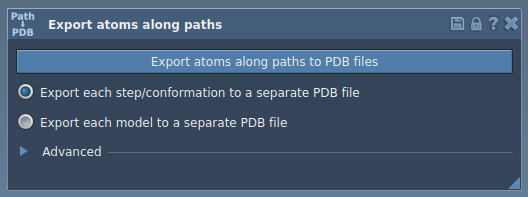
The extension offers two PDB export modes: put all frames into one PDB file, or write each frame as a separate PDB file. A single file keeps a path’s frames together in one output; separate files give you individual structures. Pick the mode that best fits how you plan to inspect or process the coordinates. The app prompts you to choose a destination folder and file prefix when you export.
If the full set of frames is not needed, the Advanced section includes an option to change the frame export interval. This is useful when you want to adjust how frequently frames are written. Consider this choice alongside your analysis needs: a denser export preserves more of the sampled path, while a larger interval produces fewer exported frames.
Export a subset without losing track of it
- Open Home > Apps > All > Export Along Paths, or find the app using Find everything… (Shift+E).
- Expand the Advanced panel and select the atoms you want in the Document view.
- Click Add to add that selection as a model in the export list.
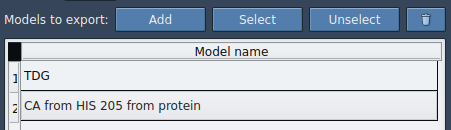
- Give the model a descriptive name by double-clicking its name. Add other atom groups the same way if your analysis needs them.
- Choose the PDB export mode, select the relevant path or paths, then click Export atoms along paths to PDB files.
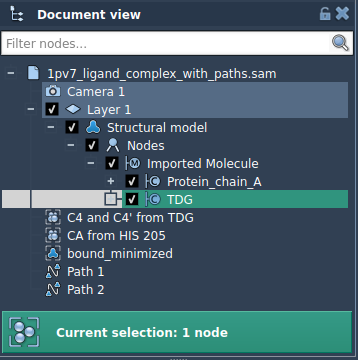
Naming models clearly is a small but useful organizational step, especially when the export includes multiple atom groups. The model list also lets you select or unselect included atoms, and reset a model if you need to redefine it. This makes it easier to check what each entry represents before writing files.
A quick check before you export
- Path: select the path or paths whose coordinates you need.
- Atoms: confirm whether the task calls for all atoms or a defined subset.
- Frames: choose a single PDB file or one file per frame, and review the export interval if using the Advanced options.
- Models: check the names and included selections in the export list.
- Destination: choose a folder and file prefix you can recognize later.
A path in SAMSON stores atomic trajectories for a group of atoms; double-clicking a path in the Document view starts or stops motion along it. Exporting selected coordinates gives you a way to take those path frames into later analysis, visualization, or simulation workflows. For a worked example and full interface details, read the original Export atom trajectories along paths tutorial.
Note: SAMSON and all SAMSON Extensions are free for non-commercial use. Get SAMSON.