



Exploring a promising molecule often means asking a deceptively simple question: what happens if I change one position at a time? Making those variants by hand can become repetitive, and it is easy to lose track of which modification produced which structure. Positional analogue scanning offers a more systematic starting point: define a molecular pattern, choose a replacement or attachment, and generate a set of related analogues to inspect.
In SAMSON, the SMILES Manager extension can run this workflow from either a SMILES string or a molecule already present in your document. The useful idea is to keep the starting structure fixed while scanning matching positions, so you can compare a family of related structures rather than building every candidate separately.
Start with a clear question
Before opening the tool, decide what structural change you want to explore. Are you replacing a particular atom or group, or attaching a substituent to a set of positions? This choice determines both the pattern you search for and the modification you request. A broad pattern may produce many results; a more specific one can keep the scan focused on the chemical question you care about.
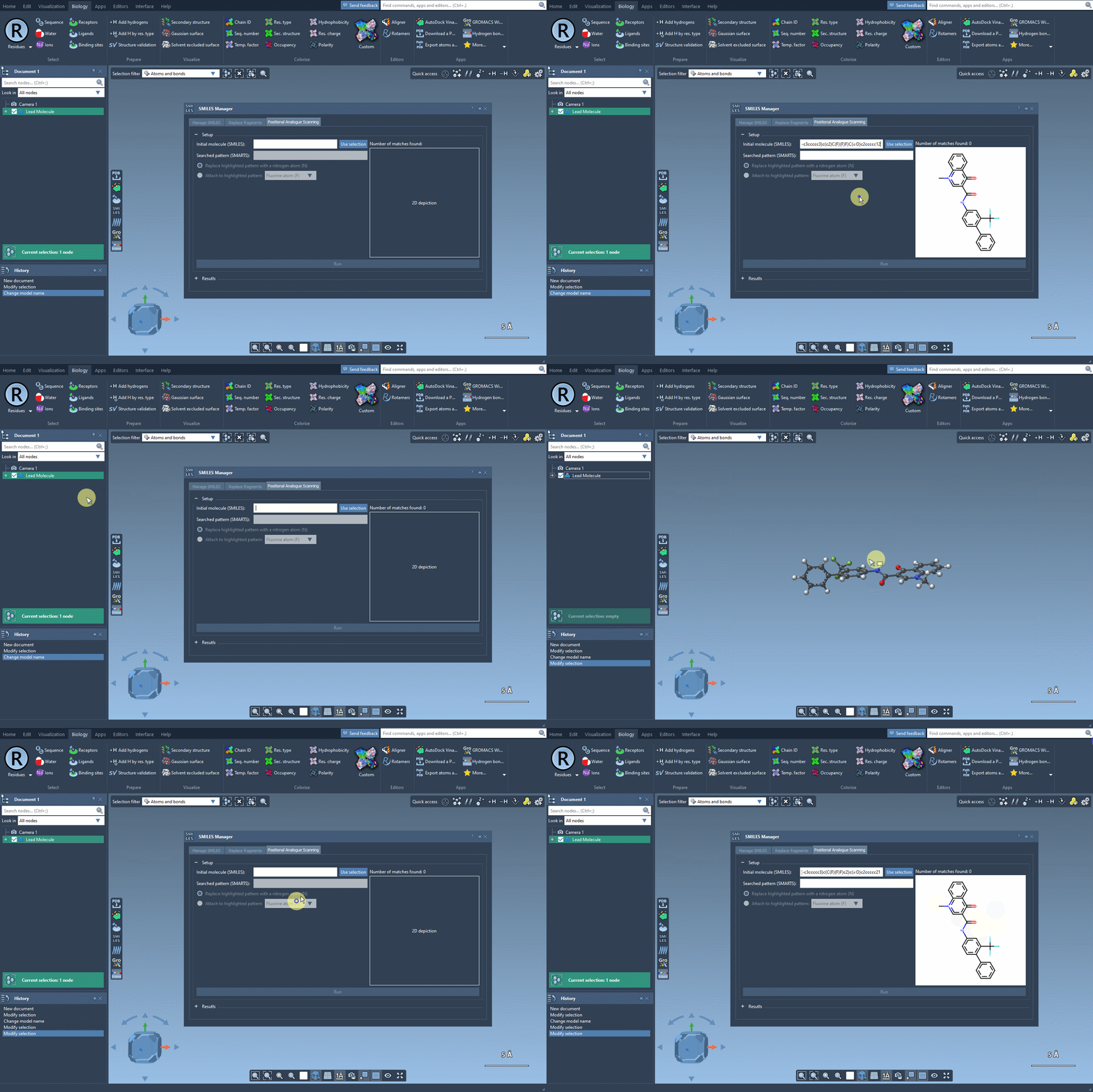
Open the SMILES Manager and select its Positional Analogue Scanning tab. Provide the starting molecule by entering its SMILES, or select the molecule in the SAMSON document and click Use selection.
Use SMARTS to define the scan sites
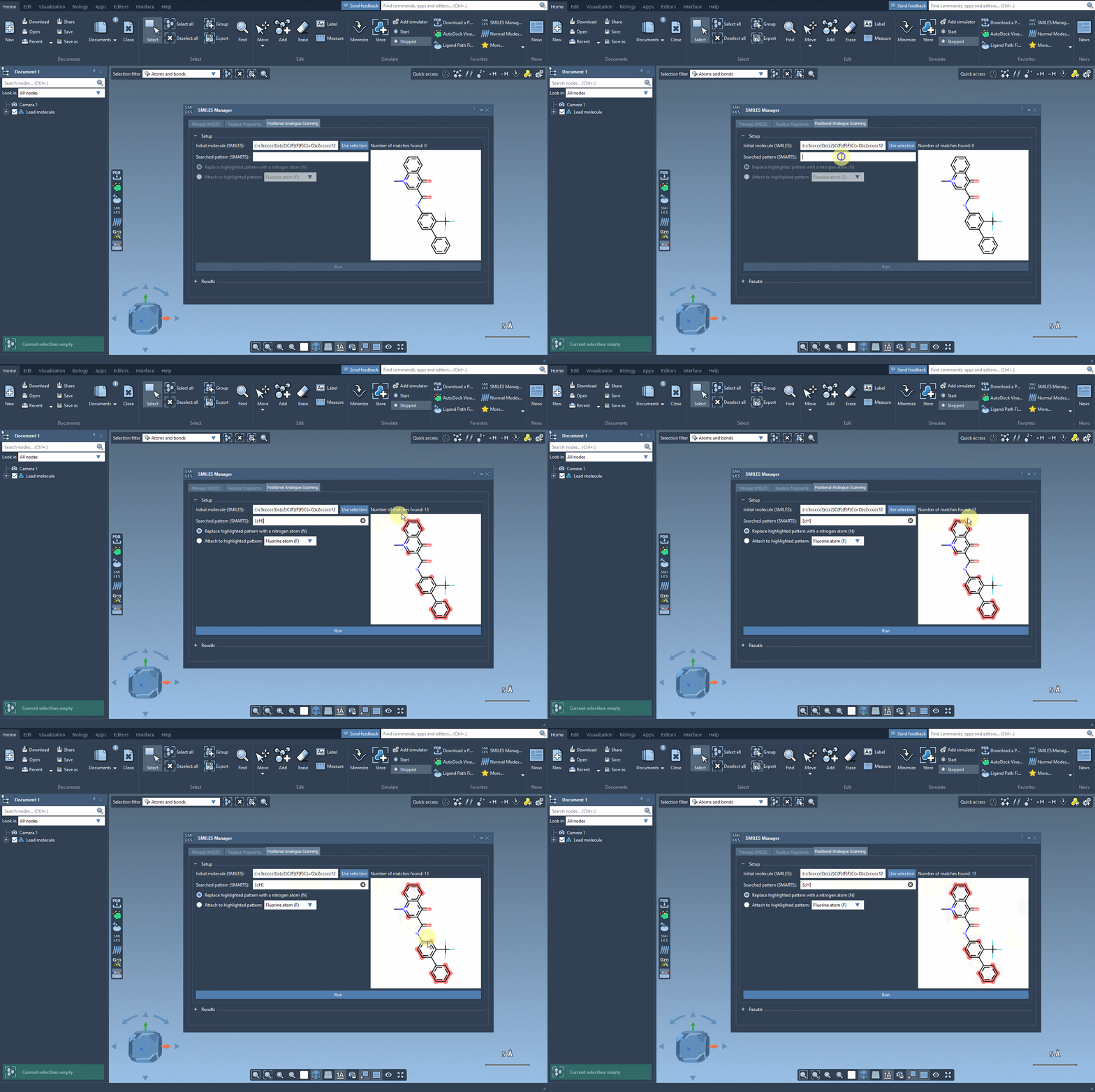
The search pattern is written in SMARTS. In the tutorial example, [cH] is used to find aromatic carbon atoms that bear a hydrogen. That detail matters: a pattern is not just a label for a ring or functional group; it determines which atoms can become scan sites. If the pattern is broader or narrower than intended, the resulting analogue series may not answer your question. After entering it, inspect the highlighted matches in the starting structure before running the scan.
Choose replacement or attachment
Once the matches look right, choose whether to replace the matched pattern or attach a new atom or group to it. The documented example replaces the matched aromatic carbon with nitrogen. The interface also illustrates attachment options such as fluorine or a methyl group. These are different design questions: replacement changes the identity of the matched site, while attachment adds a substituent there.
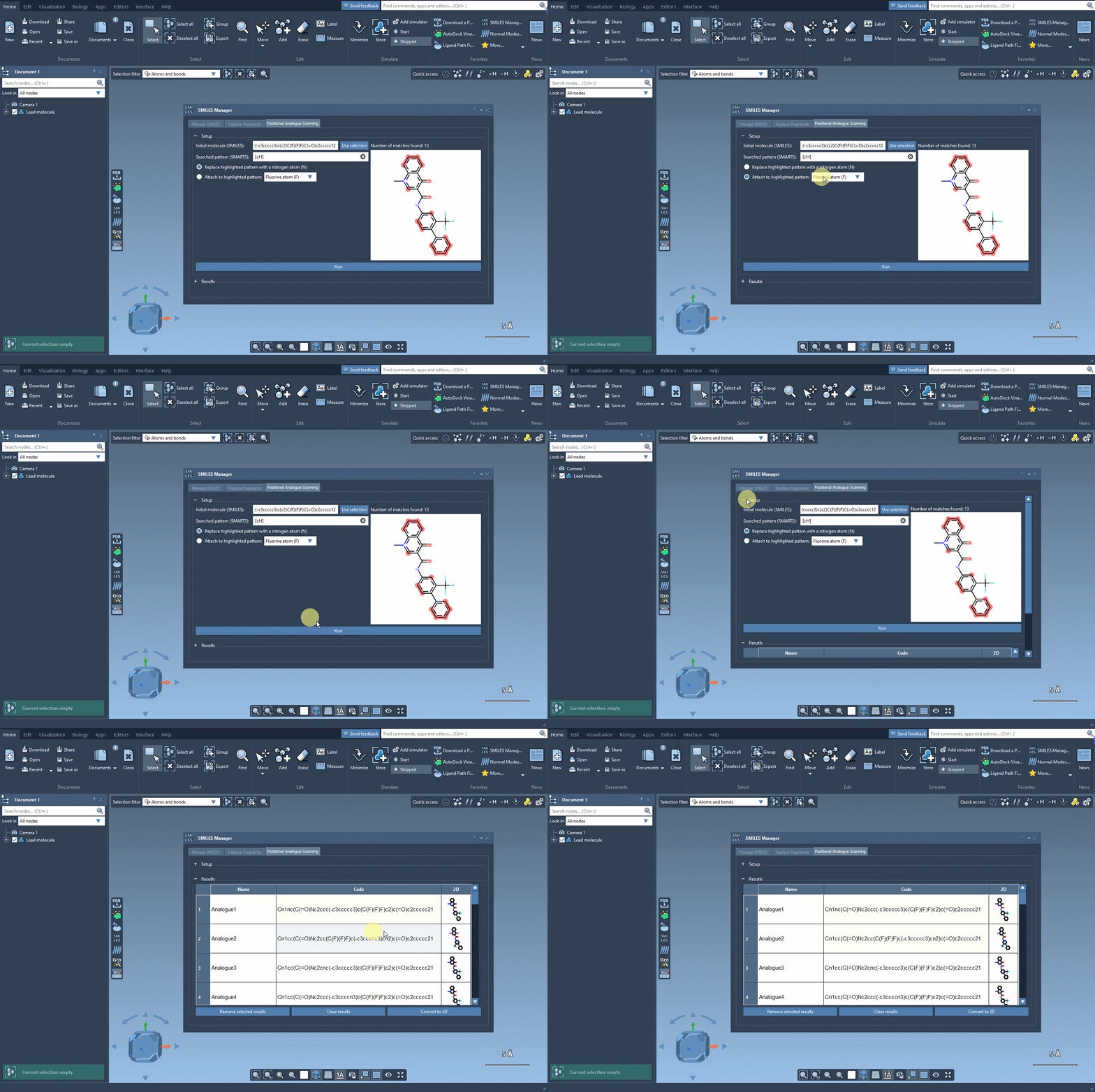
Click Run to generate the analogues. The results table includes SMILES and 2D depictions, which makes it easier to review the series visually. You can double-click a name or SMILES cell to edit it, open a larger depiction by double-clicking the image, and show or hide the 2D images using the table’s 2D header. Remove selected rows when you want to narrow the list, or clear the table to start a fresh scan.
From a 2D series to molecular evaluation
Generated 2D structures are a practical first filter, not a final assessment of whether an analogue will work. Review the structures and their SMILES carefully, then convert candidates to 3D using Convert to 3D or generate a 3D structure for an individual result from its context menu. The resulting structures can then be studied with workflows suited to your project. For example, the documentation describes docking with the AutoDock Vina Extended extension and examining whether changes preserve or create interactions with a target protein.
In practice, the main benefit of a positional scan is organizational as much as computational: it turns a structural question into a set of explicit, comparable candidates. A carefully chosen SMARTS pattern, a clear modification, and a quick inspection of the results help keep that exploration intentional. Continue with the full positional analogue scanning tutorial to learn more.
Note: SAMSON and all SAMSON Extensions are free for non-commercial use. Get SAMSON.