



Two protein structures can look similar overall and still disagree where it matters. A whole-protein superposition may be influenced by flexible or differently arranged regions, leaving a conserved helix or binding-site region poorly aligned. The reverse can also happen: a local region can match closely even when the rest of the proteins differs.
For molecular modelers, the practical question is not simply “Are these proteins aligned?” It is “Which residues are being compared, and does that comparison answer my question?” A useful workflow is to inspect the sequence alignment first, then compare the full structures, and finally superimpose a selected region when a particular part is the focus.
Start with the sequence relationship
In SAMSON, open Home > Align to launch Protein Aligner. You can compare sequences by structural model or by chain. The chain option is useful when a model contains multiple chains, such as in an oligomer.
For a quick practice example, fetch the two hemoglobins 1DLW and 1RTX using Home > Fetch, then choose a sequence-alignment mode. The resulting alignment helps you see corresponding residues and gaps before interpreting the 3D superposition.

Residue highlighting can add context: toggle amino-acid property options to compare features such as similarity and polarity. This can help distinguish a conserved position from one that is merely aligned in the sequence. If a residue matches several selected properties, its color blends the corresponding shades.
Use the full structure as a starting point
With no residues selected, click Align to this on one model’s row. The other model reports the RMSD for the resulting superposition; the example in the tutorial shows a value such as 3.27 Å. Treat this as a measure associated with that alignment—not as a complete explanation of why two proteins differ. The result depends on which atoms or residues are being compared, so the number is most useful when you know what was aligned.
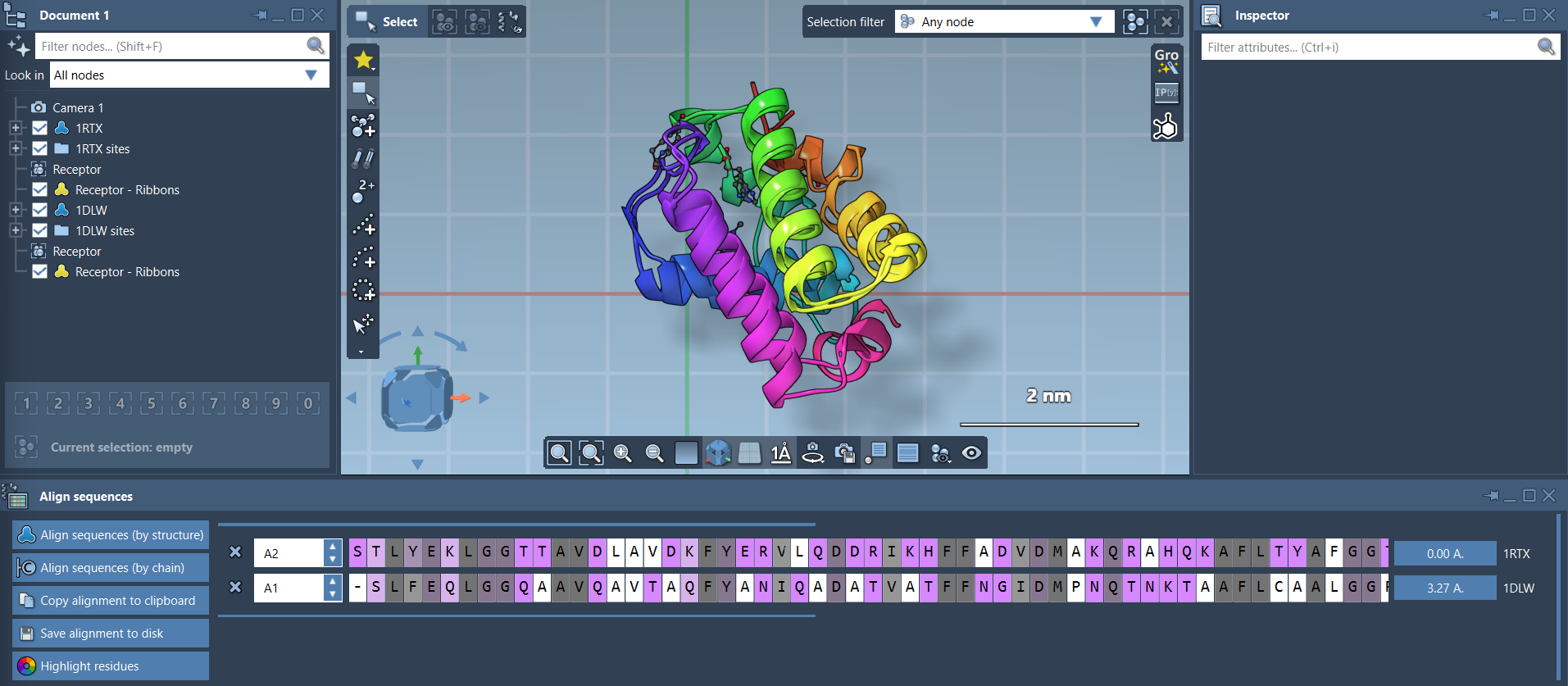
Visual separation matters when structures overlap. Ribbons can make secondary structure easier to inspect, and creating separate ribbon models for the proteins lets you color them differently. You can also toggle atomistic views from the Document view.
Refine the comparison to a region
If a particular region is your question, select corresponding residues in both sequences and align based only on that selection. In the hemoglobin example, the tutorial focuses on the first 20 residues because the two initial alpha-helices appear similar but are not well aligned in the whole-protein view. Selecting those residues and clicking the alignment button next to the selection superimposes that region specifically.

This local alignment does not replace the whole-structure comparison; it answers a different question. Use the global view to understand overall structural correspondence, then use a region-specific fit to inspect a segment of interest. Comparing both views can reveal whether a local match is representative of the whole protein or limited to that region.
Make the selection deliberate
You can select a residue in the alignment, Document view, or viewport; aligned partners are highlighted in the Protein Aligner. Hovering over a sequence residue shows its name and ID and highlights it in the viewport. Click to select a residue and its aligned partners; use Shift for consecutive residues, Ctrl or Cmd for non-consecutive residues, and Alt to remove residues from the selection. Before a whole-protein fit, clear the selection so you do not accidentally base the fit on only a subset.
A simple habit can prevent misleading comparisons: identify the biological or modeling question, check the sequence correspondence, inspect the global fit, and then test a region-specific fit if the question concerns a particular segment. For preparation guidance and more details on the workflow, see the Protein Aligner tutorial.
Note: SAMSON and all SAMSON Extensions are free for non-commercial use. Get SAMSON.