



A crystal model can look convincing and still miss an important part of the material: its defects. Vacancies and partially occupied sites affect what atoms are present, so treating every site as fully occupied can give you a model that does not reflect the structure described by your source data.
If you are working from a crystallographic information file (CIF), the occupancy information can be part of that description. In SAMSON, the Crystal Creator extension can import CIF files, generate crystal models, and help you inspect whether the resulting model reflects the specified atom-site ratios. Here’s a practical workflow for checking that defects have not disappeared along the way.
Start with a CIF that describes the structure
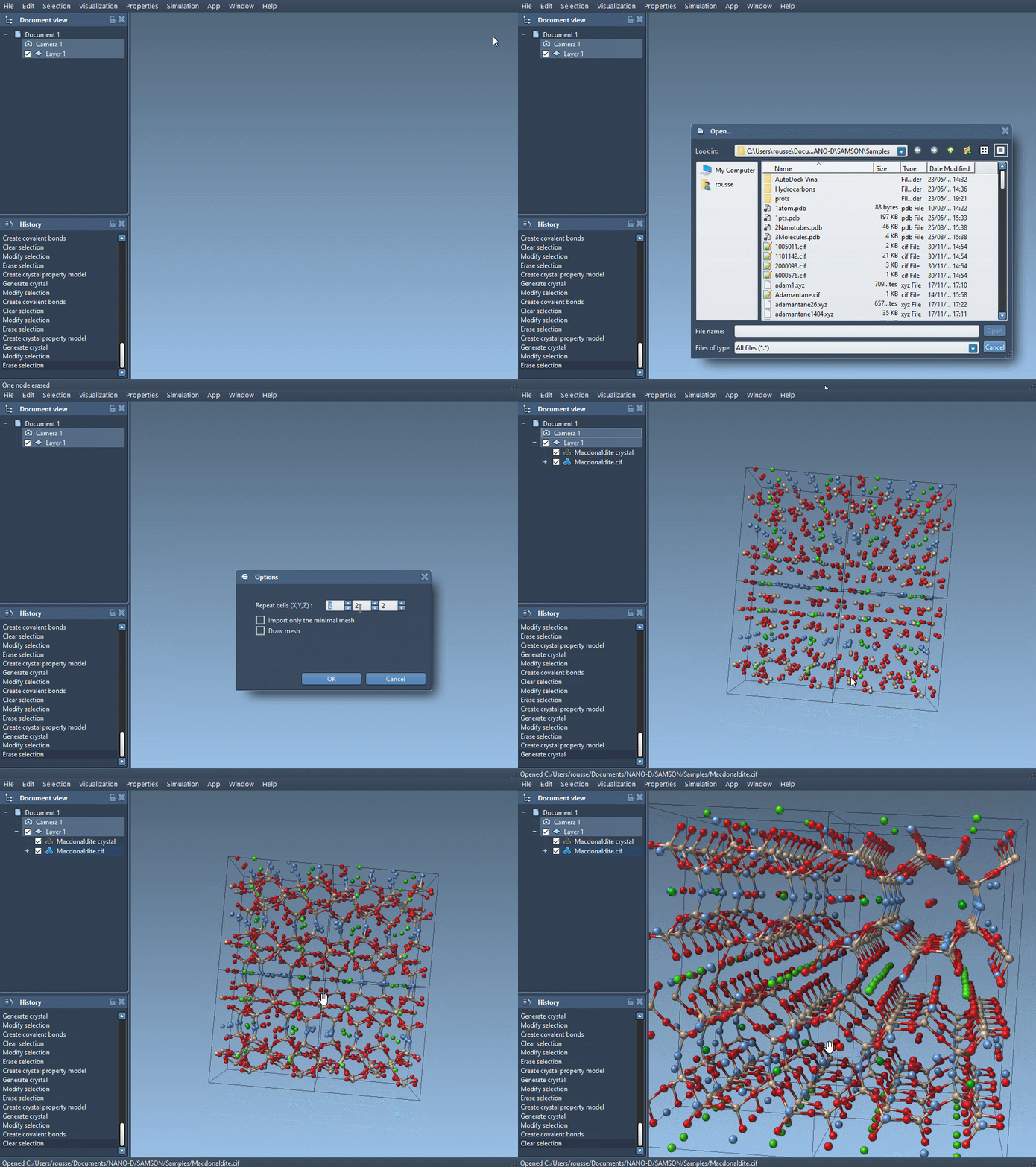
Find a crystal CIF from a crystallographic database, such as the American Mineralogist Crystal Structure Database or the RRUFF Project Database. Open the file in SAMSON with the Crystal Creator extension. In the import window, choose how many unit cells to generate and whether to import only the data or include symmetries; you can also choose whether to display the mesh.
The CIF is more than a list of idealized atom positions. Depending on the structure, it can describe defects or substitutions. Crystal Creator uses these details when generating the crystal. That makes importing an appropriate CIF a useful first step when the goal is to preserve the reported site occupancies rather than manually build an ideal crystal.
Check the generated atom ratios
After importing, right-click the crystal’s property model and choose Properties. The property window includes a second tab for checking atom ratios. Select Check atoms ratio to see, for each atom site, whether the generated crystal respects the specified presence or absence ratio.
This check helps answer a practical question: did the model-generation step retain the defect information in the CIF? It is especially useful before using the structure in a later modeling task, when a visually plausible crystal alone may not tell you whether partial occupancy was handled as intended.
A small CIF edit, a meaningful change
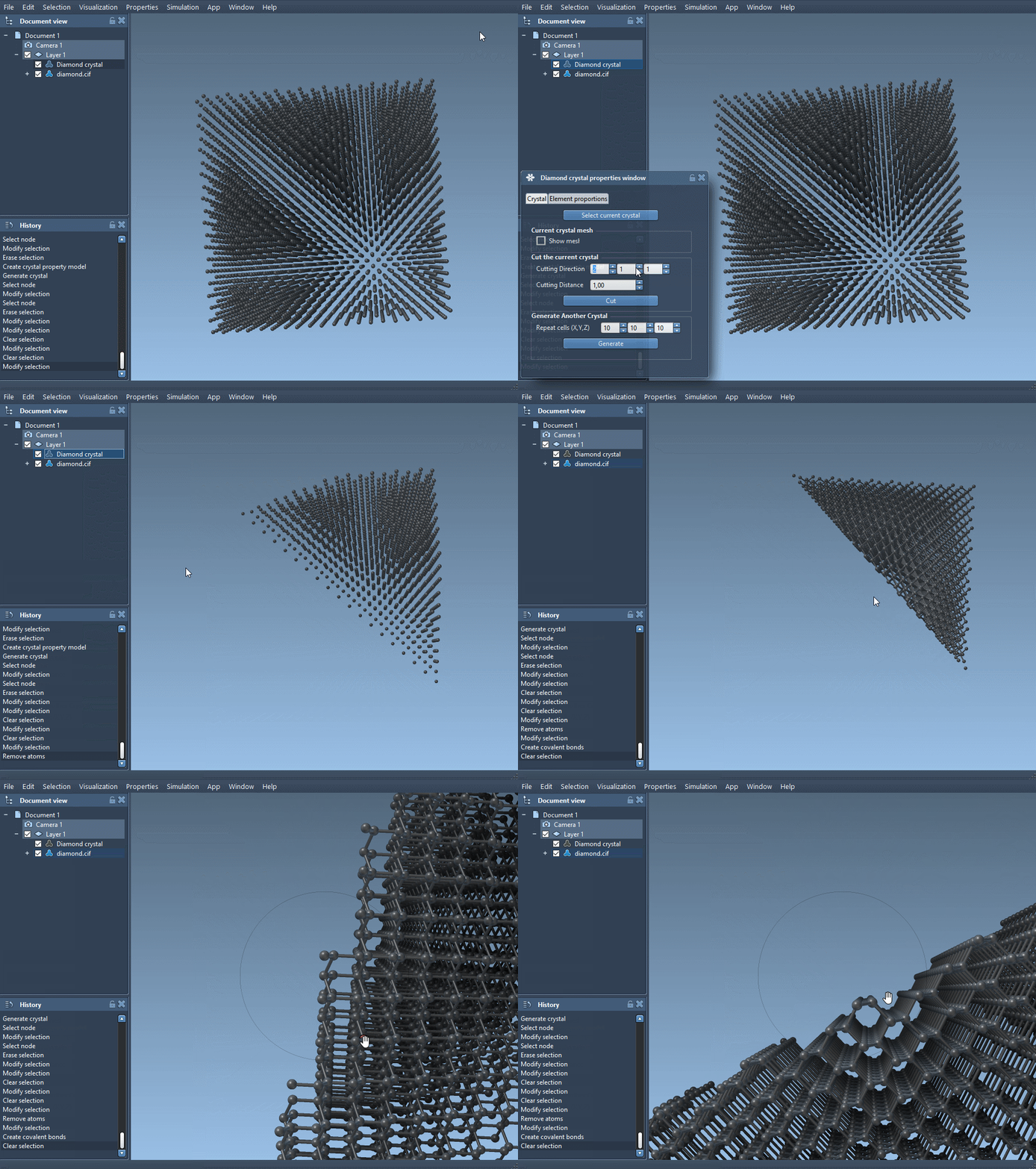
The tutorial demonstrates the idea with diamond. Begin with a diamond CIF, create bonds, and minimize the structure using the Brenner interaction model. Then make a copy of the CIF and edit the atom-site section. A basic entry can look like this:
|
1 2 3 4 5 6 |
loop_ _atom_site_label _atom_site_fract_x _atom_site_fract_y _atom_site_fract_z C 0.00000 0.00000 0.00000 |
To describe a carbon site with 0.95 occupancy, add the occupancy field and value:
|
1 2 3 4 5 6 7 |
loop_ _atom_site_label _atom_site_fract_x _atom_site_fract_y _atom_site_fract_z _atom_site_occupancy C 0.00000 0.00000 0.00000 0.95 |
The value indicates a probability of 0.95 that the carbon atom is present at that site. Open the edited CIF in SAMSON, create the bonds, and inspect how the generated structure differs from the version without the occupancy entry. Use the atom-ratio check in the property window to assess the generated model against the specified site ratio.
Keep the workflow reproducible
Before editing a CIF, keep an untouched copy so you can compare the source and modified structures. After generating a model, inspect the property model and run the ratio check instead of relying only on appearance. If you create a custom crystal through the Crystal Creator app, its settings can also be saved and loaded from the property window. These habits make it easier to distinguish a change in the structure from a change in how the model was generated.
For the full workflow, screenshots, and more examples—including constructing FCC aluminum and diamond unit cells—see the Crystal Creator documentation.
Note: SAMSON and all SAMSON Extensions are free for non-commercial use. Get SAMSON at www.samson-connect.net.