



A molecular model can look ready to simulate and still be missing something important: bonds may be absent or incorrect, bond orders may not match the intended structure, or atom types may need attention. These details matter because the Universal Force Field (UFF) setup in SAMSON automatically perceives molecular structure before applying the interaction model. A short, deliberate setup check can make it easier to spot issues before interpreting the simulation.
This guide focuses on the practical question many modelers face: should UFF use the bonds already in the model, or recompute them? It also explains what to check when the automatic perception reports inconsistencies.
First decide what to do with existing bonds
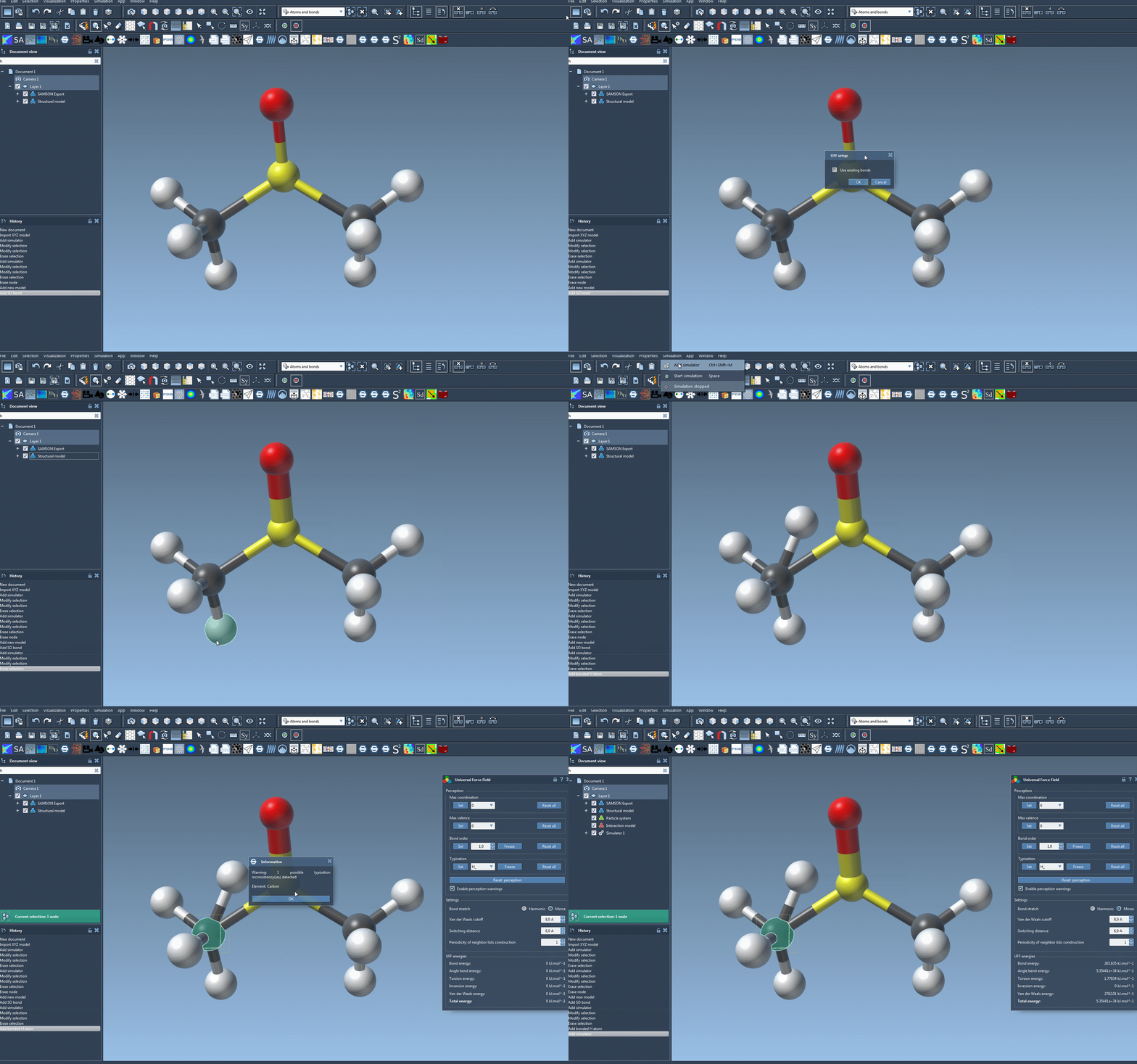
Start by opening the molecular system you want to simulate, then add a simulator through Edit > Simulate > Add simulator (or use Ctrl+Shift+M on Windows/Linux or Cmd+Shift+M on macOS). Select Universal Force Field, choose a state updater such as FIRE, and confirm.
In the UFF setup window, you will see the Use existing bonds option. Choose it when you want the simulation to rely on the bonds already present in the model. Leave it unchecked when you want UFF to recompute bonds from atom types and positions. This is a consequential choice: it determines whether the current connectivity is retained or whether the module attempts to perceive it anew.
After you confirm, UFF computes bond orders and atom types, and computes covalent bonds if existing bonds were not selected for use. If SAMSON displays a warning about inconsistencies, treat it as a reason to inspect the model and its perception settings before proceeding as though the setup were unproblematic.
Use the energy display as feedback, not a verdict
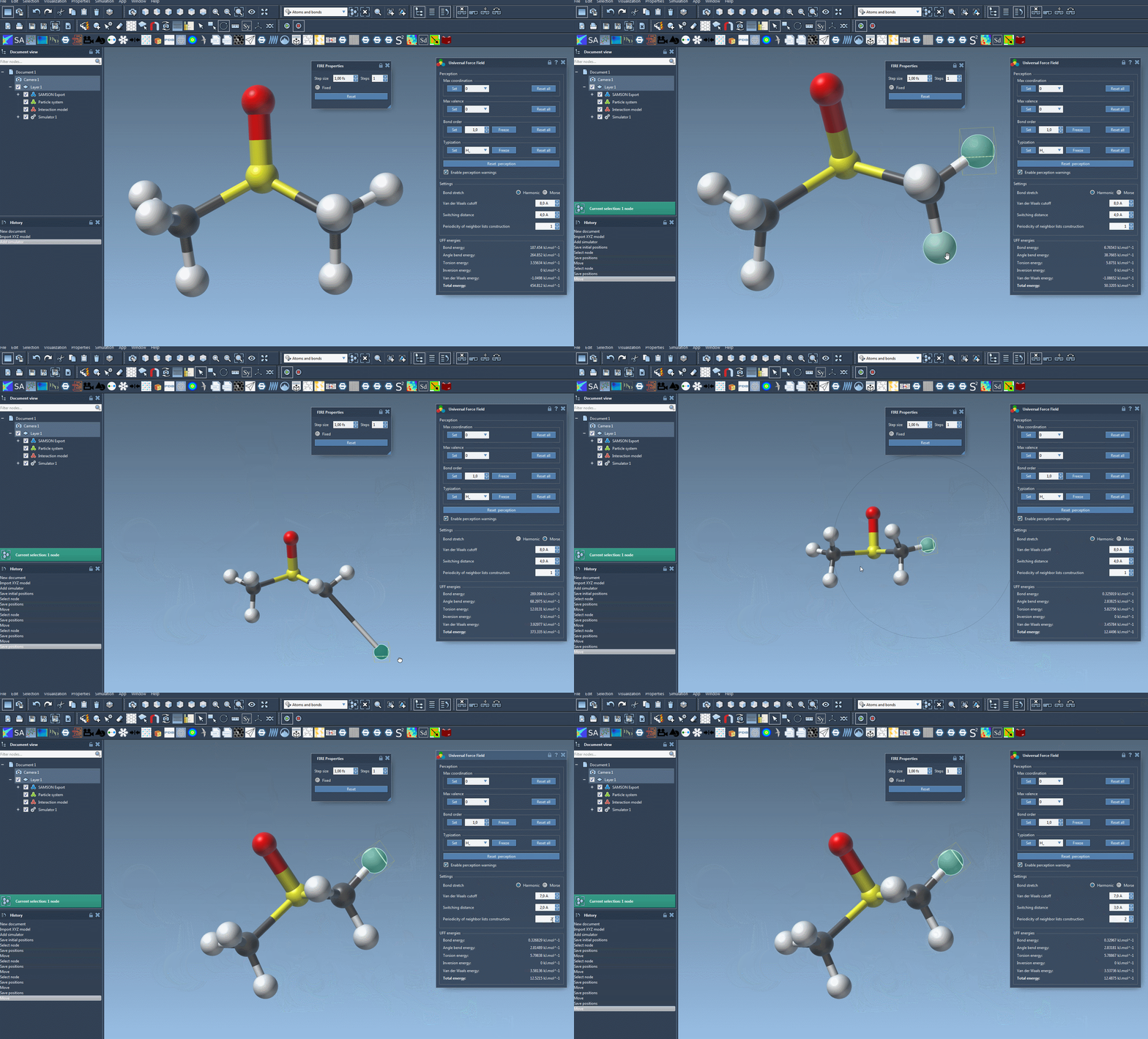
Once the parameter window is open, start the simulation with Edit > Simulate > Start. The interface shows the energy of each UFF term and the total UFF energy. You can also move atoms interactively and observe how the model responds by updating the positions of other atoms.
That makes interactive movement useful for exploring how the current model behaves, but it does not replace checking that the perceived structure is the one you intend. If connectivity or atom typing looks wrong, adjust the perception or customization rather than relying only on the displayed total energy.
Change settings with a specific reason
The UFF interface lets you select Harmonic or Morse bond stretching, set the van der Waals cutoff, choose the switching distance at which the van der Waals term smoothly approaches zero, and change how often neighbor lists are rebuilt. These controls affect how the interaction model is configured. For a first run, keeping the defaults is a sensible way to reduce the number of things you are changing at once; then adjust a setting when you have a particular reason to do so.
When automatic perception needs help
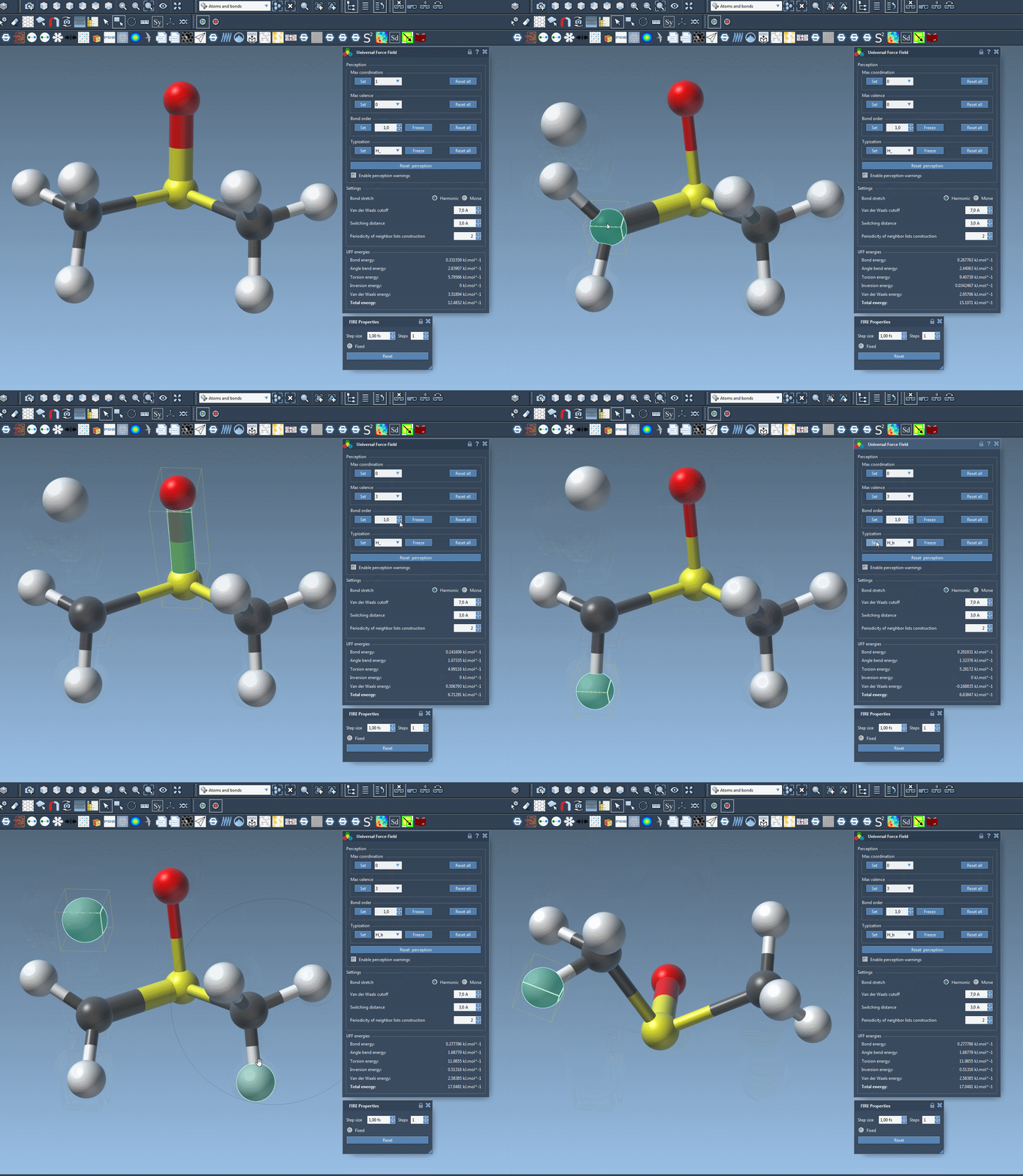
Advanced users can customize atom typization. For example, maximum coordination and maximum valence can be changed for individual atoms, and selected bond orders or UFF atom types can be forced. Bond orders can be set to values between 0.1 and 3.9, including non-integer values. You can also freeze selected bond orders or atom types so they do not change during a new round of perception.
Make these changes deliberately: the documentation cautions that typization customization can lead to incorrect structures if misused. If you do customize the model, use Reset perception to recompute perception from the current settings and atom positions. The corresponding Reset all controls let you clear customizations. Atoms can also be added or deleted while the model is being simulated, with typization recomputed automatically.
A useful order of operations is therefore: decide whether to keep or recompute existing bonds, review any warnings, start with default settings, and customize perception only when you can identify what needs changing. For the full workflow and references, read the UFF tutorial.
Note: SAMSON and all SAMSON Extensions are free for non-commercial use. Get SAMSON.