



A protein–ligand structure can contain many nearby atoms, but a 3D view does not always make it easy to see which residues are close to a ligand or how the contacts are arranged. Switching between the structure and notes can make even a simple inspection feel fragmented. An interaction diagram offers a compact view of detected contacts—and, in SAMSON, it stays connected to the 3D structure.
Here’s a practical workflow for turning a structure into a diagram you can inspect, adjust, and share.
Start with the structure you want to inspect
Open the structure in SAMSON and select the part you want to analyze. Then choose Home > Diagram. With a selection, the diagram is based on that selection; with nothing selected, it uses the whole document. For a protein–ligand view, selecting the relevant structures first can help keep the result focused.
The generated diagram can show the binding pocket, solvent accessibility of ligand atoms, and interacting residues or structural groups. The 2D view is integrated with the 3D viewport: clicking an atom or structure selects it, and double-clicking zooms to it. This makes the diagram useful not only as a summary, but also as a way to locate features in the molecular scene.

Read contacts as geometric observations
A contact label is a clue about the geometry the detector recognized—not a verdict about binding strength. The Interaction Designer uses atom categories and geometric criteria, including distances, ring centroids, and angles. A detected contact means those criteria were met; it does not prove that the contact stabilizes the complex or estimate its interaction energy.
That distinction matters when interpreting a diagram. A hydrogen bond, for example, is identified using donor–acceptor distance criteria and, when explicit hydrogens are present, a donor–hydrogen–acceptor angle criterion. Other categories include ionic interactions, metal coordination, aromatic contacts, and several atom-to-plane or group-to-group contacts. Treat these labels as a structured way to inspect a pose, then use your broader molecular context to decide what they mean.
Water can participate in contacts as environment metadata, but the current implementation does not create a separate water-specific interaction type. Keeping that limitation in mind can prevent over-reading the displayed categories.
Make a busy diagram easier to use
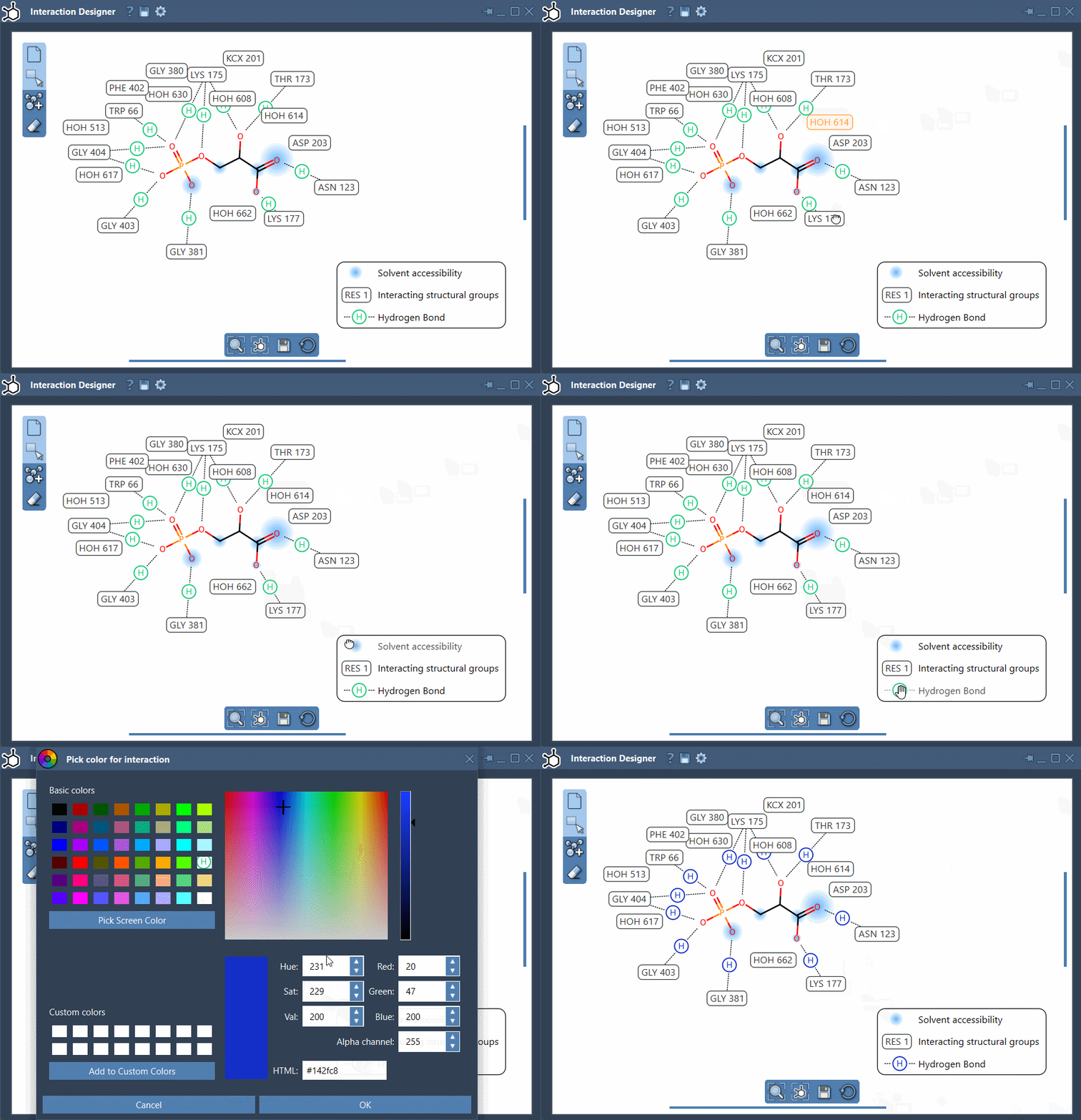
The initial layout is a starting point, not something you have to accept unchanged. Move labels and interaction symbols to reduce overlap, and reposition the caption or legend to make the relationships easier to follow. If a category distracts from the question you are investigating, click its name or icon in the legend to hide or show it. Double-click a legend item to change its color; the Interaction Designer settings let you restore the colors.
Small layout choices can make a diagram more useful: separate labels that collide, keep important interactions visible, and hide categories that are not relevant to the point you are communicating. Use the bottom menu to update the view and align the 2D and 3D views. For navigation, hold Ctrl or Cmd while scrolling to zoom; hold the middle and right mouse buttons while moving the mouse to translate the diagram.
Keep the diagram connected to the model
Because the 2D document and 3D viewport are synchronized, selecting, adding, or removing atoms and fragments in one view is reflected in the other. That connection is helpful when a diagram prompts a closer look: select a residue in 2D, inspect its position in 3D, and return to the diagram without losing the relationship between the two views.
When the diagram is ready for a report or discussion, use Save in the bottom panel. Interaction diagrams and 2D molecule drawings can be exported as PNG, JPG, JPEG, BMP, or SVG. Choose a format that fits the destination, and remember that a clear legend and readable labels are part of the explanation—not just decoration.
To create a diagram or explore its editing controls, see the Interaction Designer documentation.
Note: SAMSON and all SAMSON Extensions are free for non-commercial use. Get SAMSON.