



Few things interrupt a molecular modeling workflow like acting on the wrong nodes. You type a residue name, press Enter, and discover that the selection includes more than the residues you intended. Or you find the right ligand and receptor, then lose track of them while exploring another part of the structure.
A reliable approach is to separate two tasks: define exactly what you want, then make it easy to return to it. In SAMSON, the Document view filter, Node Specification Language (NSL), and Quick Groups can work together to do both.
Why a name search can select too much
The Document view’s Filter nodes… box accepts either a name string or an NSL expression. A name string is convenient for finding nodes, but it matches node names—not necessarily only the type of object you have in mind.
For example, searching for LYS can match lysine residues as well as their backbones and side chains if those node names also contain “LYS.” The result may look plausible while containing more nodes than expected. If the distinction matters for the next operation, use a property-based expression instead.
To select lysine residues specifically, enter residue.type LYS (or the shorter r.t LYS) in the filter and press Enter. The filter narrows what is displayed; pressing Enter selects the matching nodes.

A small check before you proceed
Before editing, measuring, or applying another operation, take a moment to check the selection summary in the Document view. If the Inspector is open, it can also show details about the selected nodes. This quick check helps catch an overly broad or unexpectedly narrow result before it affects the rest of your work.
It also helps to distinguish between finding and selecting: typing into the Document view filter does not immediately select the matching nodes. Press Enter to commit the selection. For more complex searches, the same NSL expressions can be entered in the Find window.
Keep useful criteria for later
If you often need the same kind of selection, save its NSL expression as a custom selection filter. Open Select > Find (or press Ctrl+F / Cmd+F), enter the expression, choose Save, and give the filter a name. For instance, r.t LYS or r.t HIS can be saved as a filter for lysine and histidine residues. It will then be available in the selection-filter list.
Saved filters preserve the criterion, which is useful when you want to apply the same kind of query again. If instead you want fast access to particular nodes in the current document, use a Quick Group.
Remember regions with Quick Groups
Quick Groups are temporary, unnamed groups shown in the lower section of the Document view. Select a region, then assign it by hovering over a Quick Group slot and pressing Shift+click, or by pressing Shift plus a number. You can create up to 10 groups. Press the corresponding number key to switch to that selection; double-press the number to zoom to it.
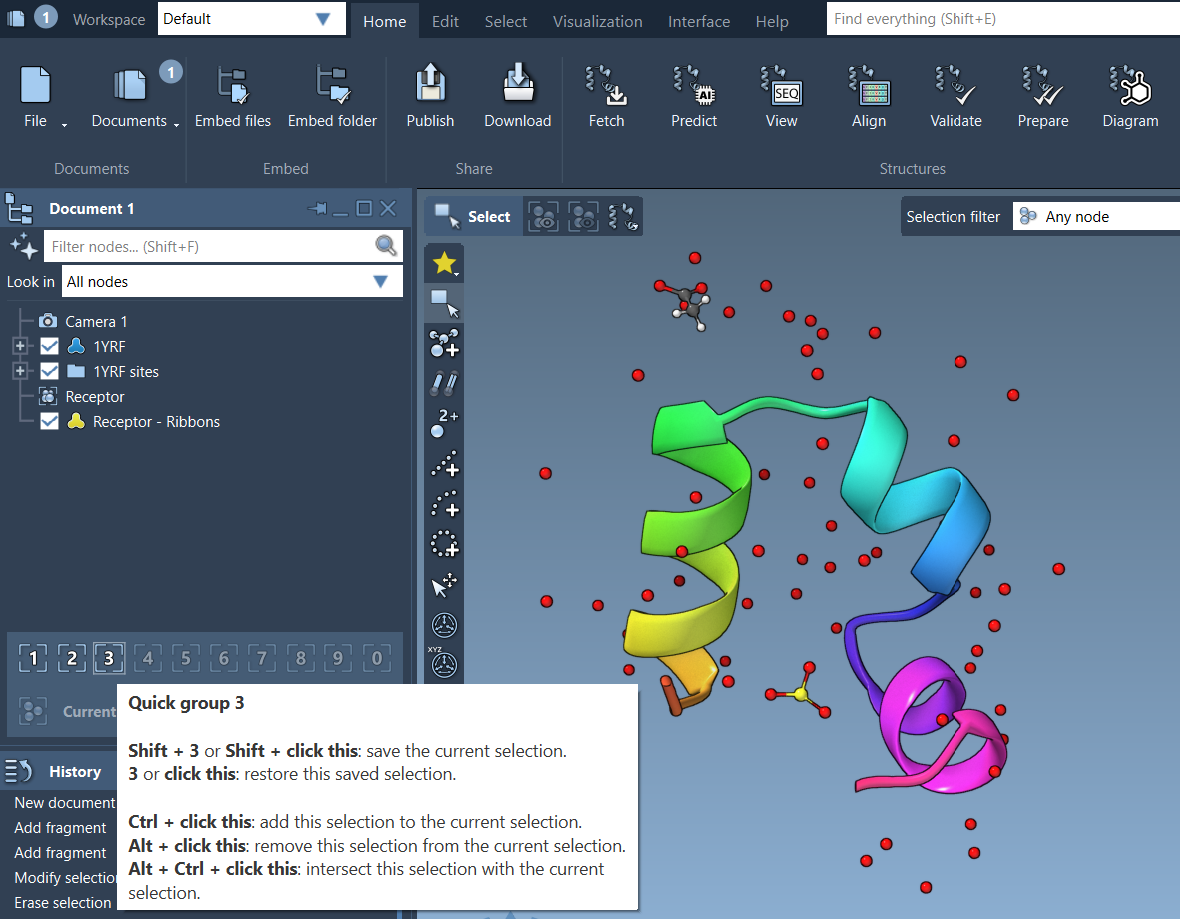
A practical workflow might be to select the ligand and assign it to group 1, select the receptor and assign it to group 2, then assign water molecules to group 3. You can switch among these regions while analyzing the system without rebuilding each selection from scratch. Because Quick Groups are temporary, redefine them as your focus changes.
The useful distinction is simple: use NSL when precision matters, a saved selection filter when you want to reuse a query, and a Quick Group when you want to return quickly to a particular selection. For more selection methods and details, see the SAMSON selection guide.
Note: SAMSON and all SAMSON Extensions are free for non-commercial use. Get SAMSON.