



A crystal structure can look deceptively straightforward: open a file, see atoms, and move on. But when you are trying to model a material, a perfect, fully occupied lattice may not represent the structure you actually want to study. Defects and partial occupancies matter—and it can be difficult to tell whether the imported model reflects the information in the CIF file.
This workflow uses SAMSON’s Crystal Creator to import a CIF, inspect its crystal properties, and explore how an occupancy value changes a diamond model. The central idea is to treat the CIF not just as a source of coordinates, but as a description of a crystal that can include probabilities of atoms being present.
Start with a CIF
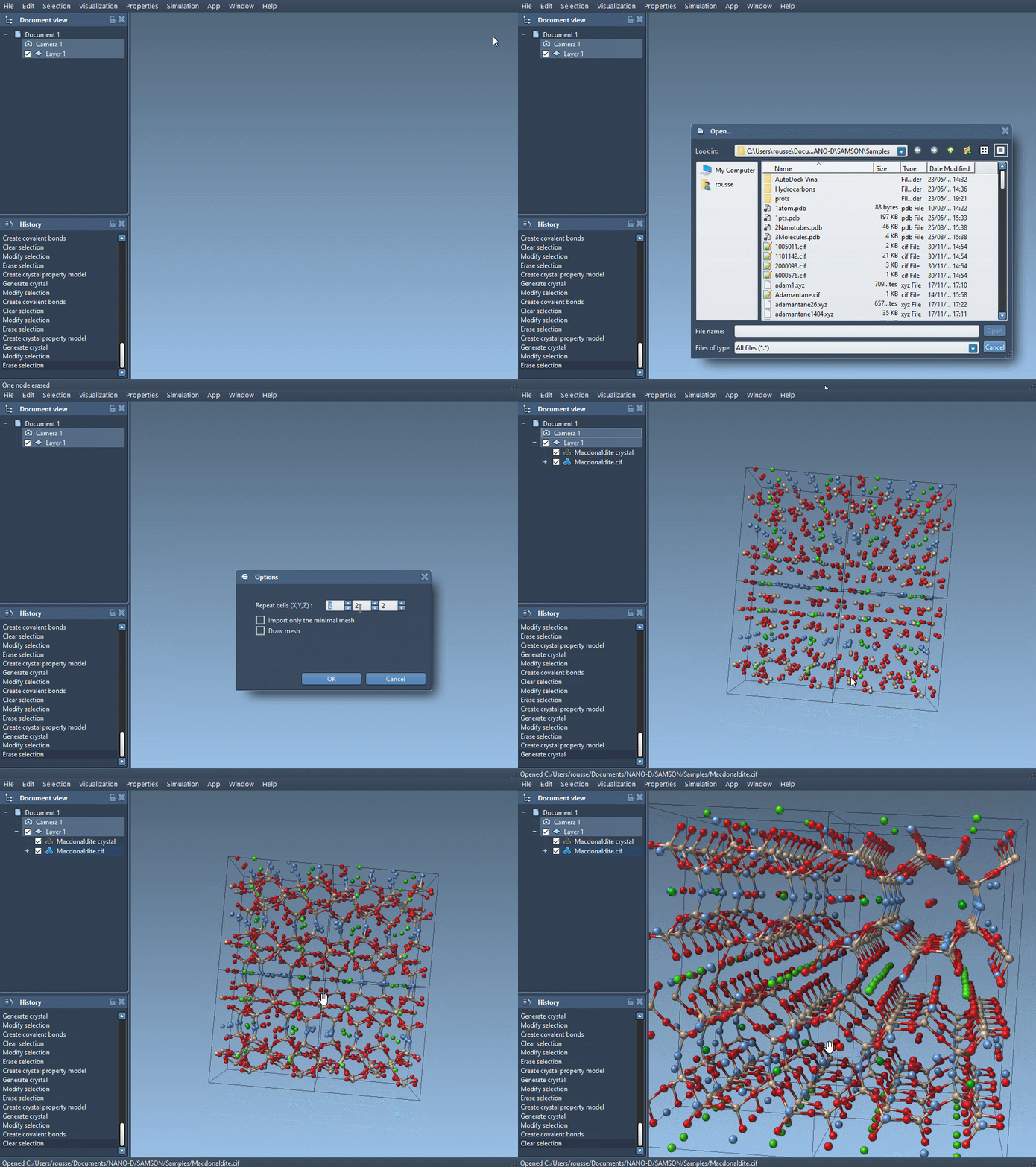
Find a crystal structure in a source such as the American Mineralogist Crystal Structure Database or the RRUFF Project Database, then open the CIF file in SAMSON. Crystal Creator presents options such as how many unit cells to import, whether to import only the data without symmetries, and whether to display the mesh. After opening, the structural model and its property model appear in the data graph.
Those import choices affect what you inspect. For a first pass, focus on loading the structure and checking its properties before cutting or generating another crystal. The CIF may describe defects or substitutions; Crystal Creator uses those descriptions when creating the crystal.
Inspect before you edit
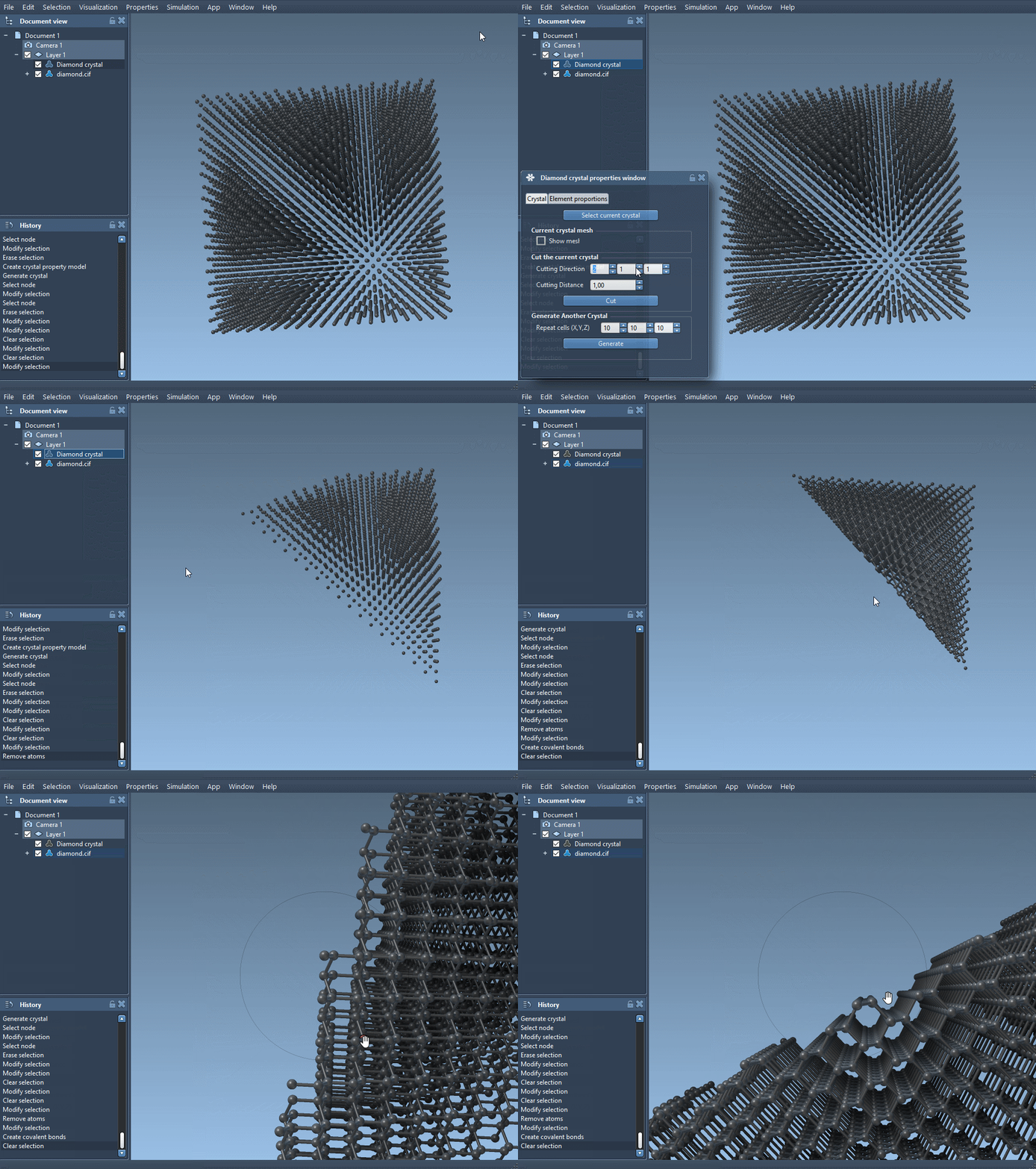
Right-click the crystal’s property model and select properties. The first tab includes a control for finding the crystal, a mesh checkbox, tools for cutting, and a tool for generating another crystal. The cutting controls use three values for the Miller indices—the direction of the cut—and a fourth value for the distance from position 0 where it is made.
For a quick structural check, try cutting a diamond crystal in the [111] direction. The tutorial notes that this reveals its compact hexagonal structure. This is a useful reminder that the appearance of a crystal depends on the direction from which it is examined, not just on its chemical composition.
Use occupancy to represent a defect
To see how a partial occupancy is expressed, start with a diamond CIF and create its bonds. The documented exercise then minimizes the structure with the Brenner interaction model, makes a copy of the CIF, and edits the atom-site data in that copy.
A simple entry can look like this:
|
1 2 3 4 5 6 7 |
loop_ _atom_site_label _atom_site_fract_x _atom_site_fract_y _atom_site_fract_z _atom_site_occupancy C 0.00000 0.00000 0.00000 0.95 |
The added _atom_site_occupancy column gives the carbon site an occupancy of 0.95: a probability of 0.95 that the atom is present. This is not the same as manually deleting a particular atom from a finished model. It records partial presence at a crystallographic site in the input data, allowing Crystal Creator to represent defects when it creates the crystal.
Open the edited CIF, create the bonds, and compare the resulting structure with the original. Crystal Creator’s second property tab offers check atoms ratio, which lets you check whether the ratios of presence and absence for each atom site are respected. This provides a useful validation step: instead of relying only on the visual appearance of the model, inspect the site ratios as well.
Keep the model reproducible
If you are building a crystal from unit-cell data rather than importing one, Crystal Creator lets you specify the cell using cell parameters or unit-cell vectors, enter atoms with coordinates, and choose how many unit cells to generate. Coordinates can be relative to the cell vectors or absolute in angstroms, depending on the selected tab. You can save and load crystal settings from the property window, which is helpful when you want to revisit a model or preserve the inputs used to create it.
The practical sequence is: import the CIF, inspect its properties, make a copy before editing, add occupancy information where appropriate, reopen the modified file, create bonds, and check the atom ratios. That keeps the structural description and the generated model connected, making it easier to understand what changed.
For the full tutorial and additional examples, see Generate crystal models.
Note: SAMSON and all SAMSON Extensions are free for non-commercial use. Get SAMSON at samson-connect.net.