



One frustrating moment in molecular modeling is when the structure you are trying to build no longer matches the bonds in the model. A small adjustment may be fine, but a larger move can leave a bond stretched—or bring atoms together in a way that calls for a new connection. With a fixed-topology workflow, the connectivity does not automatically follow those changes.
SAMSON’s Interactive Modeling Universal Force Field (IM-UFF) is designed for this kind of interactive editing. It extends UFF so that bonds can form or break, bond orders can change, and atom typizations can update as the atoms move. Instead of treating connectivity as frozen during manipulation, IM-UFF allows the topology to evolve along with the modeled positions.
What changes when topology is interactive?
In IM-UFF, moving an atom a little can leave its bonds intact while nearby atoms and the rest of the structure adjust. Moving it much farther can break bonds to neighbors and update the topology. Bringing atoms closer can allow new bonds to form. This makes the interaction model useful when the task involves substantial structural editing rather than only relaxing a structure with its existing connectivity.
That distinction matters: interactive topology is not a substitute for checking whether the resulting structure represents the chemistry you intended. Treat topology changes as part of the modeling process, then inspect the resulting structure and connectivity.
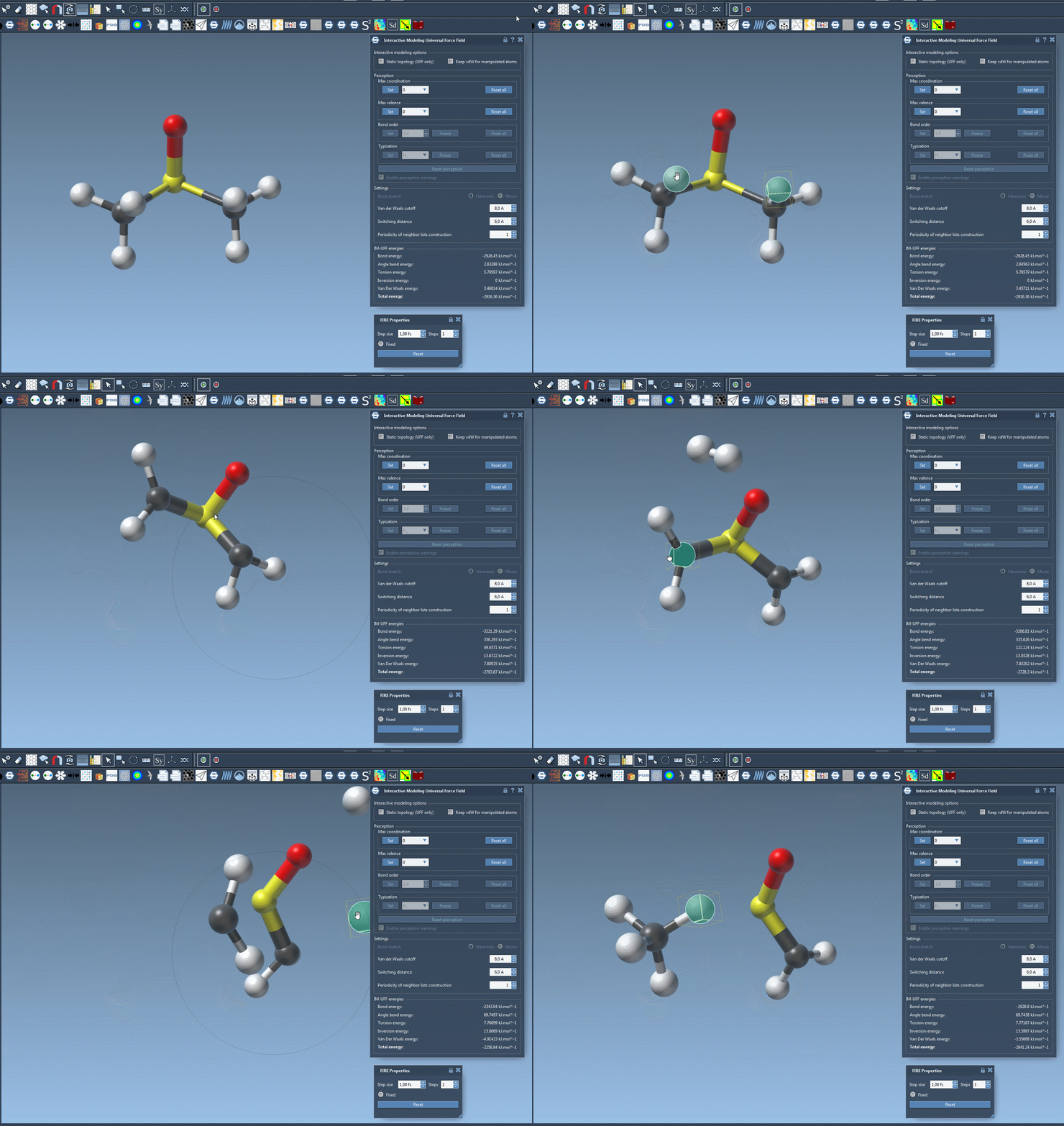
A practical setup
- Open a document containing the molecular system you want to edit. Starting with a small or medium test system can make connectivity changes easier to observe.
- Choose Edit > Simulate > Add simulator, or use Ctrl+Shift+M (Windows/Linux) or Cmd+Shift+M (macOS).
- Select Interactive Modeling Universal Force Field, choose a state updater such as FIRE, and press OK.
- For interactive topology changes, leave Static topology (UFF only) unchecked. Then start the simulation from Edit > Simulate > Start.
IM-UFF does not have a separate setup window; after adding it, you will see its parameter window. The energy terms displayed there can help you monitor the simulation while editing.
One option that can make hands-on editing easier
Keep vdW for manipulated controls whether van der Waals interactions are calculated for atoms being manipulated with the mouse. When enabled, those interactions are computed as usual. When disabled, manipulated atoms are excluded from van der Waals calculations. The documentation notes that disabling this option can make manipulation easier when repulsive van der Waals forces would otherwise hinder an attempted connection. It does not turn off all interactions or guarantee that a desired bond will form.
There is also a Static topology (UFF only) option. Checking it switches to standard UFF behavior with a static topology; unchecking it uses IM-UFF. This provides a useful comparison: use the same system to distinguish editing with a fixed topology from editing where topology can change.
What can—and cannot—be customized
The interaction model offers settings for van der Waals cutoffs, switching distance, neighbor-list construction, and automatic typization. In interactive mode, maximum coordination and maximum valence can be set, but bond order and typization are not directly fixed: they vary continuously with atom positions to support transitions between topologies. Atoms can also be added or deleted during a session, with typization updated automatically.
If your goal is to optimize a structure without changing its connectivity, use the static-topology option or consult the companion UFF tutorial. For the full setup and parameter details, see the IM-UFF documentation.
Note: SAMSON and all SAMSON Extensions are free for non-commercial use. Get SAMSON.