



A molecular path can contain the movement of many atoms, but your next analysis may need only a small part of the system: perhaps a ligand moving through a binding pocket, or a chosen group of atoms for a reaction-coordinate study. Exporting everything can make it harder to focus on the data you actually plan to use. The key is to define the atom subset before exporting, while keeping the path and output format choices clear.
In SAMSON, a path is a node that stores atomic trajectories for a group of atoms. The Export Along Paths app can write coordinates along selected paths to PDB files, either for all atoms in the path or for named subsets that you define.
Start with the question your files need to answer
Before opening the exporter, decide what you want to inspect or analyze. If you need the entire moving system, exporting all atoms is straightforward. If the goal is to follow a ligand’s movement, exporting just the ligand can keep the output focused. The same subset-based approach can be used for other selected groups, such as a binding site or backbone.
This distinction matters because atom selection and path selection serve different roles: the selected path provides the trajectory, while the model you add in the app specifies which atoms to export. Keeping those two choices in mind helps avoid exporting a broader set of coordinates than you intended.
Export a focused trajectory
- Open the sample system in SAMSON, or work with a document that contains paths. The tutorial sample includes lactose permease (
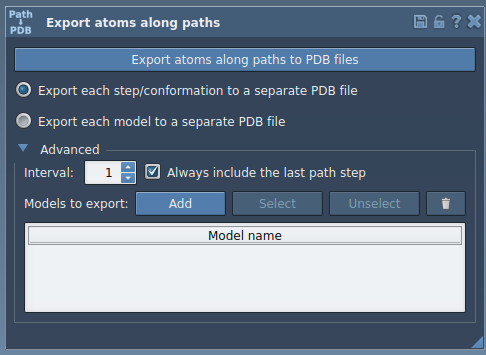
1PV7), the ligandTDG, and two paths. - Open Home > Apps > All > Export Along Paths. You can also find the app through Find everything… using Shift+E.
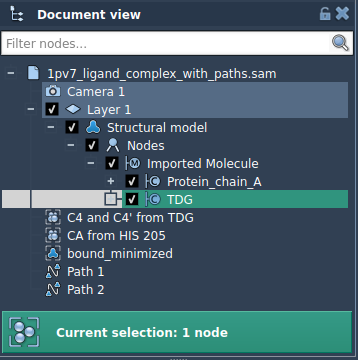
- Expand the app’s Advanced panel. In the Document view, select the atoms you want to include—for example, the ligand
TDG—and click Add. This creates a named model in the export list. - Select the relevant path or paths in the Document view. Choose whether to put all frames in one PDB file or save each frame as a separate PDB file.
- Click Export atoms along paths to PDB files, then choose the destination folder and file prefix.
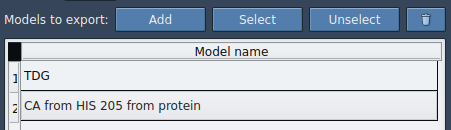
After adding a model, you can rename it by double-clicking its name, and you can add other atom groups through the same selection-and-add procedure. The app also provides Select and Unselect controls to highlight the atoms included in a model. If you need to redefine a group, use Reset or the corresponding context-menu option.
Choose an output layout that suits the next step
A single PDB containing all frames keeps a path together in one file. Separate PDB files give you one file per frame. Pick the layout that best fits the software or inspection workflow you plan to use next. If you need fewer frames in the output, expand Advanced and adjust the frame export interval.
Before exporting, take a moment to check three things: the intended path is selected, the model list contains the atom group or groups you want, and the chosen PDB layout matches your downstream workflow. These checks are especially useful when you have multiple paths or several named models in the same export session.
This workflow is useful when preparing coordinates for reaction-coordinate studies, free-energy calculations, enhanced-sampling workflows, or visualization of intermediate states. The exported coordinates can then be used in downstream analysis or simulation; the exporter itself is focused on writing the selected path coordinates to PDB files.
For the complete walkthrough and additional context, read the original Export atom trajectories along paths tutorial.
Note: SAMSON and all SAMSON Extensions are free for non-commercial use. Get SAMSON.