



A molecular path can contain a great deal of motion. When you are trying to understand whether a ligand is leaving a binding site—or how a selected part of a protein moves—it can be hard to see the overall journey among all the atoms. A center-of-mass pathline offers a simpler view: it traces the motion of a selected atom group’s center of mass along one or more paths.
This is useful when the question is about the group’s overall displacement, rather than the detailed trajectory of every atom. A pathline can make a route easier to follow and compare visually, while the underlying paths remain available to explore in SAMSON.
What a pathline tells you
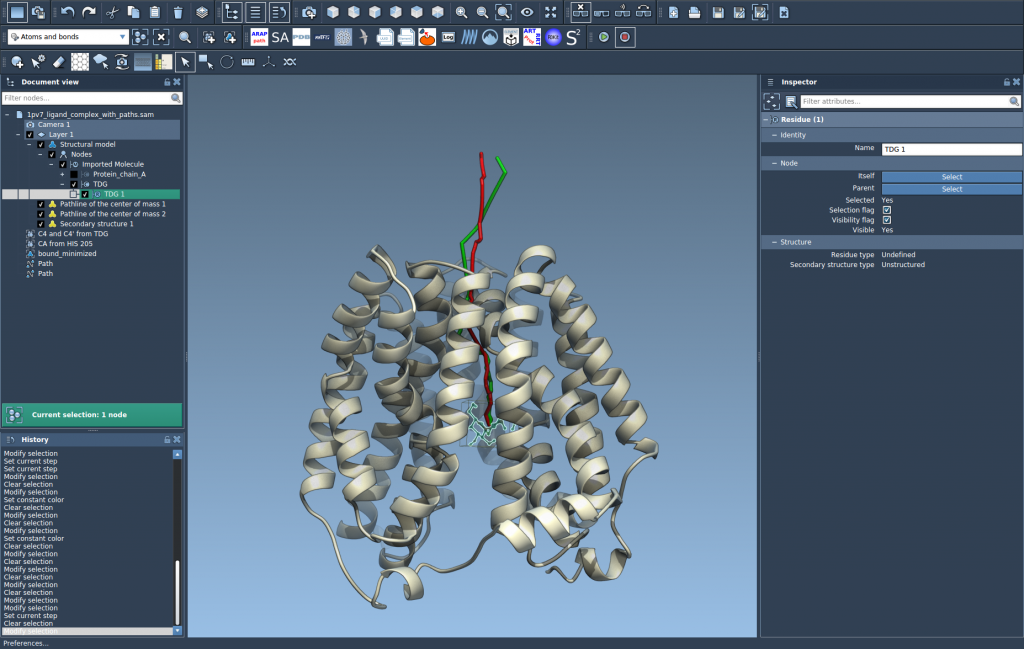
A pathline visual model displays the center-of-mass motion of selected atoms along selected paths. For example, you could select a ligand and use its pathline to make its movement through a protein easier to see. You can also use the same idea to examine a residue group or a larger set of atoms, depending on the question you are asking.
Keep the distinction in mind: the pathline represents the movement of the selected group’s center of mass. It is not a trace of every atom, and by itself it does not establish why the group moved or prove a particular mechanism. Use it as a compact visual summary alongside the molecular structure and the paths you are examining.
A practical workflow
- Load a system that contains paths. The Pathlines tutorial provides a sample built around lactose permease (
1PV7), its ligand thiodigalactoside (TDG), and two unbinding paths generated with Ligand Path Finder. To load it, use Home > Download, pastehttps://www.samson-connect.net/documents/046f1acd-c799-40f6-8185-cb4847eff795, and click Download. - Choose the atoms and paths that match your question. In the Document view, select the atom group whose center-of-mass motion you want to display, then select one or more paths. Hold Ctrl on Windows or Cmd on macOS to select multiple nodes. A useful detail: if you select no atoms, SAMSON uses the entire system; if you select no paths, it uses all paths in the document. Check your selections before creating the visual model, especially when the document contains several paths.
- Create the visual model. Open Visualization > Visual model > More…, choose Pathline of the center of mass, and click OK. The resulting pathline shows the selected atoms’ center-of-mass motion along the selected path or paths.
- Explore the motion and adjust its appearance. Double-click a path in the Document view to start or stop it. Right-click a path to find its Path > … options, or select it and open the Inspector to access path controllers. To adjust the pathline’s color or thickness, select the pathline visual model and use its properties in the Inspector.

Make the visualization answer a clear question
Before adding a pathline, decide what motion you want to communicate. For a ligand, that might be its route during unbinding. For a protein complex, it could be the displacement of a selected domain. Selecting only the relevant atoms and paths can help keep the view focused; using the entire system or every path is available when that broader view is what you need.
Pathlines are also linked to the paths they represent: deleting a path removes its associated pathline. Deleting atoms used by a pathline changes the visualization. If you are refining a document, keep those relationships in mind so the display continues to reflect the data you intend to inspect.
For examples of the pathline and its Inspector properties, see the images below.
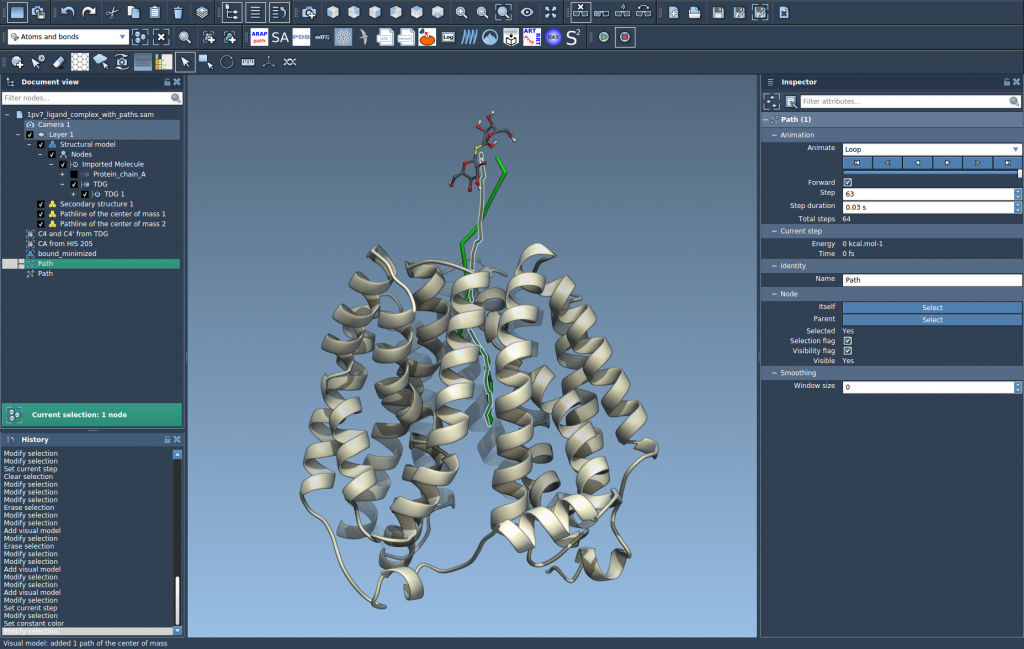
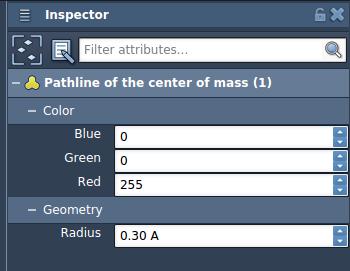
To continue from visualization to path optimization, the documentation points to the P-NEB app and its tutorial on optimizing transition paths. You can also explore the related tutorials for computing ligand or protein paths and exporting atom trajectories.
Read the full Pathlines tutorial for the complete walkthrough and related resources.
Note: SAMSON and all SAMSON Extensions are free for non-commercial use. Get SAMSON.