



A molecular path can be easy to inspect and surprisingly awkward to reuse. You may have a ligand moving along an unbinding route, but your next analysis needs its coordinates at each point—not the entire protein in every exported structure. Exporting everything can also make it harder to keep track of which atoms matter for a particular workflow.
SAMSON’s Export Along Paths extension addresses this by letting you export coordinates along selected paths, either for all atoms or for named subsets. The result can support downstream analysis, visualization, or simulation workflows, including preparing coordinates for reaction-coordinate or free-energy studies.
First, know what a path represents
In SAMSON, a path is a node that stores atomic trajectories for a group of atoms. Double-clicking a path in the Document view starts or stops movement along it. For exporting, the key distinction is that you choose both the path—the movement to capture—and, if needed, the atoms whose coordinates you want to include.
The tutorial’s example uses lactose permease (1PV7), the ligand thiodigalactosid (TDG), and two unbinding paths. The same general approach applies when you want to isolate a ligand, binding-site atoms, a backbone selection, or another defined group.
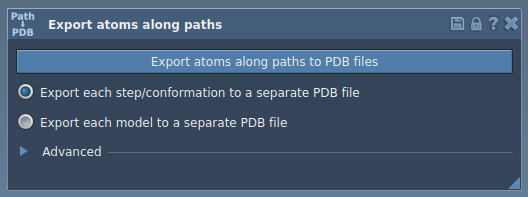
Choose the output that suits the next step
Open the app from Home > Apps > All > Export Along Paths. You can also search for it using Find everything… with Shift+E. Then select one or more paths in the Document view.
For an all-atom export, choose whether to put all frames into a single PDB file or save each frame as a separate PDB file, then click Export atoms along paths to PDB files. You will be asked to choose a destination folder and file prefix. The Advanced section lets you change the frame export interval.
These two output modes serve different organizational needs: a single file keeps the frames together, while separate files make each frame an individual output. Consider how the next tool or person in your workflow expects to receive the structures before choosing. If you are unsure, make a small test export and inspect the resulting files before exporting a larger set.
Keep the export focused on a subset
To export only selected atoms, expand Advanced, select the desired atoms in the Document view, and click Add. For example, select the TDG ligand to define it as a model for export. This adds a named group of atoms to the export list.
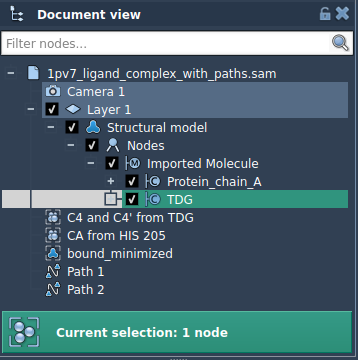
You can rename a model by double-clicking its name, and add multiple atom sets if you need to export more than one group. The Select and Unselect controls help highlight which atoms a listed model includes; the context menu offers corresponding actions. Use Reset to redefine a model when its atom selection needs to change.
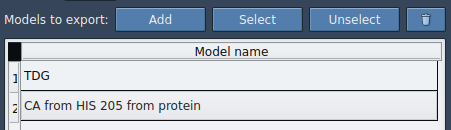
Before exporting, check the two selections separately: confirm that the intended path or paths are selected, and that each model in the export list contains the atoms you mean to track. Then choose the single-file or separate-file format and click Export atoms along paths to PDB files. The app will prompt for a destination folder and file prefix.
A practical way to avoid rework
- Use an all-atom export when the surrounding molecular structure is relevant to the task.
- Use a subset when the analysis needs a specific group, such as a ligand or binding-site atoms.
- Give each exported model a clear name, especially when exporting multiple atom sets.
- Choose the frame interval and file organization with the downstream workflow in mind.
- Keep the path selection explicit: the atoms define what is written, while the selected path defines the trajectory being exported.
This separation between which atoms and which path is a useful way to think about trajectory export. It helps turn a visual path into a more targeted coordinate set, without requiring every exported structure to include every atom in the system.
For the complete walkthrough, see the Export atom trajectories along paths tutorial.
Note: SAMSON and all SAMSON Extensions are free for non-commercial use. Get SAMSON.