



Finding the atoms you want in a molecular model can be surprisingly tricky. A search for everything near a ligand, residue, or selected group may return more than expected—not just atoms, but also larger nodes that contain those atoms. That can make a useful query feel unreliable, especially when you want a precise selection for inspection or the next step in your workflow.
SAMSON’s Node Specification Language (NSL) helps by letting you describe both what to find and what kind of node should be returned. A small habit makes many searches clearer: state the node type explicitly, then add the property or relationship you care about.
Start with the result you actually want
Suppose you want atoms within 5 angstroms of the residue named GLN 2, but you do not want atoms that belong to GLN 2 itself. The query is:
node.type atom within 5A of "GLN 2" out of "GLN 2"
The short form is:
n.t a w 5A of "GLN 2" out of "GLN 2"
There are three useful parts here. node.type atom limits the results to atom nodes. within 5A of "GLN 2" applies the distance condition. Finally, out of "GLN 2" removes nodes that belong to the named residue. This is more deliberate than asking for everything within a distance and hoping the result has the right granularity.
That distinction matters because a molecular document contains a hierarchy. A residue can contain atoms, and a larger node can contain the residue. The documentation gives a cautionary example: * within 5A of "GLN 2" can match the document node because atoms in the document are close to the residue. If your intended result is atoms, say so in the query.
Build a query in layers
- Choose the node type. For atoms, use
node.type atom(orn.t a); for residues, usenode.type residue(orn.t r). - Add the feature you care about. For example,
Cmatches carbon atoms, whileresidue.type ALAspecifies alanine residues. - Add a relationship or distance if needed. For example,
C within 5A of "GLN 2"looks for carbons near that named node. - Exclude a group only when you mean to. The
out ofoperator can remove nodes belonging to a specified set.
For example, to find carbon atoms near GLN 2 while excluding atoms in that residue, combine the ideas:
C within 5A of "GLN 2" out of "GLN 2"
If you need to guarantee that the result consists only of atom nodes, use the explicit type constraint as well:
node.type atom and Carbon within 5A of "GLN 2" out of "GLN 2"
NSL supports logical operators such as and, or, and not. Be cautious with not on its own: not residue.type CYS can match nodes that are not cysteine residues, including nodes that are not residues at all. To select non-cysteine residues specifically, constrain the type: node.type residue and not residue.type CYS.
Find the target by name
Names can be exact or patterned. A quoted name without wildcards matches exactly, so "GLN 2" targets that full name. Use * for any number of characters or ? for one character when a simple pattern is enough. For example, "ALA*" can match names beginning with ALA. When names are hard to recall, the Find command offers context-sensitive completion: type the beginning of a name, such as "ALA, then press Tab to see matching names from the active document.

Where to use the expression
Enter an NSL expression through Select > Find to make a search-driven selection. You can also type an expression into the Document view’s filter box, inspect the matching nodes, and press Enter to select them. For instance, n.t sg filters for structural groups.
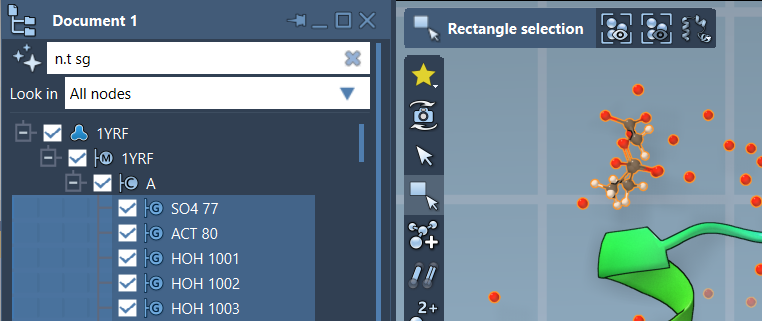
When a query surprises you, check the result type first, then check whether the target group itself should be included. Those two questions resolve many common selection surprises. For more syntax and attribute references, see the SAMSON NSL documentation.
Note: SAMSON and all SAMSON Extensions are free for non-commercial use. Get SAMSON.