



Building a membrane-like environment around a protein can involve a frustrating bit of spatial bookkeeping: lipids need a consistent orientation, the box must surround the protein, and copies should occupy available space rather than overlap the structure. Molecular Box Builder can help with this setup by placing repeated copies of a selected molecule in a defined box and, when instructed, taking existing molecules in that box into account.
The workflow below uses a lipid layer around the copper-transporting PIB-ATPase structure 4BBJ as an example. The same planning ideas can help whenever you are arranging repeated molecules around an existing structure.
Start by establishing a useful coordinate frame
Before placing lipids, orient the protein so its relationship to the box is easy to reason about. In SAMSON’s Document view, right-click the protein and choose Move selection > Align with Z axis, then choose Move selection > Center on the origin. This gives you a clear reference for arranging a layer along the protein.
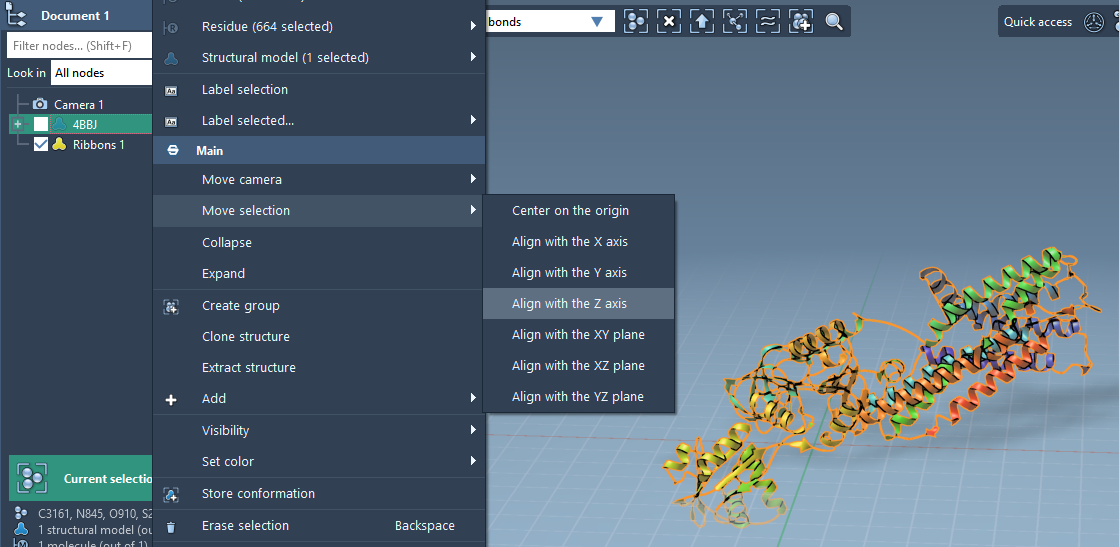
This alignment is not just a cosmetic step: the box dimensions and the lipid orientation are specified along coordinate axes. Setting up the protein first makes it easier to decide where the layer should go and how the box should be centered.
Set the lipid and its orientation
Import a lipid molecule, select it, and click Set in Molecular Box Builder. Choose +Z alignment for the first layer. The app can align the molecule’s first principal axis—the first eigenvector of its moment of inertia—with a selected direction. It also calculates the molecule’s bounding box based on the chosen alignment.
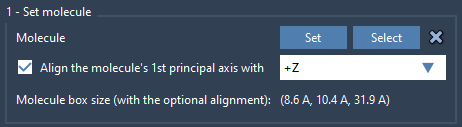
Orientation matters because it determines how each repeated lipid is presented in the box. If you need a different arrangement, the app also offers alignment to the other positive and negative coordinate directions, or no alignment. You can still move or rotate the system later using SAMSON’s Move editors.
Size the box around the protein
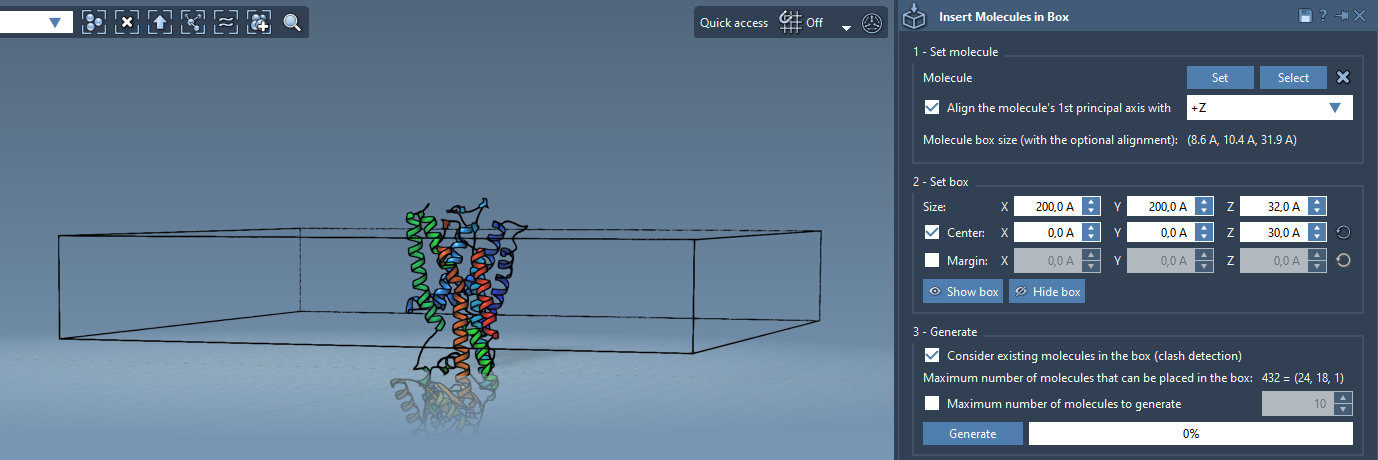
Enter the box dimensions in X, Y, and Z, then enable Center and adjust the center coordinates so the box is centered around the protein. Without that option, the box corner is aligned with the origin by default. This is an easy setting to overlook: a correctly sized box can still be positioned somewhere other than where you expect.
Next, set the margin between inserted molecules if needed. The default arrangement avoids clashes between the inserted copies; a positive or negative margin lets you adjust their spacing. Molecular Box Builder predicts how many molecules fit along each axis and the total number, and updates that prediction when you change the box size or margin.
Use the protein as an exclusion reference
For a layer around an existing protein, enable Consider existing molecules in the box before generating. This tells the app to place lipids only in available space, taking the existing molecules into account. Then click Generate.
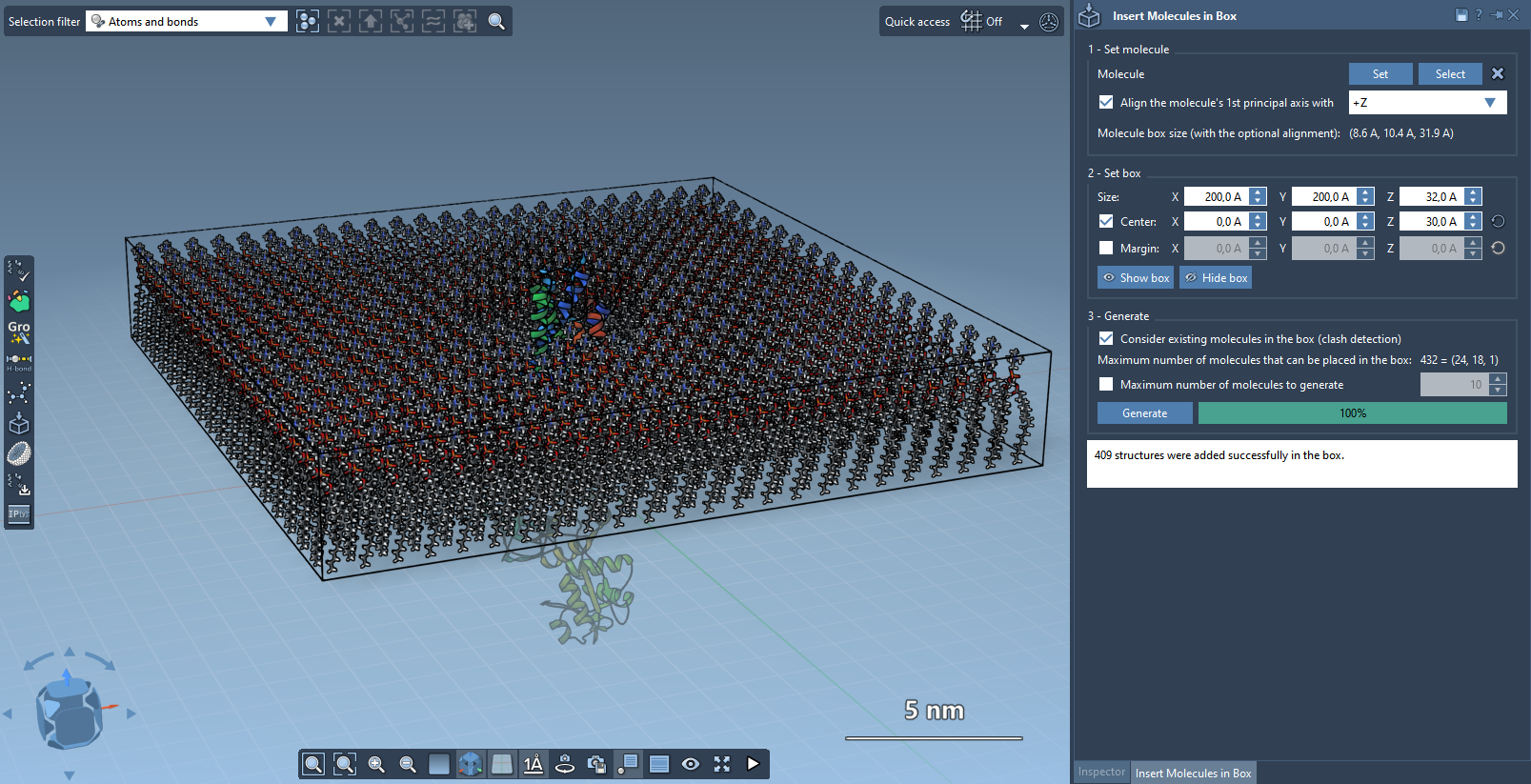
For a bilayer, build the first layer with +Z alignment, shift the box center in the Z direction, and add the second layer with -Z alignment. This gives you two oppositely oriented layers. Check the resulting structure in the viewport before moving on; the generation step creates the arrangement, while preparing a system for simulation is a separate task.
What to do next
Once the structure is assembled, you can continue with system preparation, minimization, equilibration, and simulation using a workflow such as GROMACS Wizard. For a membrane-building workflow with water and specified ions, the documentation also points to the PDBFixer extension.
For the full Molecular Box Builder instructions, including solvent-box generation and additional settings, learn more in the original tutorial.
Note: SAMSON and all SAMSON Extensions are free for non-commercial use. Get SAMSON.