



A molecular pathway can look smooth and still be a poor description of how a system moves between two states. Interpolated structures may contain awkward intermediate geometries, and a sequence of conformations does not automatically represent a physically meaningful transition. For modelers who already have a candidate route, the useful next step is often not to generate another path from scratch, but to relax the one they have.
SAMSON’s Parallel Nudged Elastic Band (P-NEB) app is designed for this refinement stage. It optimizes the intermediate images along an existing path, while spring forces help keep neighboring states distributed along it. The app implements the climbing-image NEB method, which can also be used to seek the saddle point along a transition path. Think of P-NEB as a way to improve a proposed route—not as a tool that invents the initial route for you.
Start with a candidate pathway. You can apply P-NEB to a path or to a set of conformations. If you have two relaxed endpoint structures but no intermediates, first create a sequence between them—for example, by linear interpolation or with a path-generation extension such as Ligand Path Finder. P-NEB improves a supplied path; it is not a substitute for this initial path-generation step.
When both inputs describe the same sequence, the documentation recommends using a path rather than a collection of conformations: optimizing the conformations directly takes longer. If your input is already a set of conformations, you can select them in the Document view and use Conformation > Create path from conformations to combine them before running the refinement.
Run a first refinement
- Load a sample document or your own system, and make sure the candidate path or conformations are present.
- Open Home > Apps > All > P-NEB, or find the app using SAMSON’s search box. The P-NEB extension and the FIRE state updater are required.
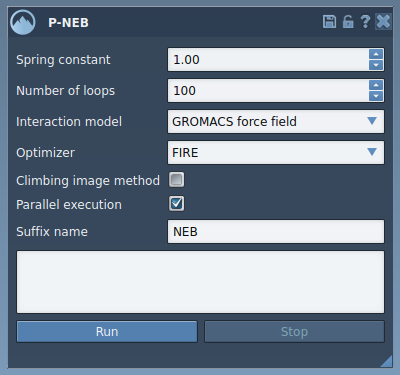
- For the tutorial’s example run, use a spring constant of 1.00 and 100 loops. Select Universal Force Field as the interaction model and FIRE as the optimizer. Enable parallel execution to run one thread per conformation.
- Leave the climbing image option unchecked for the initial run. You can repeat the calculation with it enabled if you want to try the climbing-image strategy for locating the saddle point. Enter
NEBas the suffix so the output is easy to distinguish from the input. - Select the path in the Document view and click Run. When the Universal Force Field setup asks whether to use existing bonds, choose to use them and confirm.

The status bar shows progress while the optimization runs. On completion, the refined result appears as a new path in the Document view, leaving the original available for comparison. You can inspect the new path with the Inspector, or double-click it to start and stop its animation. This makes it easier to review the sequence of structures rather than judging the pathway from a single snapshot.

Keep the result in context
Refinement does not remove the need to evaluate the model and its assumptions. Check that the endpoints are the intended states, that the selected input represents the motion you want to study, and that the interaction model is appropriate for your system. The tutorial’s Universal Force Field settings provide a concrete example, not a universal recommendation for every molecular modeling task. A smoother or optimized path should be treated as a candidate for further inspection, not by itself as proof of a mechanism or a complete free-energy result.
For a complete walkthrough and additional details on applying P-NEB to paths or conformations, see the original P-NEB tutorial.
Note: SAMSON and all SAMSON Extensions are free for non-commercial use. Get SAMSON.