



A candidate molecular pathway can be useful without being physically plausible at every point along the way. A sequence of structures may show how a ligand could leave a binding site, for example, but its intermediate conformations may need refinement. The Parallel Nudged Elastic Band (P-NEB) app in SAMSON is designed for this next step: it optimizes the intermediate images of a path using energy and force calculations, while spring forces help distribute neighboring states along the route.
The key distinction is that P-NEB refines a candidate path; it does not generate the initial pathway for you. If you have only the starting and ending structures, first create intermediate conformations—for example, by linear interpolation or with a path-generating extension such as Ligand Path Finder. Then apply P-NEB to the resulting path.
Start with a path when you can
SAMSON can apply P-NEB to either a path or a set of conformations. A path stores a trajectory for selected atoms, while conformations store saved positions for a selected group of atoms. For the same system and number of steps, the documentation recommends using a path because optimizing a set of conformations takes longer. If your structures are currently separate conformations, you can select them and use Conformation > Create path from conformations to combine them.
This choice can make the workflow simpler: refine one trajectory, then inspect the resulting path as a continuous sequence rather than managing a collection of individual structures.
A practical refinement workflow
- Prepare the input. Load a sample path or your own candidate pathway into SAMSON. Confirm that the structures represent the atoms and motion you intend to study. The tutorial includes a smaller zinc-ligand unbinding example for testing, as well as a lactose permease–Thiodigalactosid complex with unbinding paths.
- Open P-NEB. Find it under Home > Apps > All > P-NEB, or search for it in Find everything….
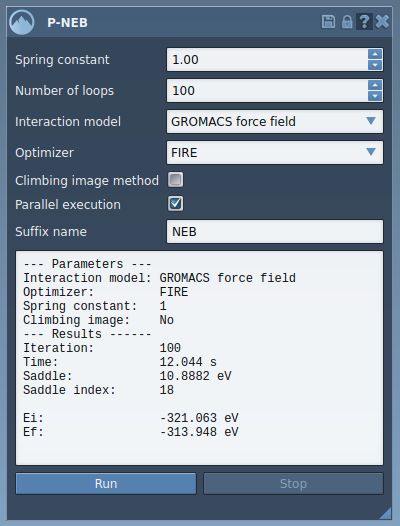
- Set the optimization options. The tutorial’s example uses a spring constant of
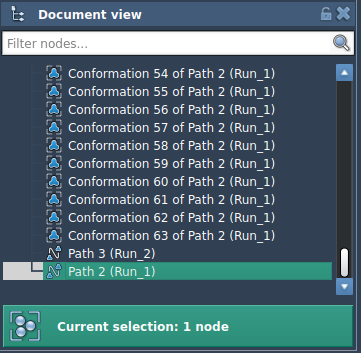
1.00,100loops, the Universal Force Field (UFF), and the FIRE optimizer. It enables parallel execution, which runs one thread per conformation. For the first run, leave the climbing image method unchecked; you can try a separate run with it enabled if you want the app to use that strategy to find the saddle point. - Select the input and run. Select the path node in the Document view, then click Run. If the UFF setup asks whether to use existing bonds, choose to use them and confirm.
- Inspect the result. Monitor progress in the status bar. When the calculation finishes, a new path appears in the Document view, and the P-NEB interface provides a computation summary. Select the output path and examine it with the Inspector; double-clicking the path starts or stops its animation.
What refinement does—and what it does not do
NEB optimizes the intermediate images along a supplied route, seeking a more physically meaningful transition while the spring forces help keep neighboring states distributed along the path. This makes it useful when you already have a plausible route that needs improvement. It is not a substitute for generating a route between two states, and a refined path should still be inspected before you use it in later analyses.
For an initial test, use the standard settings from the tutorial and compare the input and output paths. Once you are comfortable with the workflow, you can explore the climbing image option and assess how it changes the result. The optimized path can also be carried forward to a simulation or free-energy workflow, or its atom trajectories can be exported.
For the full walkthrough and related details, see the P-NEB tutorial.
Note: SAMSON and all SAMSON Extensions are free for non-commercial use. Get SAMSON.