



Selecting a molecular structure by hand can become tedious when the region you need has a precise geometric boundary. A coordinate-based expression offers a more repeatable alternative: describe the shape mathematically, then let SAMSON evaluate the condition for atoms in the active document.
The Simple Script Extension can both select atoms and modify properties such as their coordinates or visibility. For selection alone, the Atoms Selector Extension accepts an expression that determines which atoms are selected. These approaches are useful for tasks such as isolating a region of a crystal, revealing a local area of a large model, or creating a patterned cutout from a sheet.
Start with a simple geometric boundary
For example, this expression selects atoms inside a sphere of radius 10 centered at (0, 0, 2):
|
1 |
(a.x^2 + a.y^2 + (a.z - 2)^2) < 100 |
The expression is the squared distance from the atom to the sphere’s center. Comparing it with 100 is equivalent to comparing the distance with 10, but avoids calculating a square root. Coordinates are interpreted in the length units used by the structure.
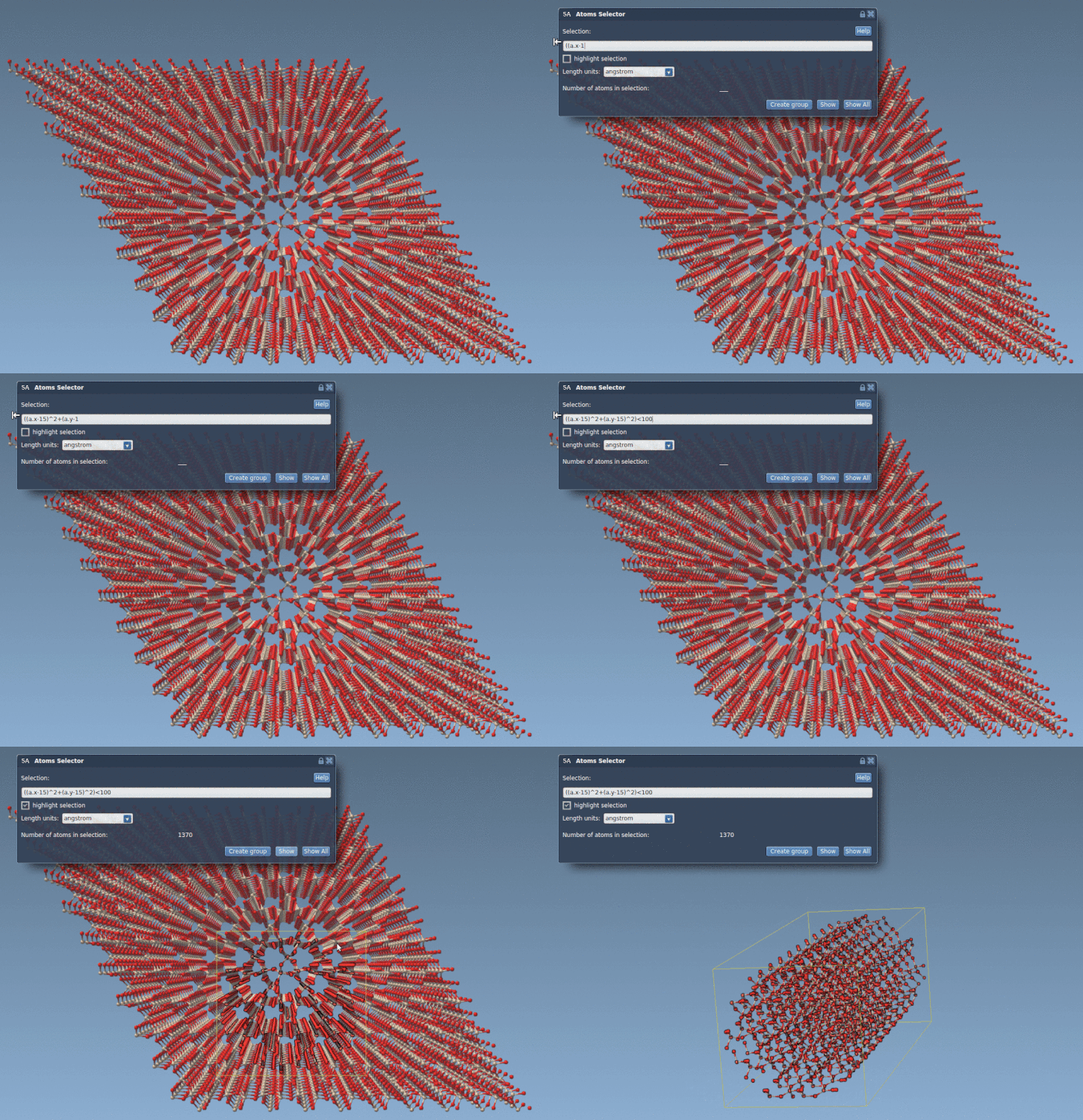
A cylinder around the z-axis can be described by checking only x and y. For a radius of 10 centered at (15, 15), use:
|
1 |
((a.x - 15)^2 + (a.y - 15)^2) < 100 |
Because the z-coordinate is not part of this condition, atoms at any height can match. This is the same kind of expression used in the SAMSON tutorial to select a cylindrical region from a quartz crystal.
Use conditions to combine regions
Geometric selection becomes more flexible when you combine comparisons with logical operators. For instance, to select atoms with both x and y greater than zero in Simple Script:
|
1 2 |
if (a.x > 0 and a.y > 0) n.selectionFlag:=1; else n.selectionFlag:=0; |
This explicitly sets the selection flag for every atom considered: matching atoms are selected and the rest are unselected. If you only want to change the coordinates of atoms that meet a condition, put the coordinate assignment inside the conditional instead. For example, to shift atoms of element ID 2 by 5.25 along y:
|
1 |
if (a.elementID == 2) a.y += 5.25; |
Simple Script also supports functions such as abs, so a condition can refer to distance from an axis on either side. A useful pattern is abs(a.x) > 10, which matches atoms more than 10 coordinate units from the x=0 plane, whether x is positive or negative.
Choose selection or visibility deliberately
Selection and visibility solve different problems. Set n.selectionFlag when you want to identify atoms as selected. Set a.visibilityFlag when you want to show or hide atoms. A sphere-based visibility filter can keep only atoms inside the sphere:
|
1 2 |
if ((a.x^2 + a.y^2 + (a.z - 2)^2) < 100) a.visibilityFlag:=1; else a.visibilityFlag:=0; |
This changes what is visible; it is not the same as deleting atoms. For a first pass on a valuable model, consider using visibility to inspect the result before making other changes. Also check whether your chosen expression sets the outside case intentionally: leaving unmatched atoms untouched can produce a different result from explicitly hiding or deselecting them.
Build complex shapes from smaller rules
A batarang-shaped graphene cutout may look playful, but it demonstrates a practical technique: describe a complex outline as several simpler regions, then combine them with conditions. The tutorial’s script first scales the atom coordinates into variables, then tests different parts of the outline—wings, head, and ears—and uses a final flag to select and show atoms inside the shape. This approach can be adapted to other outlines when their boundaries can be expressed with equations and inequalities.

When creating a custom shape, work from the center outward: confirm the coordinate plane and units, test a simple region, then add boundary conditions one at a time. The examples use single quotation marks when referring to element names or symbols, such as a.element=='Carbon' or a.symbol=='H'. For selection-only tasks, the Atoms Selector accepts an expression directly; Simple Script is the option when you also need to change atom properties.
For the complete syntax, additional examples, and the full batarang scripts, see the original SAMSON tutorial.
Note: SAMSON and all SAMSON Extensions are free for non-commercial use. Get SAMSON.