



Placing lipids around a protein is a deceptively fiddly modeling task. The protein needs to sit in the right orientation, the lipid molecules need a consistent direction, and the available space must be filled without placing lipids on top of the protein. Doing these steps manually can turn a simple setup into repetitive positioning and checking.
SAMSON’s Molecular Box Builder offers a more systematic approach: define a lipid molecule, orient it, create a box around the protein, and generate copies only in the available space. The workflow below focuses on building a single lipid layer around a protein, with a bilayer as an optional extension.
Start by establishing a useful orientation
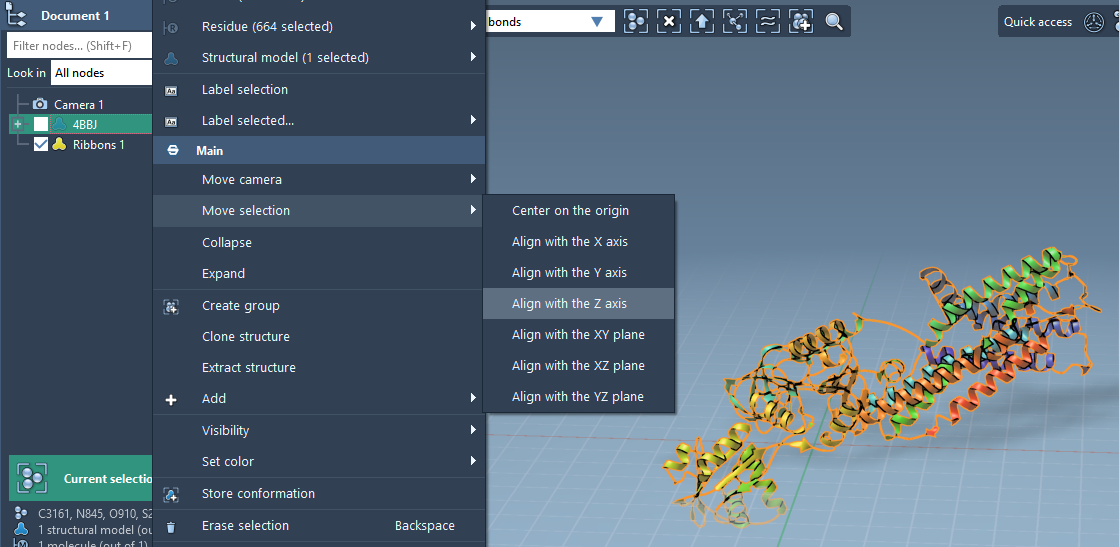
Before adding lipids, orient the protein so its membrane-spanning direction is along the Z axis. In Document view, right-click the protein and choose Move selection > Align with Z axis, then choose Move selection > Center on the origin.
This gives you a clear reference for the lipid layers: one can be aligned along +Z, and a second can later be aligned along -Z. Centering the protein also makes it easier to position the box around the structure rather than trying to judge its coordinates by eye.
Set the lipid and its orientation
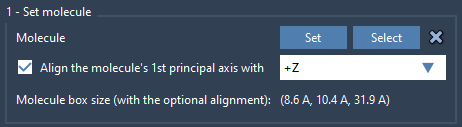
Import the lipid molecule you want to use. Select it in the Document view or Viewport, open Molecular Box Builder, and click Set. In the app, choose to align the molecule’s principal axis with +Z.
The app calculates the molecule’s bounding box based on the selected orientation. That matters because the estimated number of copies that fit depends on the dimensions of the oriented molecule—not just on the box dimensions. If the lipid is not oriented as intended, pause here and correct the alignment before generating a layer.
Define the available space
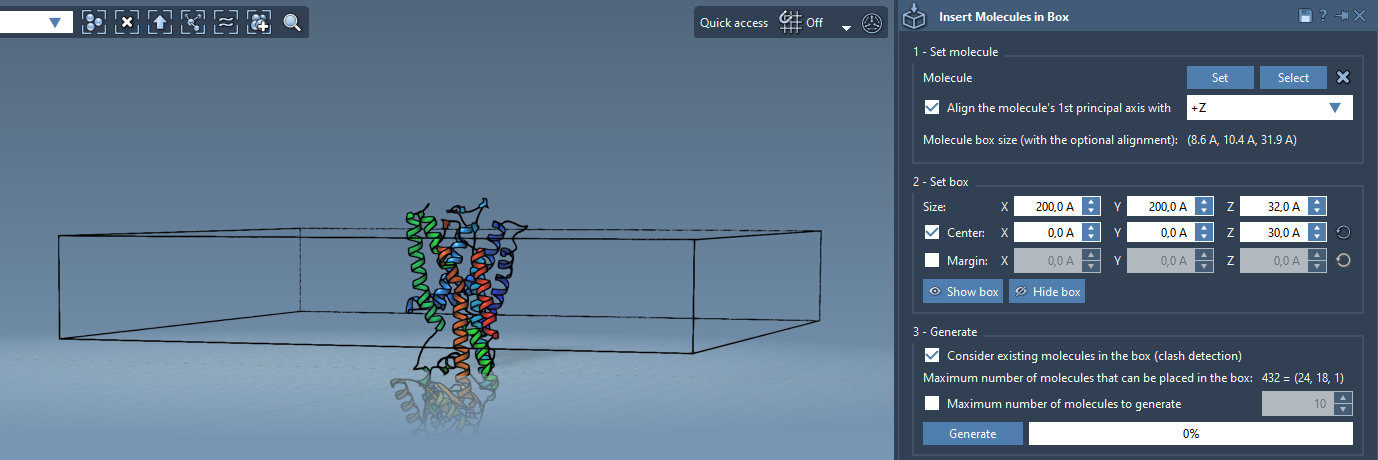
Set the box dimensions in X, Y, and Z, and center the box around the protein. Adjust the box so that it represents the region where you want lipids to be placed. The box is a placement boundary; it does not, by itself, determine whether the resulting model is ready for simulation.
You can also specify the margin between inserted molecules. The default behavior is to avoid clashes between the inserted copies. A positive or negative margin lets you adjust their spacing, so use this setting deliberately and inspect the resulting arrangement rather than treating it as a substitute for later preparation.
Molecular Box Builder predicts how many molecules fit along each axis and the total count. These estimates update when you change the box size or margin. Use the prediction as a quick planning aid: if the count is far from what you expected, revisit the dimensions, orientation, and spacing before generating.
Generate around the protein—not through it
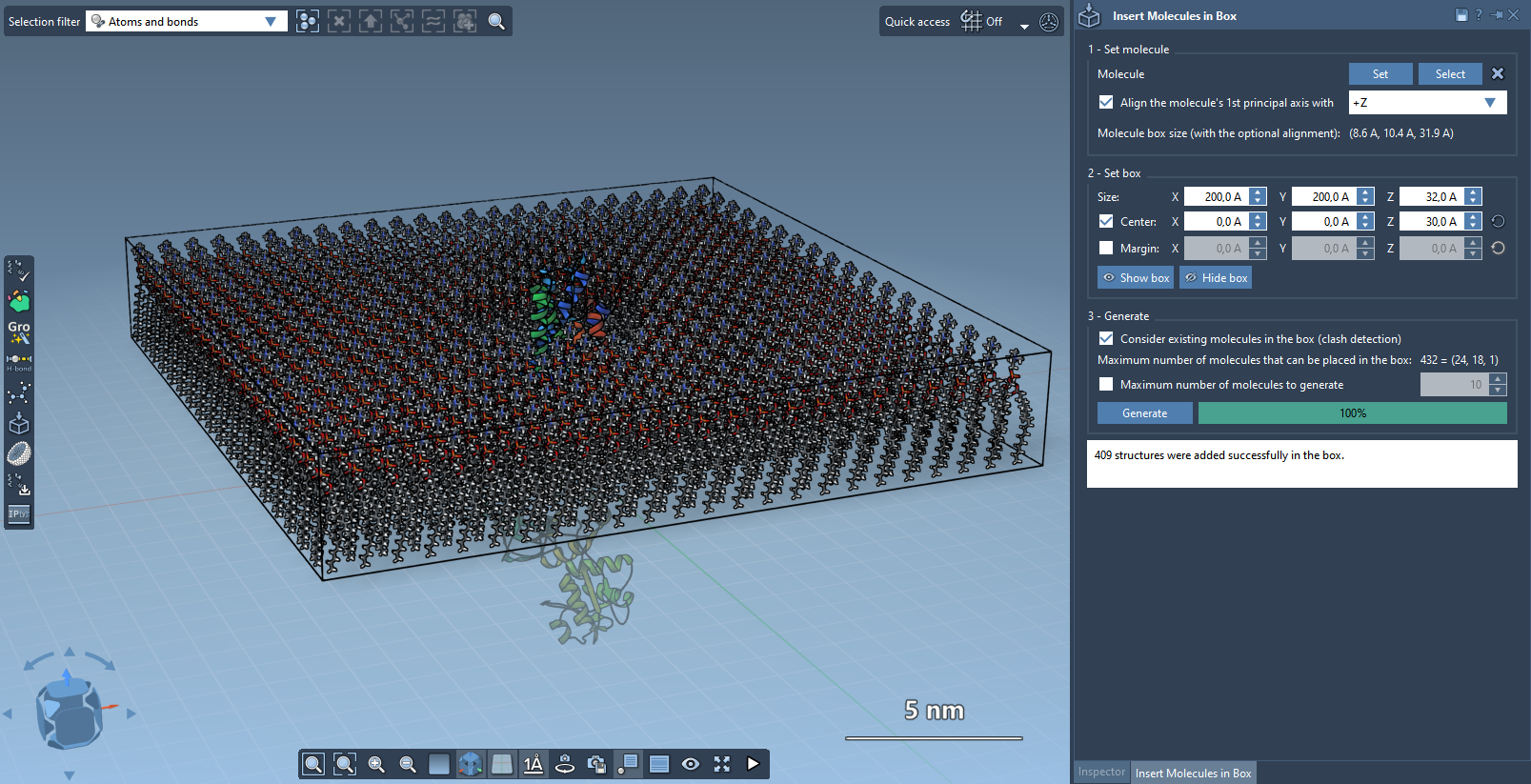
For a protein-containing box, enable Consider existing molecules in the box before clicking Generate. This tells the builder to account for the protein already present, so lipid molecules are placed in available space rather than simply filling the box as if it were empty.
After generation, inspect the result. The intended outcome is a single lipid layer around the protein, with copies positioned in the remaining space. If the layer is incomplete or the placement is not what you intended, revisit the box dimensions, lipid orientation, and molecule margin. These are the main controls in this workflow.
Extending the setup to a bilayer
A bilayer can be built as two separate layers: generate the first using +Z alignment, shift the box center in the Z direction, then add the second layer using -Z alignment. This gives you control over the placement and orientation of each layer. Check the resulting structure before moving on to simulation preparation.
Once the structure is assembled, it may need further preparation, minimization, and equilibration. The documentation points to GROMACS Wizard as one possible next step. For a different workflow, the PDBFixer extension can build a membrane from available lipids around a protein, with water and specified ions.
For the complete instructions and additional examples, see the Molecular Box Builder tutorial.
Note: SAMSON and all SAMSON Extensions are free for non-commercial use. Get SAMSON.