



A molecular path can be easy to inspect visually and surprisingly awkward to use in another workflow. If you need coordinates for a reaction-coordinate analysis, a free-energy calculation, or simply a focused view of ligand movement, exporting the entire system may add data you do not need. The key is to decide two things before exporting: which path frames to save, and which atoms belong in the output.
SAMSON’s Export Along Paths extension handles both choices. It can export all atoms represented by a selected path, or a defined subset such as a ligand. You can also choose whether the frames are collected in one PDB file or written as separate PDB files. That makes the export easier to tailor to the next step in your workflow without changing the path itself.
Start with a path, not just a structure
A path in SAMSON is a node that stores atomic trajectories for a group of atoms. Double-clicking a path in the Document view starts or stops moving atoms along it. Exporting turns those stored coordinates into PDB files that can be used beyond the interactive view.
For a practical example, the tutorial’s sample contains lactose permease (1PV7), the ligand TDG, and two ligand unbinding paths. The sample can be loaded through Home > Download using the document URL provided in the tutorial. Once loaded, inspect the Document view and identify the protein, ligand, and paths before opening the export app.
Choose the output that matches your question
If your analysis needs the complete system along the path, select one or more paths in the Document view and use the default all-atoms workflow. Choose between putting all frames in a single PDB file or saving each frame as a separate PDB file, then click Export atoms along paths to PDB files. SAMSON will ask you to choose a destination folder and file prefix.
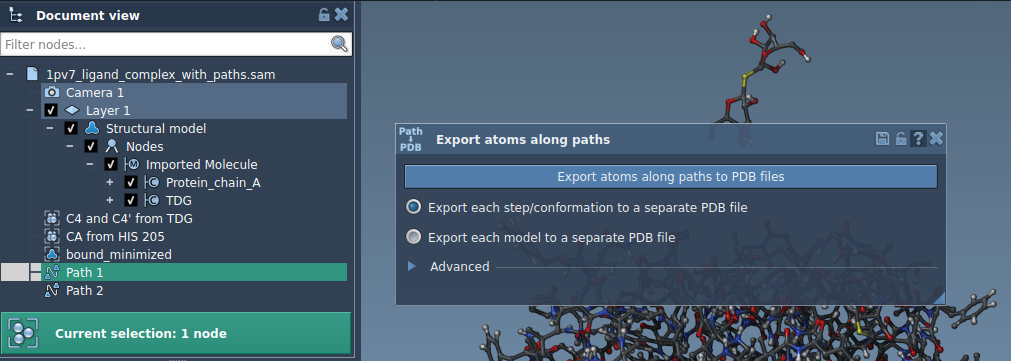
The choice between one file and multiple files is a workflow decision: consider what format of output is convenient for the software or analysis step that follows. If the path contains more frames than you need to export, expand Advanced and adjust the frame export interval. The interval determines how frequently frames are included, so choose it with the level of path detail you want to retain in mind.
For ligand-focused work, define the subset explicitly
When the question concerns ligand movement, exporting only the ligand can keep the output focused. Open the Advanced panel, select the desired atoms in the Document view—for example, TDG—and click Add. This creates a named model, meaning a group of atoms, in the export list. The selected group is then available as the atom subset for the export.
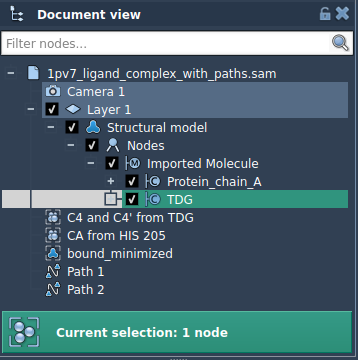
Before exporting, check the model list. You can rename a model by double-clicking its name, add other atom sets using the same selection-and-add process, and use Select or Unselect to highlight the atoms included in a model. If a set needs to be redefined, use Reset or the corresponding context-menu option. These checks are useful when working with multiple groups, because they let you confirm what each named export model contains.
Once the atom sets are ready, choose the single-file or separate-files format, select the relevant path or paths, and start the export. You will again be prompted for a destination folder and file prefix.
A simple pre-export checklist
- Have you selected the intended path or paths?
- Do you need all atoms, or only a defined group such as a ligand?
- Would one PDB file or separate frame files better fit the next step?
- Should you adjust the frame export interval in the Advanced section?
- If using subsets, have you added and checked each model in the list?
This approach is useful for preparing coordinates for reaction-coordinate studies, free-energy workflows, ligand entry or exit trajectory analysis, and visualization of intermediate states. The export does not perform those downstream analyses; it provides the path coordinates in PDB files for you to use in the tools and workflows you choose.
For the full walkthrough and interface details, see the Export atom trajectories along paths tutorial.
Note: SAMSON and all SAMSON Extensions are free for non-commercial use. Get SAMSON at samson-connect.net.