



A Potential of Mean Force (PMF) can turn umbrella-sampling results into a profile that is easier to interpret—but the curve alone does not tell the whole story. If parts of the reaction coordinate were sampled sparsely, a smooth-looking profile may still leave you wondering whether the underlying data cover the regions you care about.
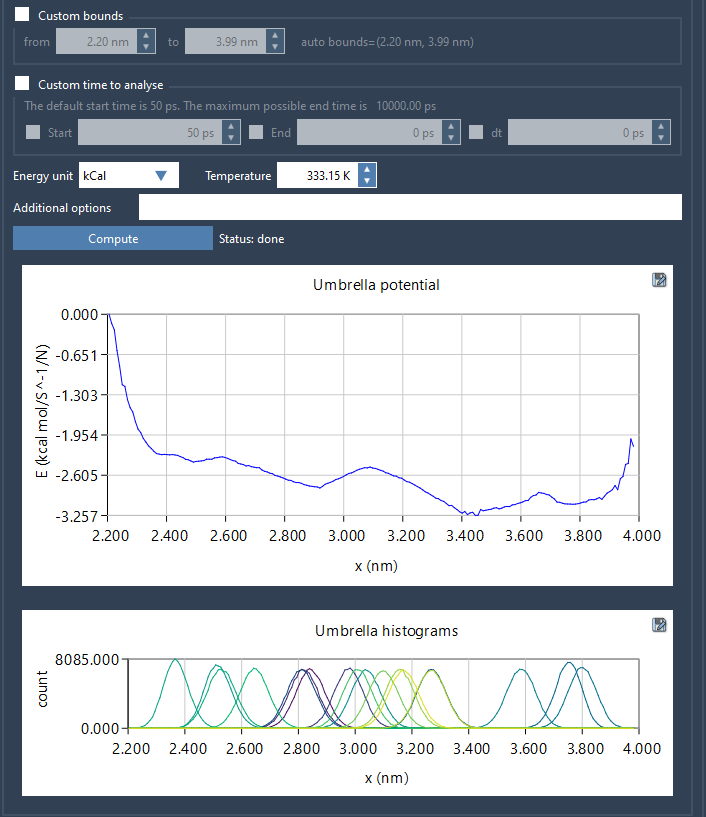
GROMACS Wizard addresses this practical problem by generating two plots during PMF analysis: the PMF profile and a histogram of sampling along the reaction coordinate. Read them together. The profile shows the calculated free-energy landscape; the histogram helps you see how well the coordinate space is covered and where additional sampling may be needed.
Start with compatible umbrella-sampling data
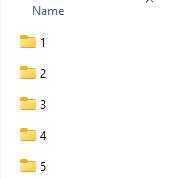
PMF analysis comes after an umbrella-sampling workflow. Before opening the analysis, check that the input folder contains numbered subfolders belonging to the same system and using the same reaction-coordinate setup. This is more than a file-organization detail: the analysis needs window data that belong together. Mixing projects or coordinate definitions can make it unclear what the resulting profile represents.
In the WHAM Analysis tab of GROMACS Wizard, select the project path. If the previous project you ran was the umbrella-sampling simulation, the auto-fill option can populate the path for you. Then confirm the folder structure and choose the reaction coordinate you want to analyze.
Check the analysis choices before computing
GROMACS Wizard loads the reaction-coordinate information, time range, and temperature from the project automatically. Review these values in context, then adjust optional settings if your analysis calls for them. The available options described in the workflow include custom bounds, a custom time range, and energy units.
Once the setup is ready, click Compute. The analysis uses the Weighted Histogram Analysis Method (WHAM) to produce the PMF profile and the sampling histogram. For large trajectories, computation may take several seconds or minutes, so allow it to finish before drawing conclusions from the plots.
Use the histogram as a coverage check
When the results appear, resist the temptation to look only at the PMF curve. The histogram gives you a view of how well the reaction-coordinate space is covered. Look for regions where coverage appears limited; those regions are useful prompts to review the corresponding umbrella-sampling windows and consider whether more sampling is needed.
The histogram is a diagnostic companion to the profile, not a substitute for scientific judgment. It helps you spot places to investigate, but the page does not prescribe a universal threshold for adequate coverage. Interpret the plots in light of your system, workflow, and analysis goals. If a region seems insufficiently sampled, return to umbrella sampling and add or extend simulations for the relevant windows, then analyze the updated project.
Keep results organized
GROMACS Wizard saves the profiles, histograms, and plots in the project’s wham_results subfolder. This gives you a place to find the outputs after the calculation. If you switch to another reaction coordinate later, the tool reuses already computed data for the same parameters, which can avoid repeating work when those settings have not changed.
A useful routine is therefore: verify that the umbrella-sampling windows belong to one consistent setup, review the analysis choices, compute the PMF, and inspect the histogram alongside the profile. That small checklist helps turn a plotted result into a more informed next step—whether that is interpreting the current profile or improving sampling where coverage needs attention.
For the full workflow, see the GROMACS Wizard PMF Analysis documentation.
Note: SAMSON and all SAMSON Extensions are free for non-commercial use. Get SAMSON.