



When a molecule needs a new substituent or a different linker, the tedious part is often not imagining alternatives—it is making each edit consistently. Rebuilding the same scaffold over and over can invite mistakes, especially when you want to compare several replacement ideas. In SAMSON, the SMILES Manager’s Replace fragments workflow lets you describe the starting molecule, the piece to replace, and a set of candidate fragments, then generate the resulting SMILES as a library.
Think in attachment points
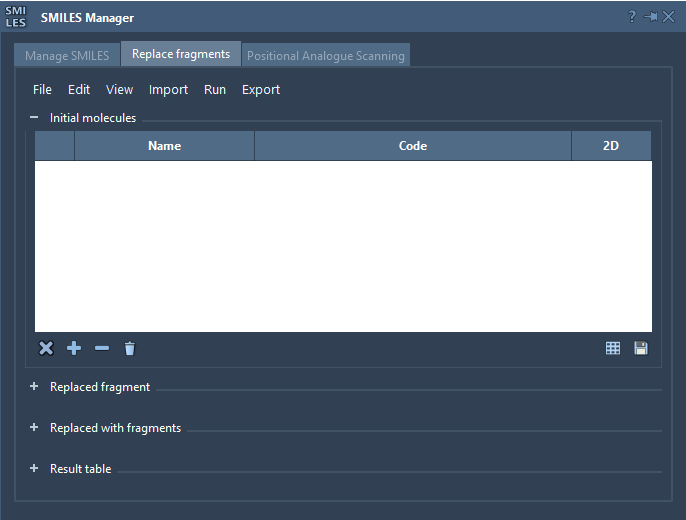
The key to a successful replacement is specifying not just the fragment, but how it connects to the rest of the molecule. In the tutorial’s example, the starting molecule is COc1cc(CNC(=O)CCCC/C=C/C(C)C)ccc1O, and the target fragment is [*:1]C(=O)NC[*:2]. The two labeled dummy atoms, [*:1] and [*:2], mark the ends of the pattern: they tell the workflow where the replacement connects to the surrounding structure.
Each replacement fragment needs the same kind of two-ended pattern. For example, [*:1]S(=O)(=O)NC[*:2] offers a different group between the same two attachment points. Other examples in the tutorial include ring-containing fragments and nitrogen-rich heterocycles. The useful idea is to keep the connection points explicit while varying the chemistry between them.
A practical workflow
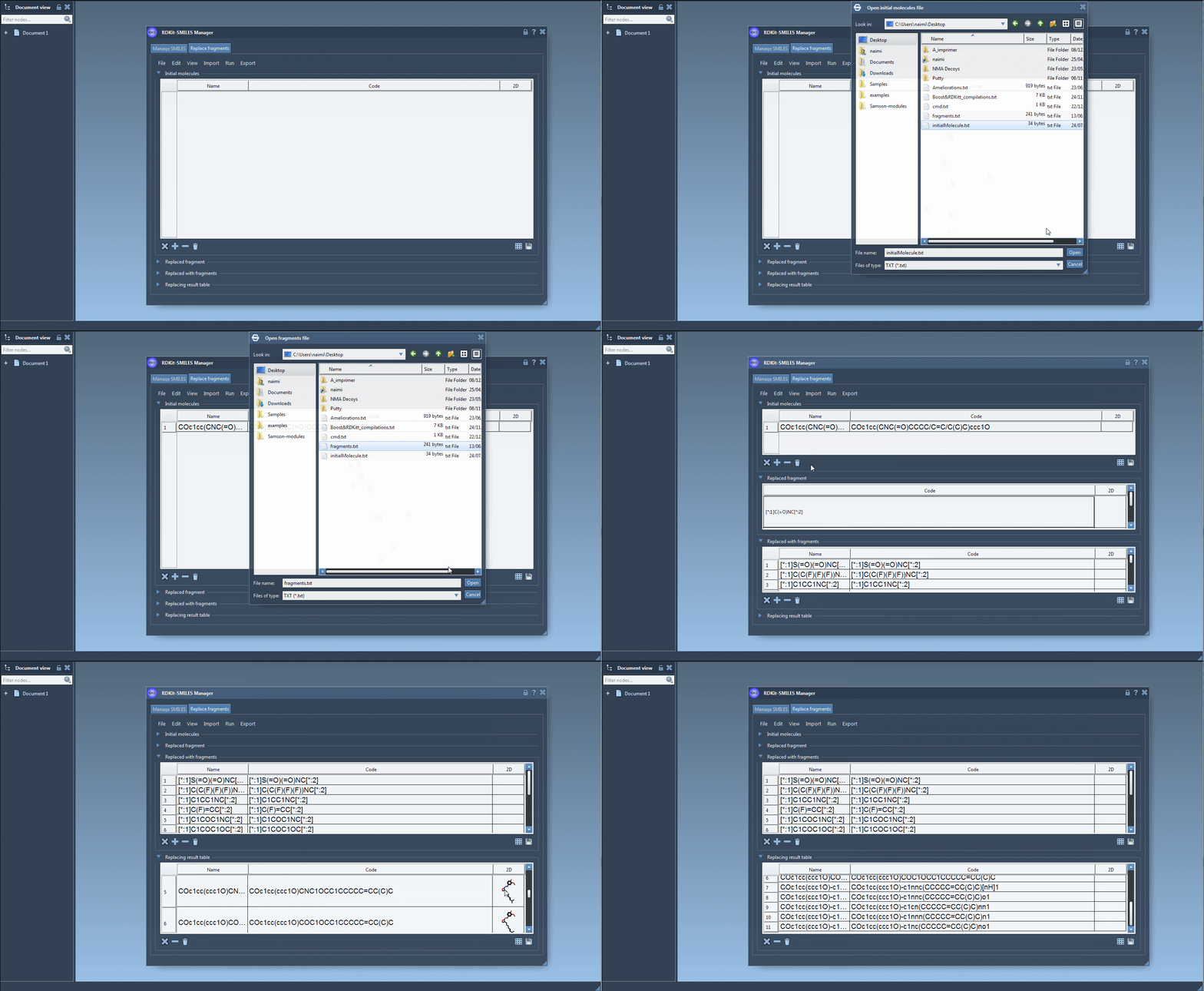
- Choose the starting molecule. Add it manually, open a file, or import a molecule from the active SAMSON document. Start with one structure if you want to make the result set easier to inspect.
- Define the fragment to replace. Enter the pattern directly or import it from a SAMSON selection. Check that its two labeled ends correspond to the bonds you intend to change.
- Prepare replacement fragments. Add alternatives manually or load them from a file. Use
[*:1]and[*:2]at the ends of each pattern, as required by the RDKit fragment syntax described in the tutorial. - Run the replacement. Choose Replace fragments from the Run menu. The generated molecules appear in the Results table.
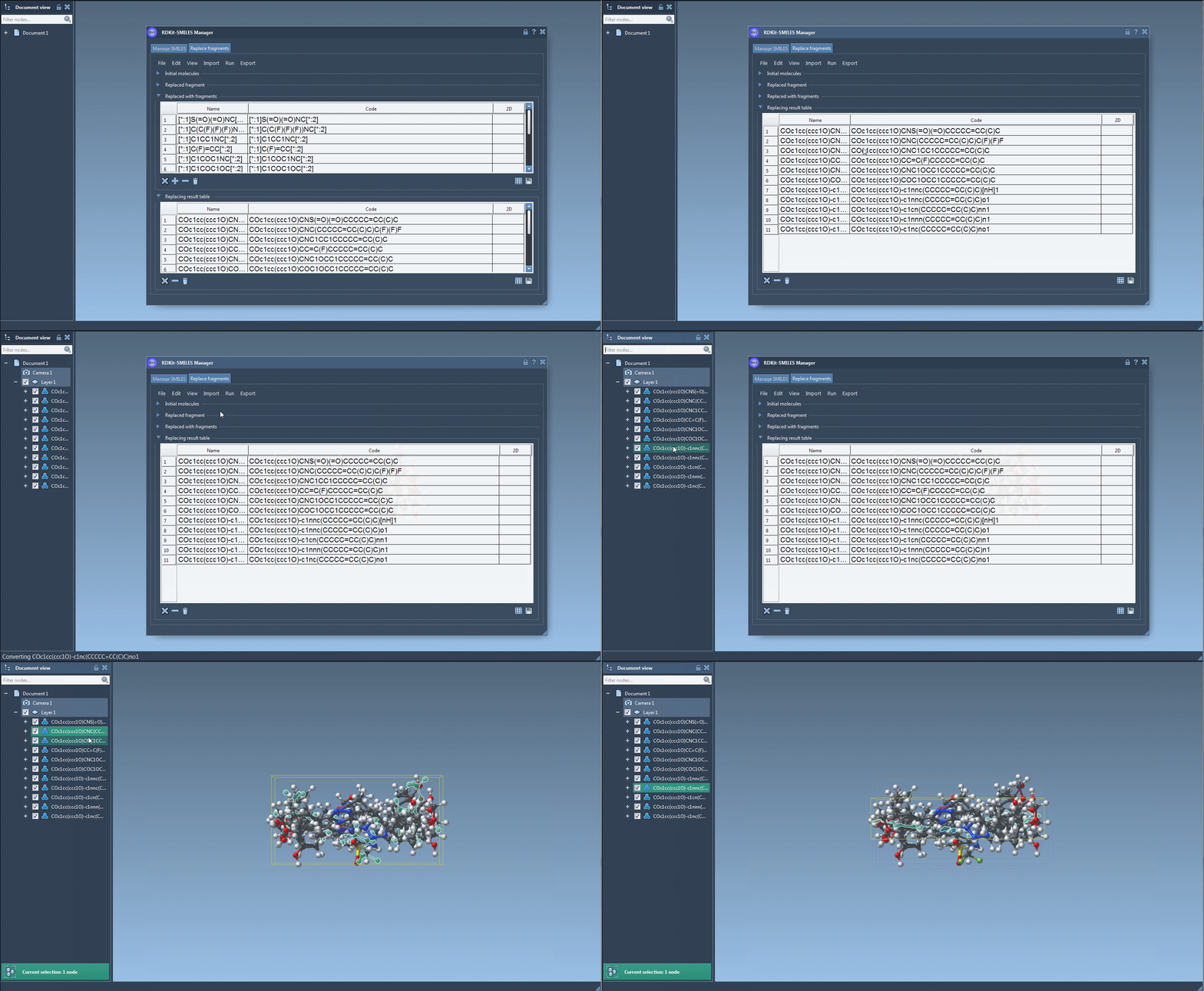
- Review before using the structures. Inspect the resulting SMILES and 2D depictions, then export selected results to the active document or generate 3D structures for further work.
Make the candidate set useful
A large result table is only helpful if you can tell what each candidate represents. Give entries clear names where appropriate, and work with a focused set of replacements tied to a specific question—for example, whether changing a linker or ring produces candidates worth examining. The SMILES Manager can display 2D depictions alongside the codes, which makes it easier to catch an unexpected structure before moving on.
Also keep the scope of the result in mind: fragment replacement generates structures; it does not establish that a candidate has better activity, binding, stability, or other desired properties. Treat the output as a set of molecules for subsequent inspection and analysis, not as a ranking. Candidates can be converted into 3D structures and then carried into other modeling workflows, such as docking or conformational analysis.
For the complete interface walkthrough and additional SMILES Manager features, read the original documentation tutorial.
Note: SAMSON and all SAMSON Extensions are free for non-commercial use. Get SAMSON.