



Building a small set of related molecules can become surprisingly tedious. You may have a scaffold you want to preserve, a region you want to vary, and a list of candidate replacements—but manually editing every SMILES string is easy to get wrong. The Replace fragments workflow in SAMSON’s SMILES Manager helps turn that repetitive editing into a structured library-generation task.
The idea is simple: provide an initial molecule, mark the fragment to remove with two attachment points, then supply replacement fragments using the same attachment-point labels. The manager combines the compatible inputs into a results table, where you can review the generated SMILES and their 2D depictions before creating 3D structures.
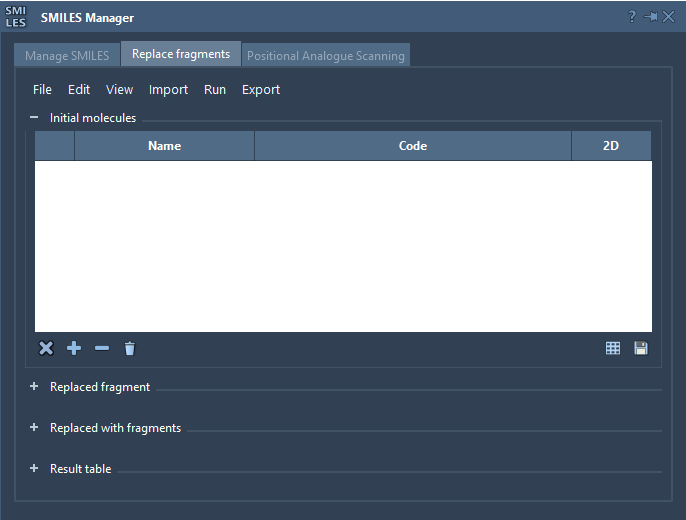
Plan the replacement before generating the library
Start with a clear question: which part of the molecule do you want to vary, and which parts should remain unchanged? In the tutorial example, the initial molecule is COc1cc(CNC(=O)CCCC/C=C/C(C)C)ccc1O. The fragment selected for replacement is [*:1]C(=O)NC[*:2]. The two labeled attachment points indicate how the replacement connects to the rest of the molecule.
This distinction matters. A replacement is not just a free-standing fragment: it needs to connect at the intended positions. Each candidate replacement should therefore use the same pair of endpoint labels, [*:1] and [*:2], in the appropriate places. For example, the tutorial’s replacement list includes [*:1]S(=O)(=O)NC[*:2] and [*:1]C1CC1NC[*:2]. These strings describe alternatives intended to bridge the same two points in the starting structure.
A practical workflow
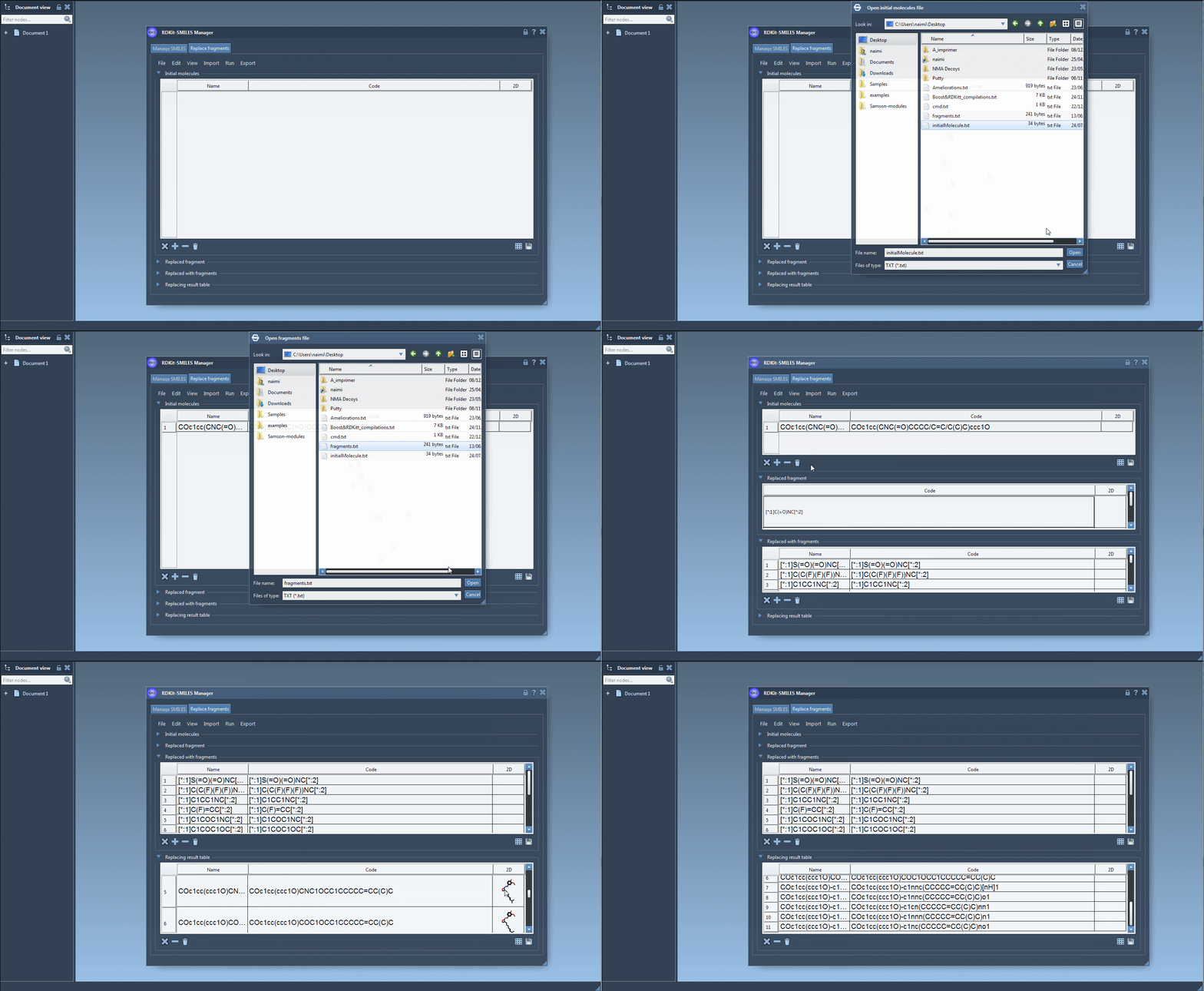
- Load the starting molecule. In the Replace fragments tab, open initial molecules from a file, add them manually, or import a selection from the active SAMSON document. For a first test, use one molecule so the output is easy to inspect.
- Specify the fragment to remove. Enter the fragment pattern or import it from the active document. Include the two labeled attachment points at the ends of the pattern, such as
[*:1]C(=O)NC[*:2]. - Provide replacement fragments. Add alternatives manually or load them from a file. Check that each candidate uses the endpoint labels consistently. A collection of well-organized inputs makes the resulting table easier to interpret.
- Run the operation. Choose Replace fragments from the Run menu. The generated molecules appear in the Results table, which presents entries in a familiar way alongside SMILES data and 2D depictions.
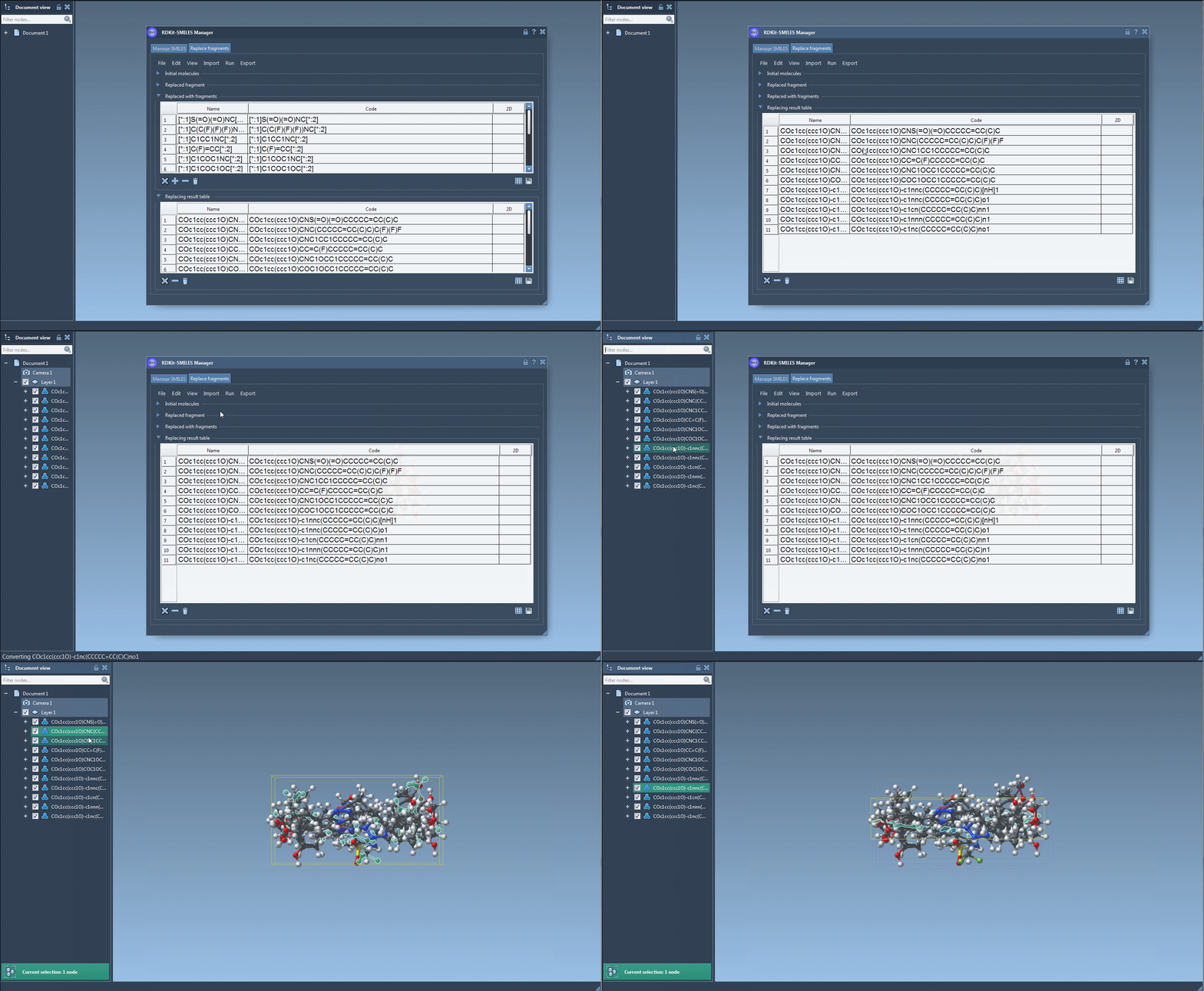
- Review before moving on. Inspect the generated structures and names in the table. If the set looks appropriate for your next step, use the Export menu to add structures to the active document. You can also save results as a file or create a grid image for convenient comparison.
Make the results useful, not just numerous
Generating many candidates is only helpful when you can keep track of what changed. Give molecules meaningful names where possible, and keep the starting structure and replacement list associated with the results. A grid image can help you scan a set visually, while the table lets you return to individual SMILES entries. These steps make it easier to compare intended structural changes and catch an unexpected connection before exporting structures.
Fragment replacement produces candidate structures; it does not establish that a molecule will have a desired activity, favorable properties, or a suitable binding pose. Treat the output as a starting point for further modeling and evaluation. Once exported, the generated molecules can be converted into 3D structures and used in subsequent workflows, such as docking or conformation analysis.
For the full interface walkthrough and additional SMILES Manager features, learn more in the original documentation.
Note: SAMSON and all SAMSON Extensions are free for non-commercial use. Get SAMSON.