



Changing a ligand one position at a time sounds simple—until you have to make the edits, keep track of which structure came from which change, and compare the results. Manual edits can make it harder to explore several substitution sites consistently. Positional analogue scanning offers a more systematic starting point: identify a pattern in a molecule, then generate analogues by replacing or attaching a chosen atom or group at matching positions.
In SAMSON, the SMILES Manager makes this workflow available directly in the molecular design environment. The key is to define the question narrowly: which parts of the starting structure should be varied, and what change do you want to test?
Start with a molecule and a pattern
Open the SMILES Manager and select its Positional Analogue Scanning tab. Provide a starting molecule by entering its SMILES string or selecting a molecule already present in the SAMSON document and clicking Use selection.
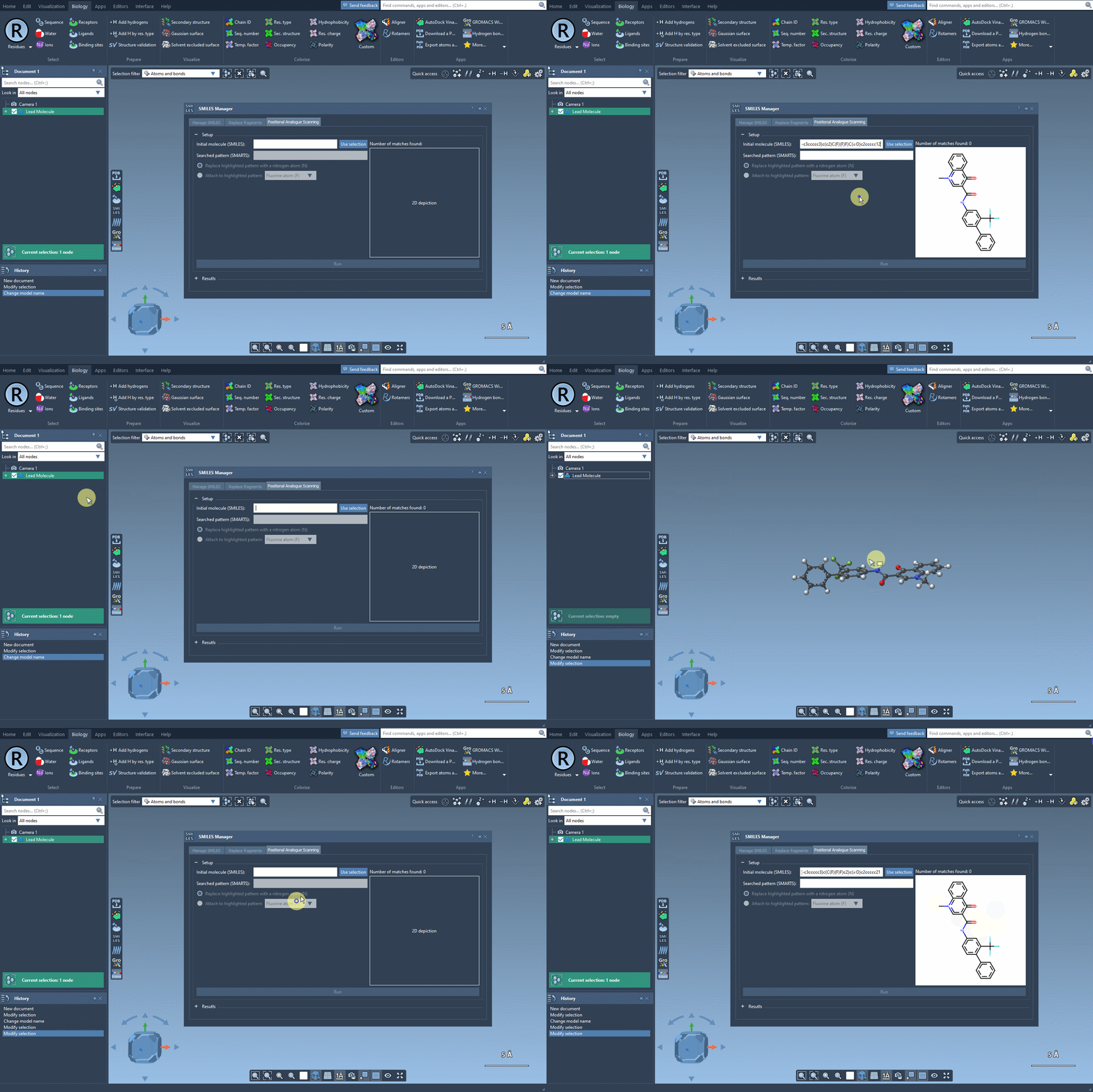
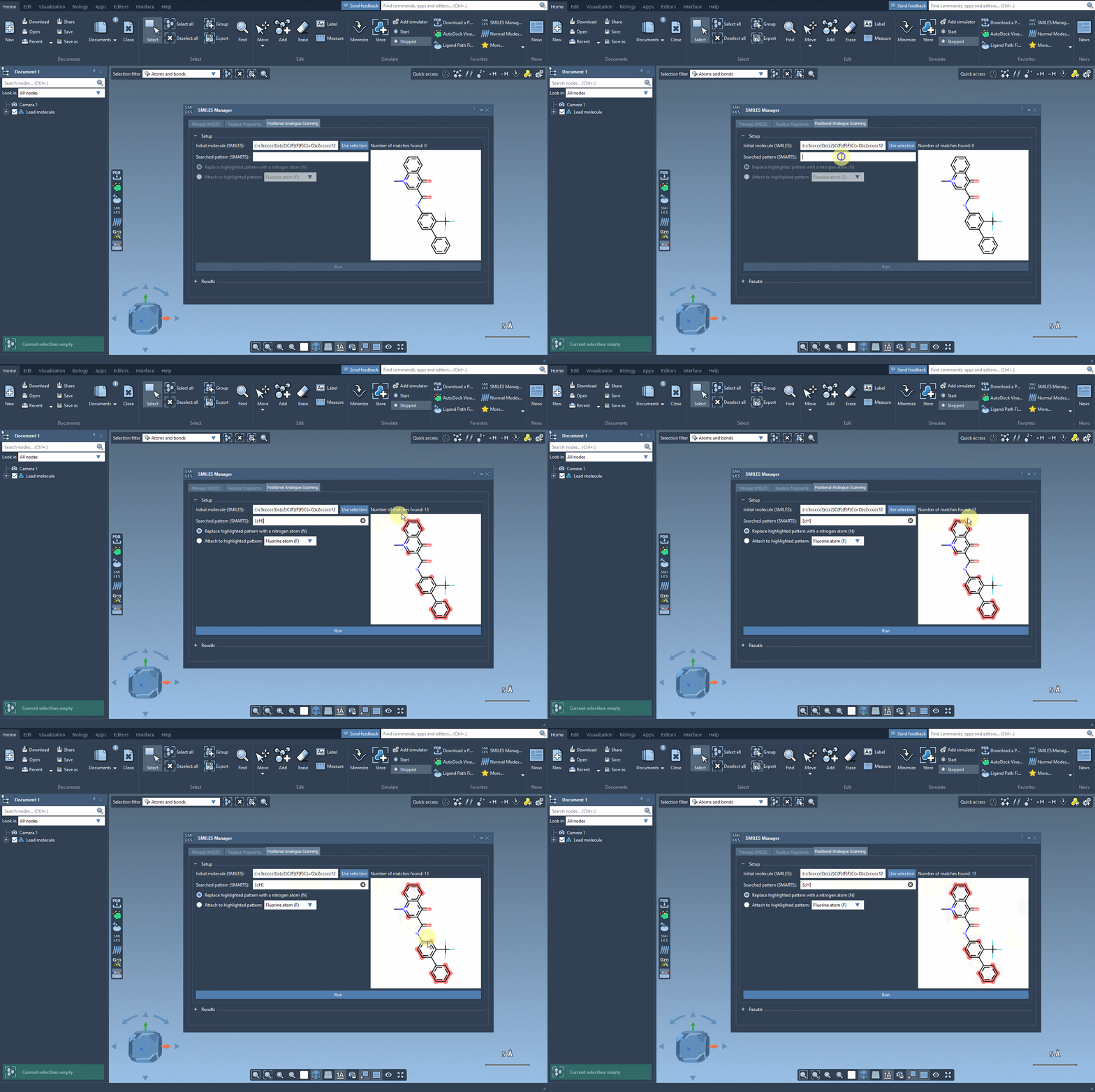
Next, enter a SMARTS pattern describing the positions you want to explore. In the tutorial example, [cH] identifies aromatic carbon atoms that have a hydrogen. The pattern is not just a search term: it defines which locations are eligible for the scan. Check the highlighted matches before proceeding. If the pattern is broader or narrower than your design question, the resulting series will reflect that choice.
Choose the transformation deliberately
Once the matching positions are visible, choose whether to replace the matched pattern or attach a new atom or group to it. The documented example replaces the matched aromatic carbon pattern with nitrogen. The interface also illustrates attachment options such as fluorine or a methyl group. These choices answer different design questions: replacement tests a change to the matched position, while attachment explores adding a substituent there.
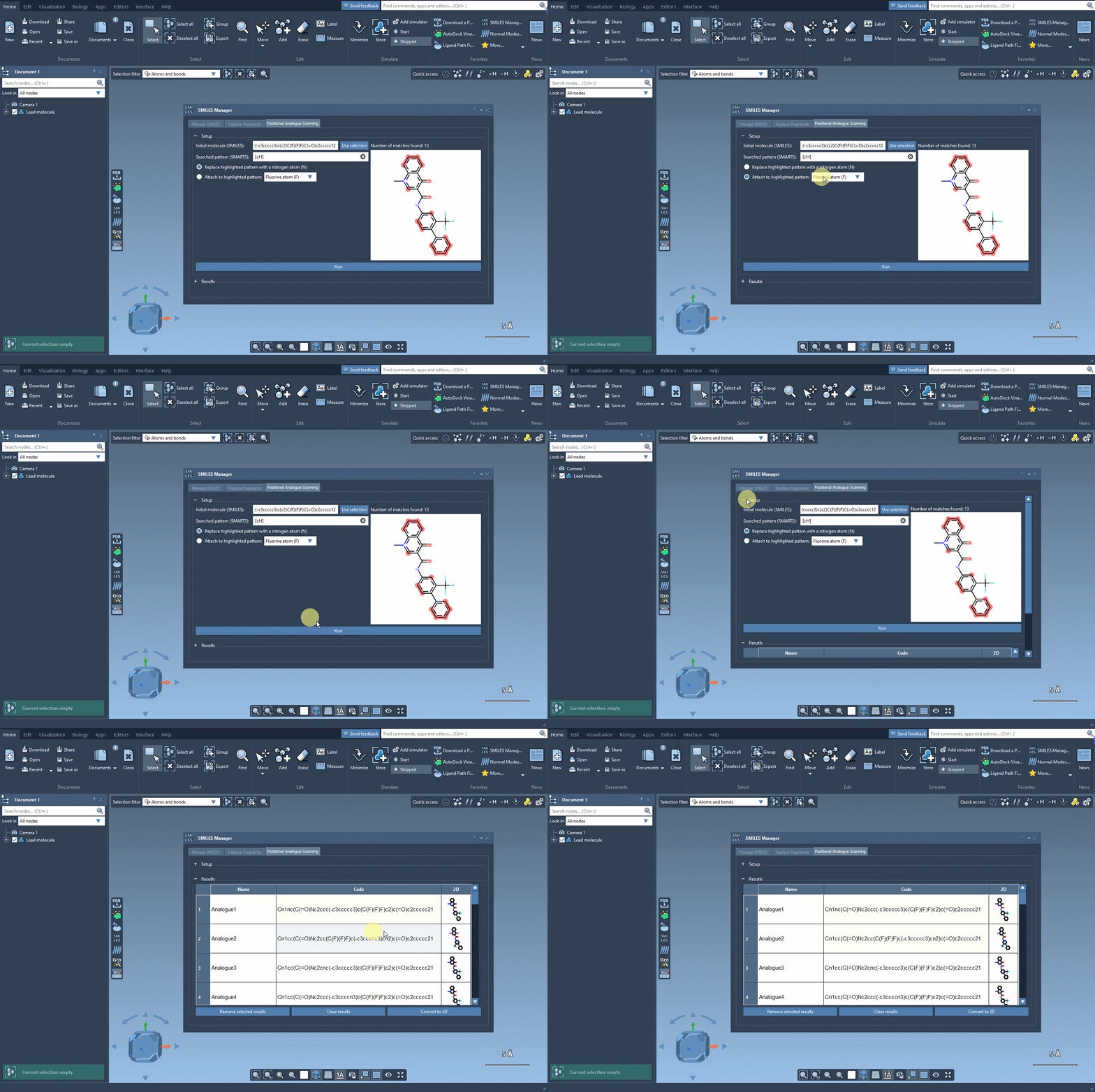
Click Run to generate the analogues. The results appear in a table with SMILES strings and 2D depictions. This is useful not only for creating candidates, but also for inspecting whether the scan covered the intended positions before moving on to more involved analysis.
Keep the series useful, not just large
A generated analogue is a candidate for evaluation, not evidence that a change improves binding or any other property. Treat the scan as a way to organize structural hypotheses. Review the structures and names, and edit either directly in the results table by double-clicking the corresponding cell. You can open a 2D depiction in a larger window, hide or show the images from the table header, remove selected rows, or clear the results when you want to start a new scan.
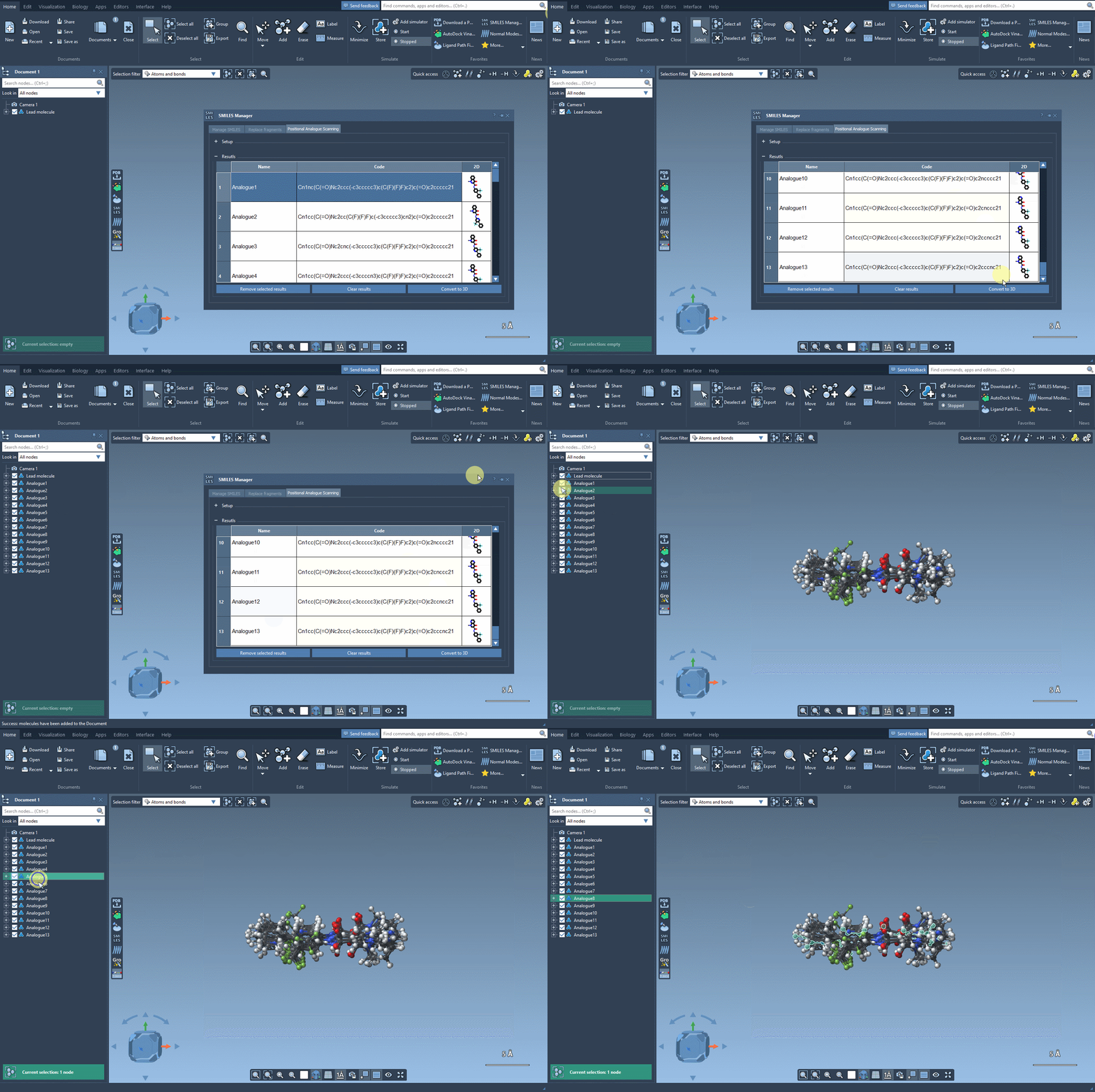
When a candidate is worth pursuing, use the context menu on its depiction to generate a 3D structure, or convert the results to 3D with Convert to 3D. Three-dimensional structures can then be used in downstream workflows. For example, the documentation describes docking generated analogues with the AutoDock Vina Extended extension and examining whether changes preserve key interactions or create new ones. The important practical distinction is that scanning helps you make and organize structural variants; docking and other analyses are separate steps for evaluating them.
This workflow is most helpful when you already have a clear starting molecule and a specific region or atom pattern to investigate. A deliberate SMARTS pattern, a sensible transformation, and a review of the resulting structures can turn an open-ended editing task into a manageable set of candidates.
For the complete step-by-step instructions, see the Positional Analogue Scanning tutorial.
Note: SAMSON and all SAMSON Extensions are free for non-commercial use. Get SAMSON.