



A protein loaded from a PDB file can look like a lonely chain or a partial complex—even when the structure’s metadata describes copies arranged around it. That mismatch can complicate interface analysis, assembly visualization, and decisions about what to prepare for simulation. The missing step may be to generate symmetry mates: transformed replicas of the protein described by symmetry information in the structure file.
In SAMSON, the Symmetry Mate Editor makes those transformations visible and lets you preview replicas before adding them. The key is choosing the right kind of symmetry for the question you are asking.
First decide what you want to reconstruct
PDB files can include two different kinds of symmetry records supported by the editor:
- BIOMT records describe transformations from biological assembly annotations. These are useful when you want to inspect an annotated biological assembly or explore how chains may form an oligomer.
- CRYST1 records describe symmetry from the crystal lattice. These help you examine how the protein is positioned in its crystal environment.
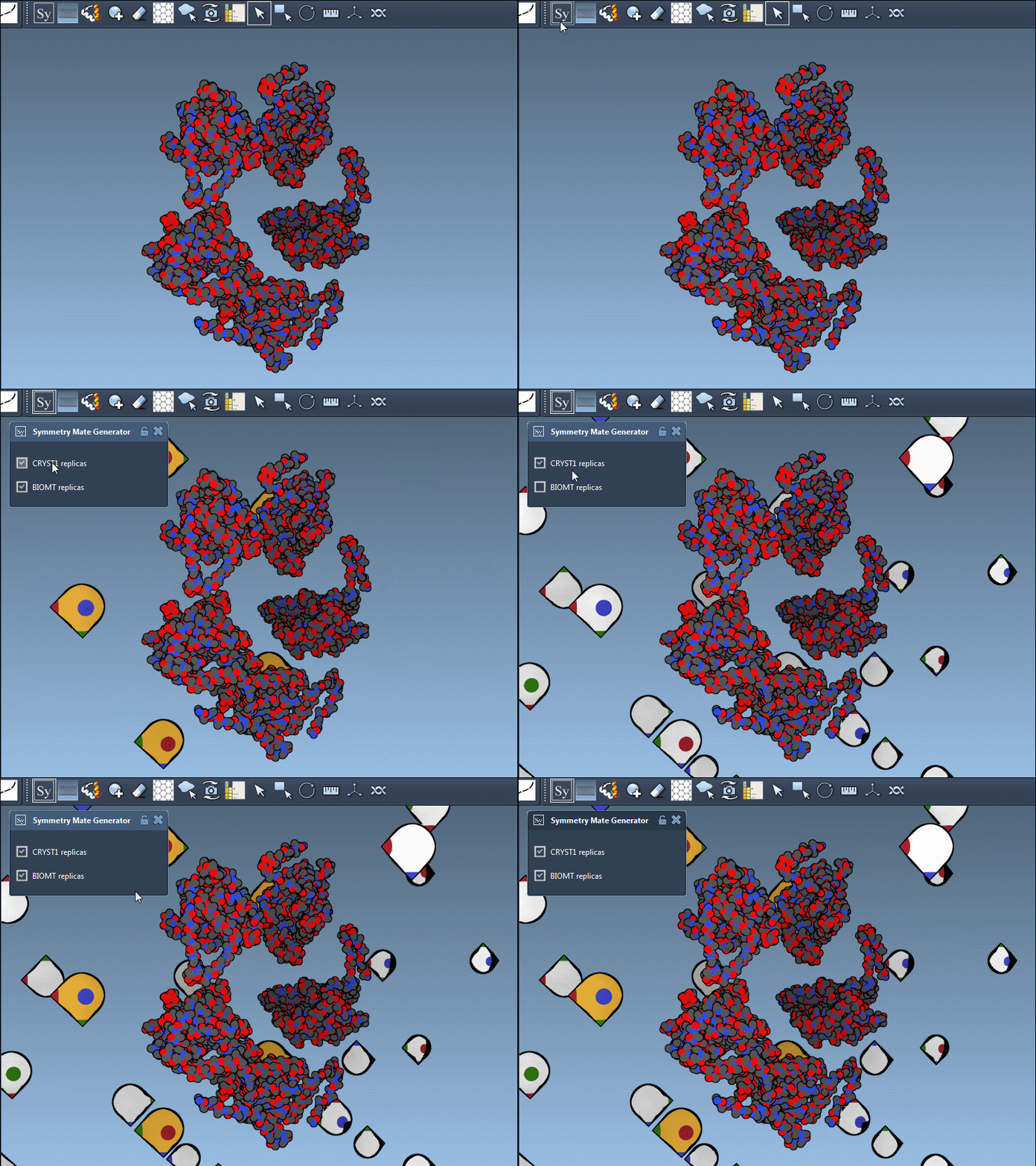
They answer different questions. A crystal neighbor is not automatically the same thing as a biological assembly partner. Before generating copies, ask whether you are investigating the assembly annotation or the crystal arrangement. In the editor, the widgets are color-coded: BIOMT transformations are yellow and CRYST1 transformations are white. You can switch between them in the interface.
Preview before you commit
To open the Symmetry Mate Editor, press Shift+E and search for “Symmetry Mate Editor,” or use the viewport menu: … > General > Symmetry Mate Editor. Once it is active, transformation control nodes appear in the viewport.
Use Ctrl or Cmd together with the mouse wheel to change how many control nodes are visible. Then hover over a node to preview the corresponding replica. This preview-first workflow is useful when you are not yet sure which transformation produces the arrangement you need: inspect the result before adding it to the structure.
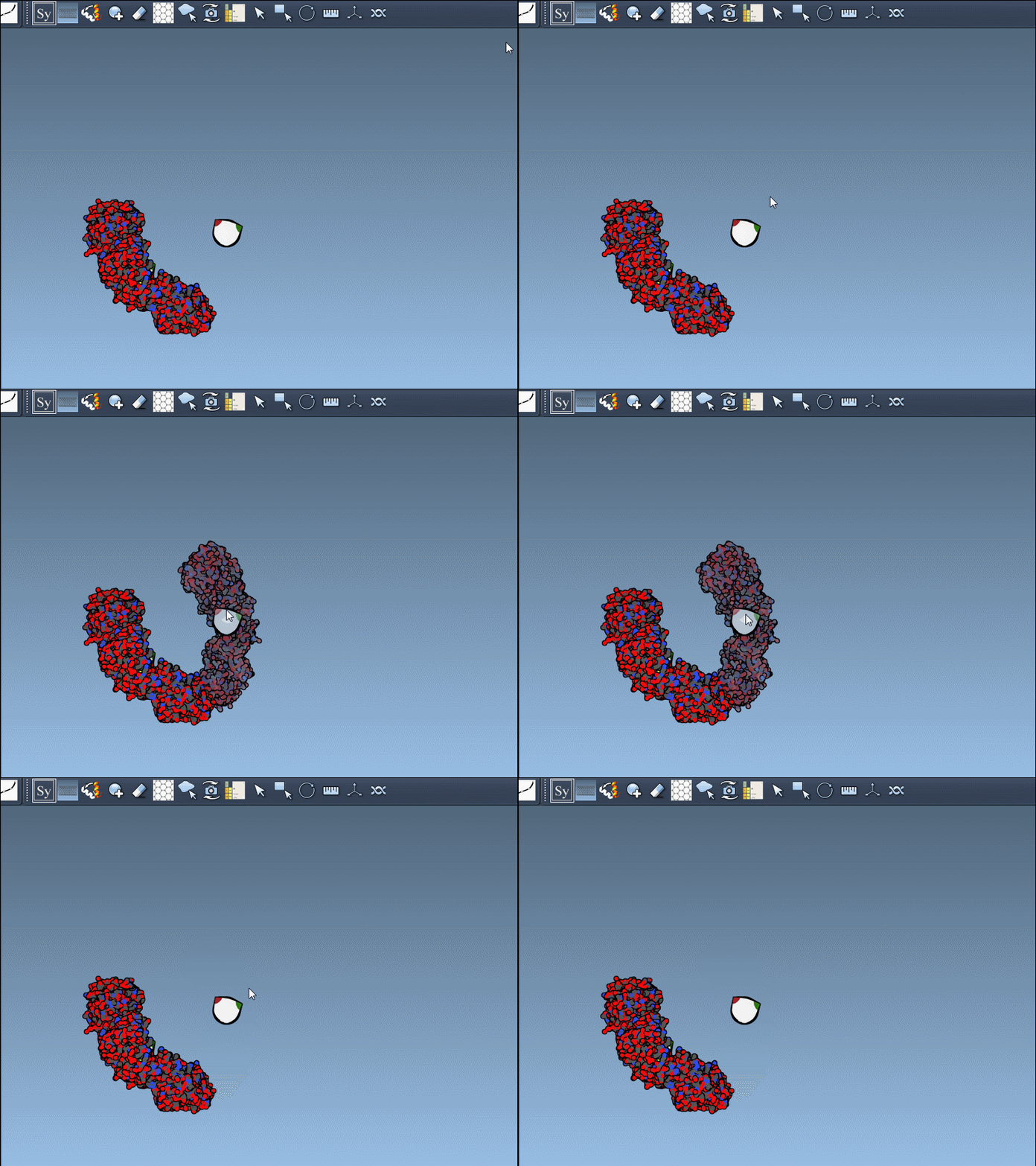
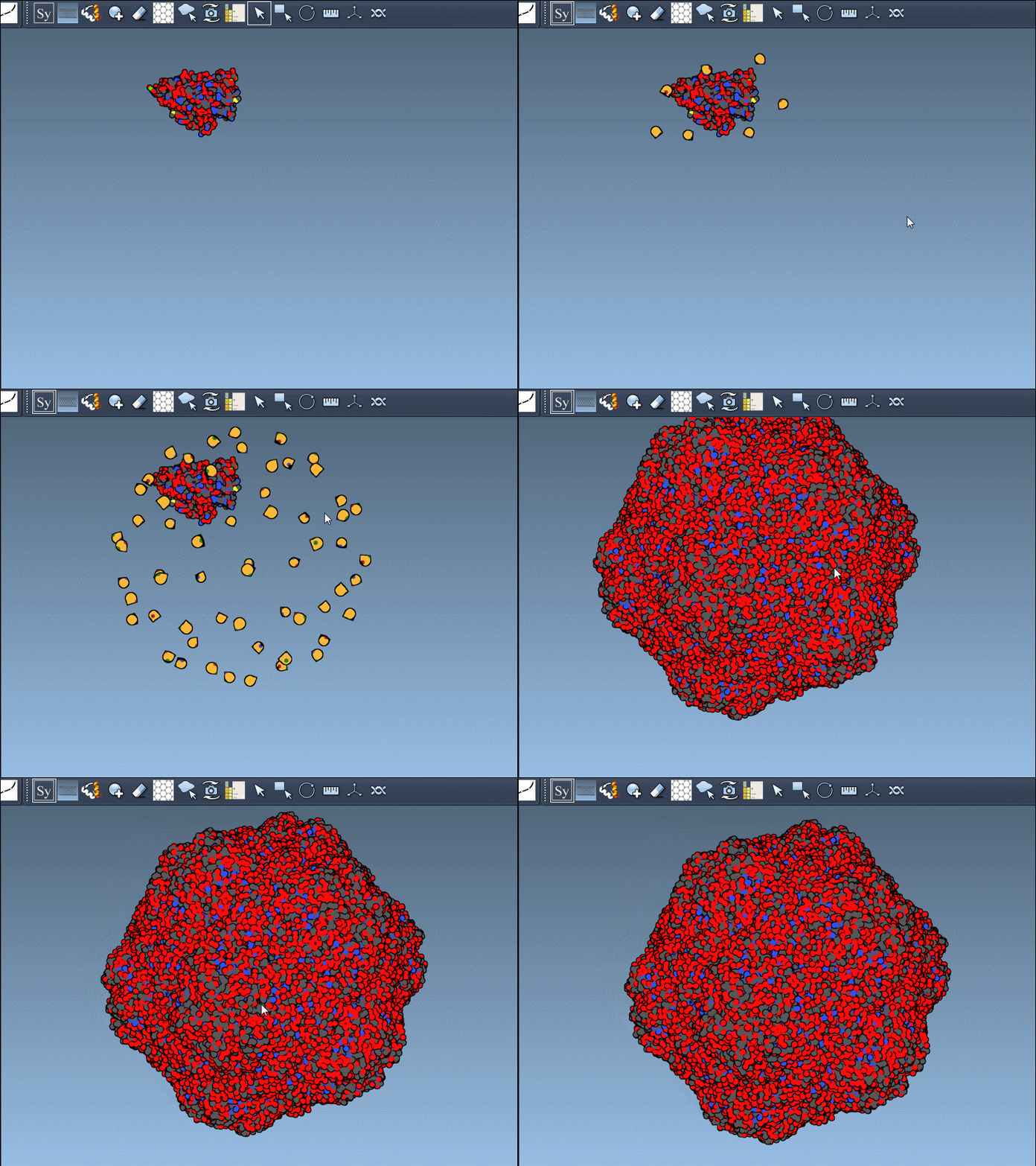
When a preview looks relevant, left-click the node to generate that replica. If you add an unwanted copy, use Undo (Ctrl/Cmd+Z) to remove it. For a quick overview of the complete set, hold Ctrl or Cmd before hovering and left-clicking a control node to preview and generate all symmetry mates in one action. This is convenient for viewing a larger arrangement; for a focused interface question, adding copies selectively can make it easier to see which neighbors matter.
Make the replicas easier to interpret
Once copies are present, the goal is not just to make the viewport look fuller—it is to understand how the chains relate. The Ribbons visual model can make protein chains easier to distinguish, and coloring by chain can help you follow them through the assembly. Look for repeated contacts, interfaces, or binding-site arrangements that relate to your modeling question. If you are studying symmetry axes or comparing structures, continue with symmetry detection; if the assembly is headed for simulation, prepare and validate the structure before setting up the workflow.
Generating mates reconstructs arrangements encoded by the PDB symmetry data; it does not, by itself, establish which contacts are biologically meaningful. Treat the resulting views as a way to inspect the recorded transformations, then interpret the assembly in the context of your scientific question.
For the full workflow and additional examples, see the Symmetry Mate Editor tutorial.
Note: SAMSON and all SAMSON Extensions are free for non-commercial use. Get SAMSON.