



You know the moment: you need the atoms near a residue, but a search returns a mixture of atoms, residues, and larger groups. In a molecular model, that is not just clutter. It can make it hard to tell what you actually selected—and whether your next step will affect the intended part of the structure.
SAMSON’s Node Specification Language (NSL) lets you describe a selection by node type, properties, and spatial relationships. One useful habit is to specify both what kind of node you want and where it should be. This helps avoid a common surprise: a proximity query can match a parent node because some of its contents are close to the target.
Start with the intended node type
Suppose you want atoms near the residue named “GLN 2.” A broad query such as * within 5A of "GLN 2" can select the document node: atoms belonging to GLN 2 are, unsurprisingly, within 5 angstroms of GLN 2, and larger nodes can contain those atoms.
If your goal is to find atom nodes, make that explicit:
node.type atom within 5A of "GLN 2"
The short form is n.t a within 5A of "GLN 2". This query matches atom nodes within 5 angstroms of GLN 2. It also includes atoms that belong to GLN 2 itself. That may be exactly what you want—or not.
Exclude the target when you mean “nearby, but not part of it”
To keep atoms that are close to GLN 2 while excluding atoms belonging to GLN 2, add an out of condition:
node.type atom within 5A of "GLN 2" out of "GLN 2"
Read it in two passes: first find atoms within 5 angstroms of the named residue; then exclude nodes that are part of that residue. This distinction is valuable when inspecting a binding pocket or neighboring groups, because “within a distance of this residue” and “outside this residue but nearby” are different requests.
For a more focused search, combine the distance condition with an element symbol. For example, C within 5A of "GLN 2" asks for carbon atoms within that distance. Element symbols such as C, H, and O are valid NSL expressions. If you also need to exclude the target residue, add out of "GLN 2".
Use exact names when precision matters
Names with spaces should be enclosed in quotation marks. A quoted string without wildcards matches a full name, so "GLN 2" identifies that exact name. If you are unsure of a node’s full name, the Find command supports context-sensitive completion: type the opening quote and part of the name, then press Tab to see matching names.
For broader name searches, NSL also supports simple glob patterns. For example, "ALA*" matches nodes whose names begin with ALA, while "*Backbone" matches names ending in Backbone. Use these when you want a pattern rather than one specific node.
Choose the right place to run the query
Use Select > Find when you want a search-driven selection in the active document. The Document view’s filter box is useful when you want to narrow the visible hierarchy interactively. In either place, you can use a full attribute name such as node.type atom or its shorter form, n.t a.

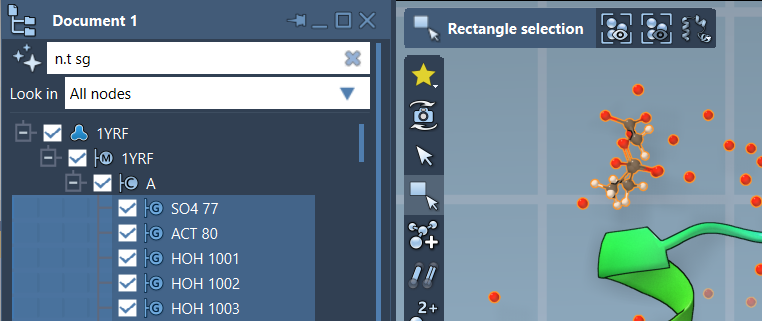
In the Document view, filtering by node type can make the hierarchy easier to navigate. For instance, n.t sg filters for structural groups; the full expression is node.type structuralGroup. Press Enter to select the matching nodes.
A quick checklist before you select
- Ask what kind of result you need: atoms, residues, or another node type?
- Use a type condition such as
n.t awhen the result should contain only atoms. - Quote names that include spaces, and use Tab completion in Find to confirm the name.
- Decide whether the target itself belongs in the result. Add
out ofwhen you want nearby nodes outside the target. - Check the result in the hierarchy before proceeding, especially when a query could match parent nodes as well as their contents.
These small choices make NSL expressions more predictable and easier to reuse. For the full syntax, attribute references, and additional examples, see the Node Specification Language documentation.
Note: SAMSON and all SAMSON Extensions are free for non-commercial use. Get SAMSON.