



You have a molecular trajectory, two selections, and a question: are these groups actually near one another in a meaningful way? A radial distribution function (RDF) can help answer that—but its curve is easy to misread if you overlook what was counted and how the result was normalized.
The RDF summarizes distances between atoms in two groups. Instead of showing every pairwise distance separately, it bins sampled pairs by separation. The result is a curve against distance: a way to inspect local packing, solvation structure, or characteristic interaction distances. It is useful precisely because it condenses many distances into a form you can scan. The trade-off is that the curve needs context.
Start with the question, then choose the groups
An RDF is only as informative as the selections behind it. Before building the plot, decide what relationship you want to examine. For example, you might compare a solute with solvent, a ligand with a pocket selection, or one residue subset with another. These are examples of chemically meaningful groupings—not interchangeable choices. Changing either group changes which pairs contribute to the curve.
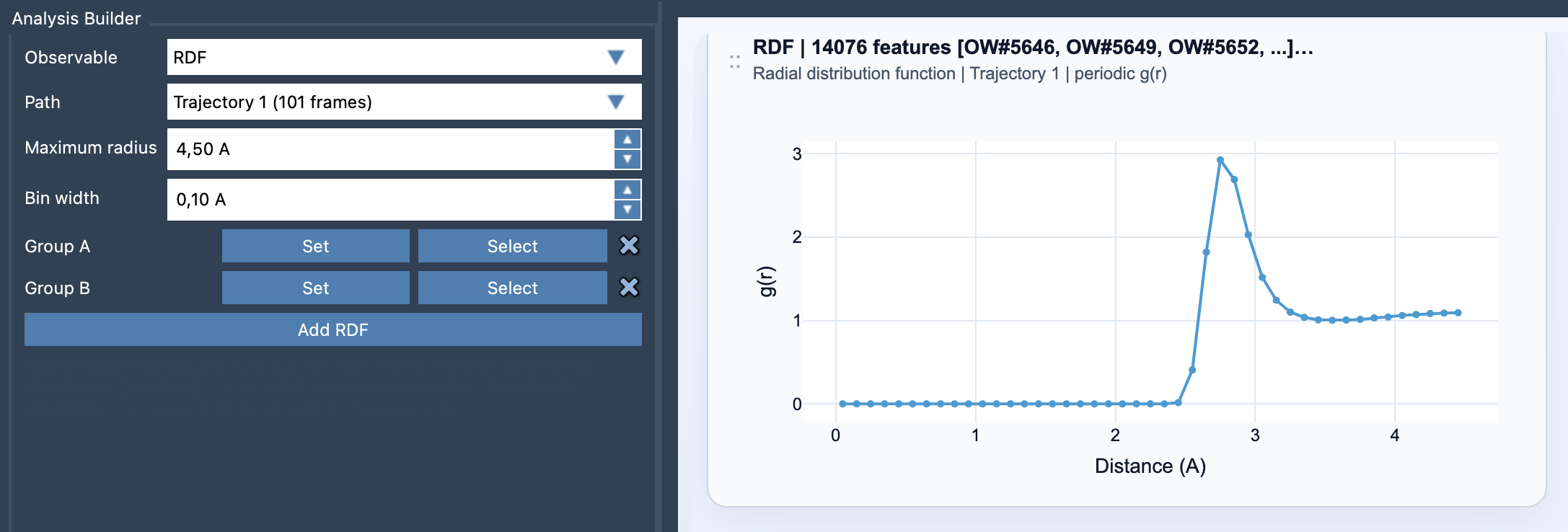
In SAMSON’s Path Analyzer, open the analyzer, select RDF as the observable, choose a path, define Group A and Group B, then set the maximum radius and bin width before clicking Add RDF. Both selections must contain atoms. Thinking through the groups first helps avoid a common frustration: producing a neat-looking curve that answers a different question than the one you intended.
Read the curve as binned distances
At its simplest, an RDF-style calculation counts how many sampled pairs fall into a thin spherical shell at distance r. The shell volume is approximately 4πr²Δr, where Δr is the bin width. This is why the curve is not simply a list of raw distances: the number of possible locations in a shell grows with radius, so interpretation depends on how counts are treated.
The maximum radius sets how far out the distribution is sampled. The bin width sets the radial resolution. A narrower bin can make nearby features easier to distinguish, but it can also make the curve noisier; a wider bin smooths the view but may blur detail. There is no universally best setting in the documentation—the useful choice depends on the feature you are trying to resolve. If the curve looks jagged, consider whether the bins are too fine for the available sampling. If a feature appears broad or merged, check whether the bins are too wide.
Check the units before comparing curves
The most important interpretation check is whether the result is normalized. When valid periodic unit-cell information is available, Path Analyzer can normalize shell counts against the expected ideal-gas occupancy and report a properly scaled g(r). When periodic normalization is not possible, it falls back to an RDF-style curve in arbitrary units.
That distinction matters: an arbitrary-unit curve can still help you inspect how pair counts vary with distance, but its vertical scale should not be treated as a properly normalized g(r). Before comparing curves or drawing conclusions from their heights, verify which kind of output you have. The documentation describes the normalization condition; it does not imply that every structure or path will have the information required for it.
Remember what the plot summarizes
RDF cards summarize the path globally rather than linking to individual frames. So use the curve to understand the overall distance distribution represented by the path, not as a frame-by-frame report. If your scientific question is about a particular moment, a global summary may not isolate it.
A practical routine is: define groups that match the question, choose a radius that covers the distances of interest, pick a bin width that balances detail and noise, and check whether periodic normalization was possible. Those few checks make an RDF much easier to interpret—and help keep a striking peak from being mistaken for more than the plot actually establishes.
For the full feature details, see the RDF documentation.
Note: SAMSON and all SAMSON Extensions are free for non-commercial use. Get SAMSON.