



A protein–ligand structure can contain many possible contacts, and a list of atom pairs rarely gives the whole picture. Which residues are near the ligand? Where is the binding pocket? Can you inspect a contact in 3D while keeping the overall interaction pattern in view? These are common hurdles when analyzing a structure or preparing a clear visual explanation.
SAMSON’s Interaction Designer helps connect those tasks: it creates an editable 2D interaction diagram from a molecular selection, while keeping the diagram linked to the 3D viewport. The goal is not to replace structural judgment, but to make it easier to inspect and communicate the geometry around a ligand.
Start with the structure you want to explain
Open the structure in SAMSON and select the relevant components if you want to focus the diagram on a particular region. Then choose Home > Diagram. The diagram is based on the current selection; if nothing is selected, it uses the whole document. This selection-first approach is useful when a large structure would otherwise make the view harder to read.

Once the diagram is created, click an atom or structure to select it in the 3D view, or double-click to zoom to it. This is especially helpful when a 2D label catches your eye and you want to find the corresponding part of the molecular structure without losing your place.
Make the diagram useful, not just automatic
An automatically generated diagram is a starting point. You can move labels and interaction symbols, along with the caption or legend, to make crowded regions easier to follow. The legend also works as a control: click an interaction name or icon to hide or show that interaction type. Double-click it to change its color. If you want to return to the original colors, use the Interaction Designer settings in the window title bar.
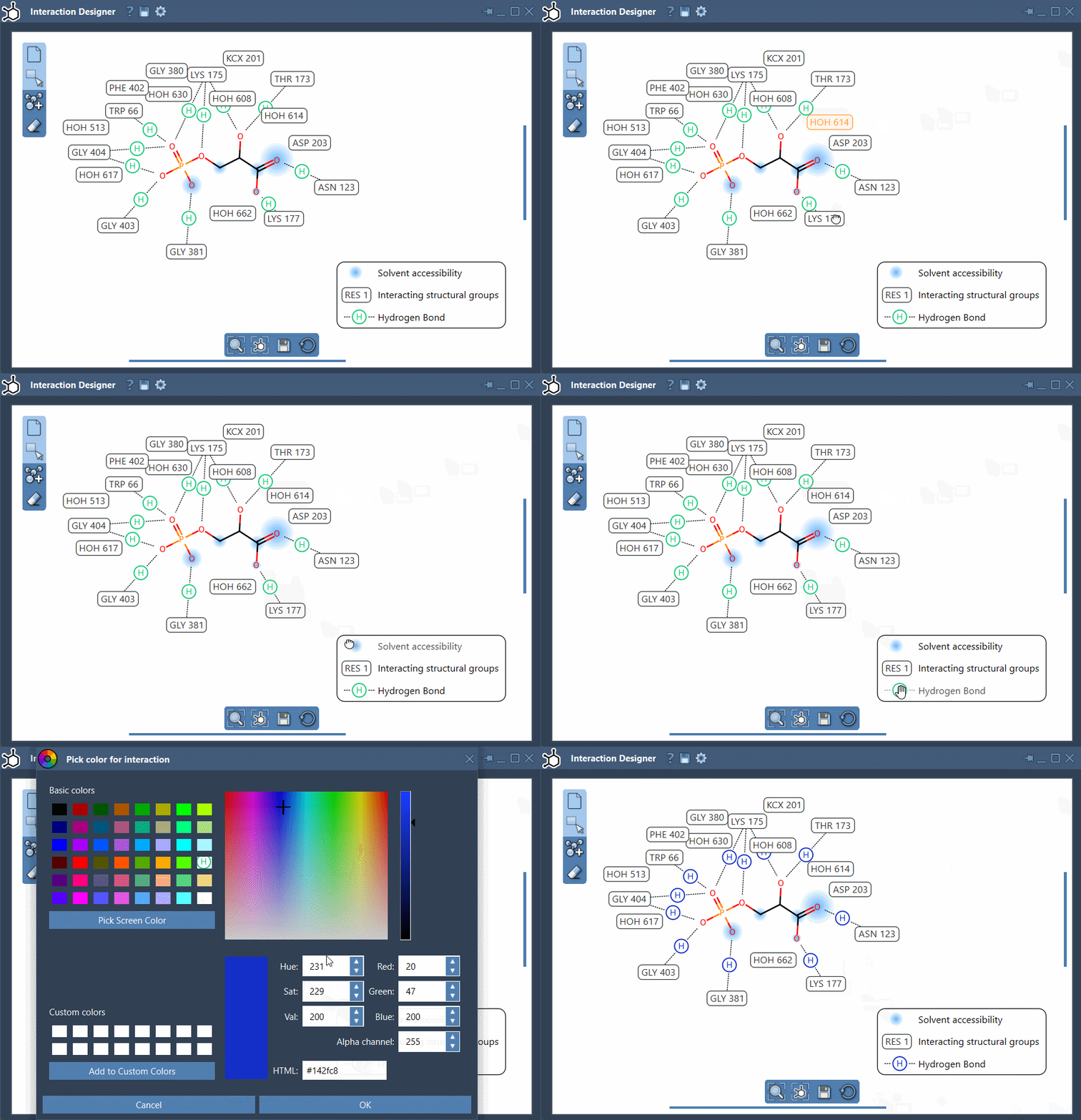
For orientation, use the bottom menu to update the view and align the 2D and 3D views. To zoom, hold Ctrl on Windows or Linux, or Cmd on macOS, while scrolling. To translate the diagram, hold the middle and right mouse buttons and move the mouse.
Read contacts as geometric observations
The Interaction Designer can display contact categories such as hydrogen bonds, ionic interactions, metal coordination, steric clashes, aromatic contacts, and several atom–plane or group-level interactions. These labels help organize what is near the ligand and what kinds of geometric relationships the detector has identified.
It is important to interpret them carefully: a detected contact means that the atoms or groups meet the implemented geometric criteria. It does not demonstrate that the contact is stabilizing or calculate an interaction energy. For example, the detector uses atom categories and geometric measures such as distances, ring centroids, and angles. A contact diagram is therefore a guide for structural inspection—not a substitute for energetic analysis or experimental evidence.
Water may appear as participant metadata when it is involved in a contact, but the current implementation does not create a separate water-specific interaction category. Knowing this helps avoid reading more into the diagram than it reports.
Keep the view connected to editing
The same 2D document can be used to design molecules. Choose Edit > Design to start a sketch from scratch, from a molecule in the active document, or from the current selection. In the left panel, choose Add, then click in the designer to place an atom; click an existing atom to connect another one. You can choose other elements or fragments through the Asset Browser, and use Erase to remove atoms. Changes to atoms and fragments are synchronized with the 3D viewport, so edits remain connected to the molecular model.
When the layout is ready, use Save in the bottom panel to export a diagram or sketch as PNG, JPG, JPEG, BMP, or SVG. For the complete instructions and supported interaction categories, see the Interaction Designer documentation.
Note: SAMSON and all SAMSON Extensions are free for non-commercial use. Get SAMSON.