



A protein in a PDB file can look strangely incomplete. A chain may sit alone in the viewer even though the structure’s metadata describes neighboring copies arranged around it. That gap matters: without the right context, it is harder to inspect interfaces, understand an oligomeric arrangement, or prepare an assembly for further modeling.
The key is to distinguish two kinds of symmetry information. CRYST1 describes symmetry associated with the crystal lattice, while BIOMT records describe transformations for a biological assembly. They answer different structural questions. Crystal neighbors help reveal how molecules are packed in the crystal; biological-assembly transforms describe how copies are arranged in an annotated assembly. Neither should be treated as interchangeable.
Reconstruct the context, not just the picture
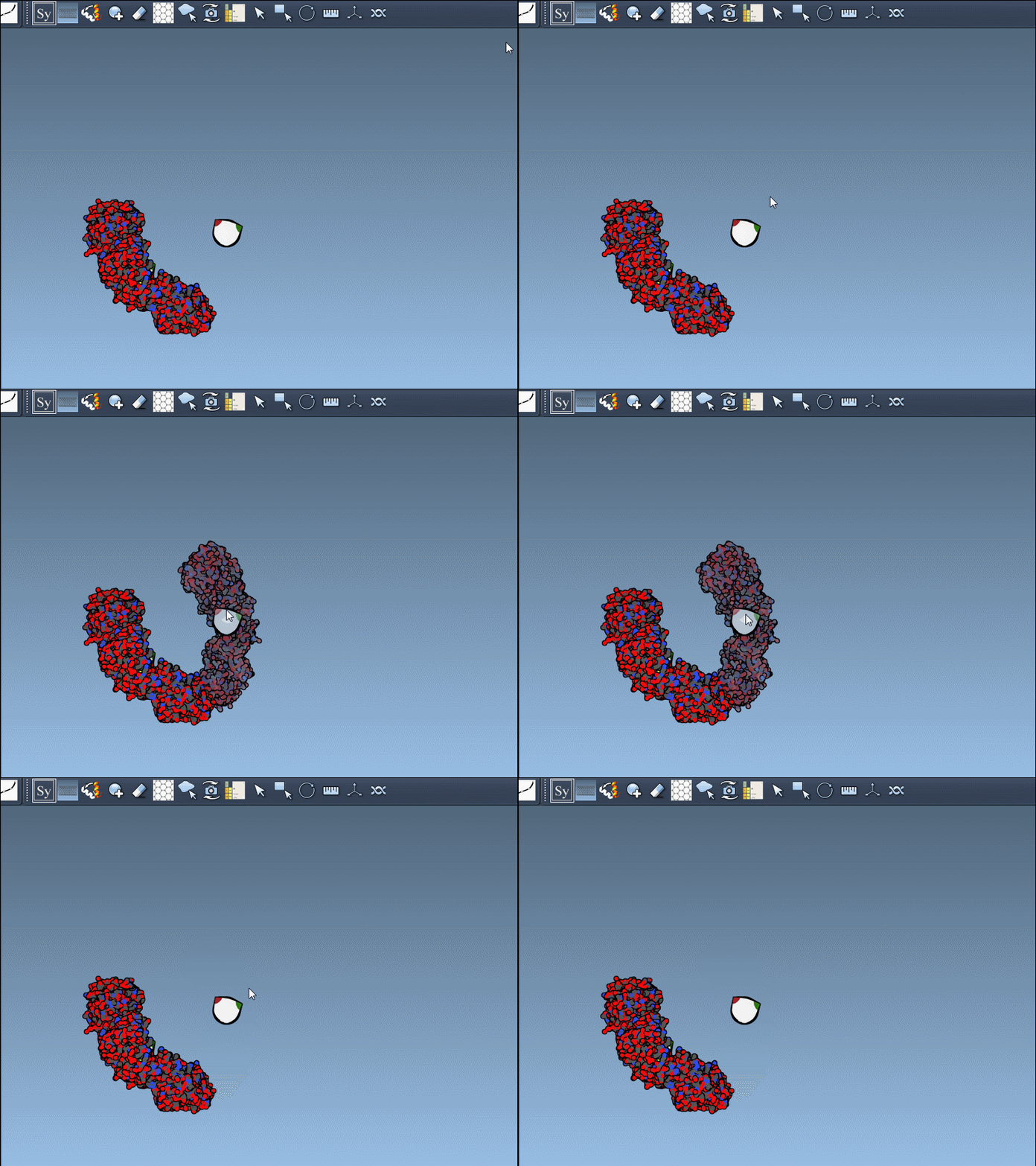
SAMSON’s Symmetry Mate Editor uses transformation data in a PDB file to show where symmetry-related copies can be placed. Instead of manually rotating and translating chains, you can inspect the available transformations and generate replicas from the structure’s own symmetry information.
This is useful when you need to explore protein–protein interfaces, inspect a quaternary structure, or see how a binding site repeats across neighboring copies. It can also provide a starting point for workflows involving symmetric complexes, scaffolds, or simulations. The important practical step is to decide which context you want to examine before generating copies: crystal packing or a biological assembly.
A quick workflow
- Open a PDB structure with symmetry information. The editor can only work from transformation data present in the structure file.
- Open the Symmetry Mate Editor. Use Shift + E to search for it, or find it in the viewport menu under … > General > Symmetry Mate Editor.
- Choose the symmetry records to inspect. The editor supports both
CRYST1andBIOMTdata. Its widgets are white for crystal-lattice symmetry and yellow for biological-assembly symmetry. - Preview before committing. Hover over a control node to preview a replica. Use Ctrl or Cmd with the mouse wheel to adjust the number of visible control nodes.
- Generate only what you need. Left-click a node to add its replica. To preview and generate all symmetry mates together, hold Ctrl or Cmd while hovering and clicking a node.
The preview is more than a convenience: it lets you check whether a proposed copy is relevant to the question you are asking before adding it to the scene. If you generate an unwanted replica, use Ctrl or Cmd + Z to undo.
Keep the assembly interpretable
Once copies are generated, make the arrangement easy to read. The Ribbons visual model can help distinguish chains, and coloring by chain can make repeated subunits easier to follow. Then inspect the resulting interfaces and decide whether the generated context fits your intended analysis. A visually complete cluster is not, by itself, proof that every contact is biologically meaningful; the record type and the scientific question still matter.
For a concrete example, the tutorial demonstrates the editor with structures including 1BRE and 1B5S. After building the assembly, you can continue with symmetry analysis, structure preparation, or simulation setup as appropriate.
Read the full Symmetry Mate Editor tutorial for the complete walkthrough and examples.
Note: SAMSON and all SAMSON Extensions are free for non-commercial use. Get SAMSON.