



A crystal model can look perfectly ordered and still fail to represent the material you want to study. One common source of mismatch is occupancy: in a crystallographic structure, a site may be present only part of the time. If that information is missing or ignored, a model can show every site as occupied even when the crystal structure describes defects.
Here’s a practical way to explore vacancy defects in diamond using a CIF file and SAMSON’s Crystal Creator workflow. The key idea is simple: an occupancy value describes the probability that an atom occupies a site. A carbon site with occupancy 0.95 has a 95% probability of being present—not a carbon atom with 95% of its usual size.
Start with a baseline
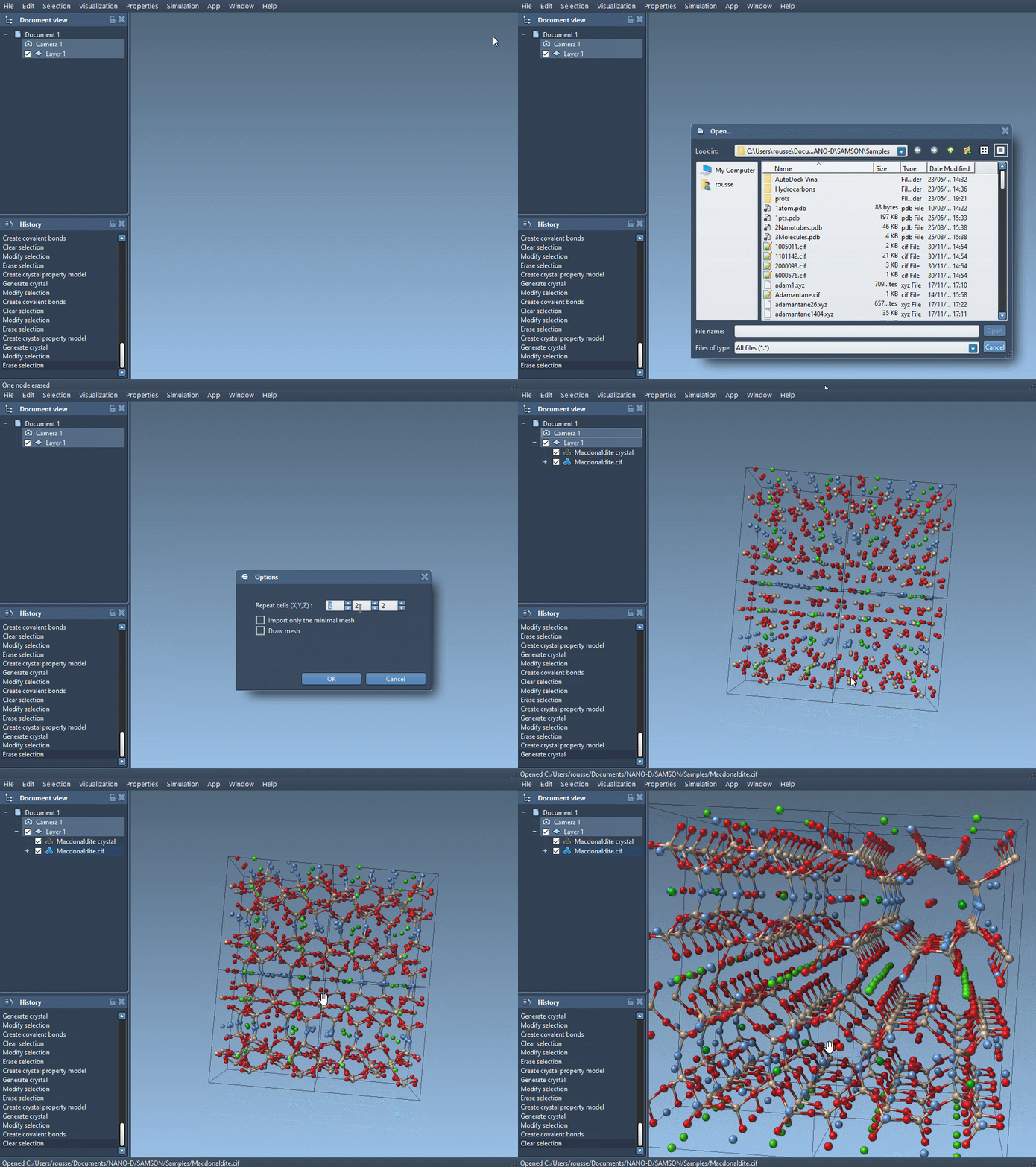
First, open a diamond CIF file in SAMSON. Crystal Creator can import CIF structures and lets you choose how many unit cells to generate. Create bonds for the diamond model, then minimize its structure with the Brenner interaction model, as described in the tutorial. This gives you an ordered reference to compare against the defect-containing model.
Keep the original CIF unchanged. Make a copy and edit the copy in a text editor so you can return to the baseline or compare the two inputs later.
Add occupancy to the atom-site data
In the copied CIF, find the atom-site loop near the end of the file. The example in the documentation contains one carbon atom site. Its columns describe the atom label and its fractional x, y, and z coordinates:
|
1 2 3 4 5 6 |
loop_ _atom_site_label _atom_site_fract_x _atom_site_fract_y _atom_site_fract_z C 0.00000 0.00000 0.00000 |
For the defect example, add an occupancy column and give the carbon site a value of 0.95:
|
1 2 3 4 5 6 7 |
loop_ _atom_site_label _atom_site_fract_x _atom_site_fract_y _atom_site_fract_z _atom_site_occupancy C 0.00000 0.00000 0.00000 0.95 |
The important detail is that the value belongs to the site in the atom-site loop. Keep the columns and the data row aligned: the final number is the occupancy, not another coordinate. The CIF describes a site that is present with a probability of 0.95. When Crystal Creator generates the crystal, it uses the CIF’s defect and substitution information to construct a crystal with the corresponding features.
Load, build bonds, and compare
Open the edited CIF in SAMSON and create the bonds. Compare the resulting structure with your ordered reference. Look for changes in the arrangement and occupancy of sites, rather than expecting the input file to represent a single, hand-placed missing atom. The tutorial’s example illustrates how occupancy information can lead to randomly distributed defects or substitutions in the generated crystal.
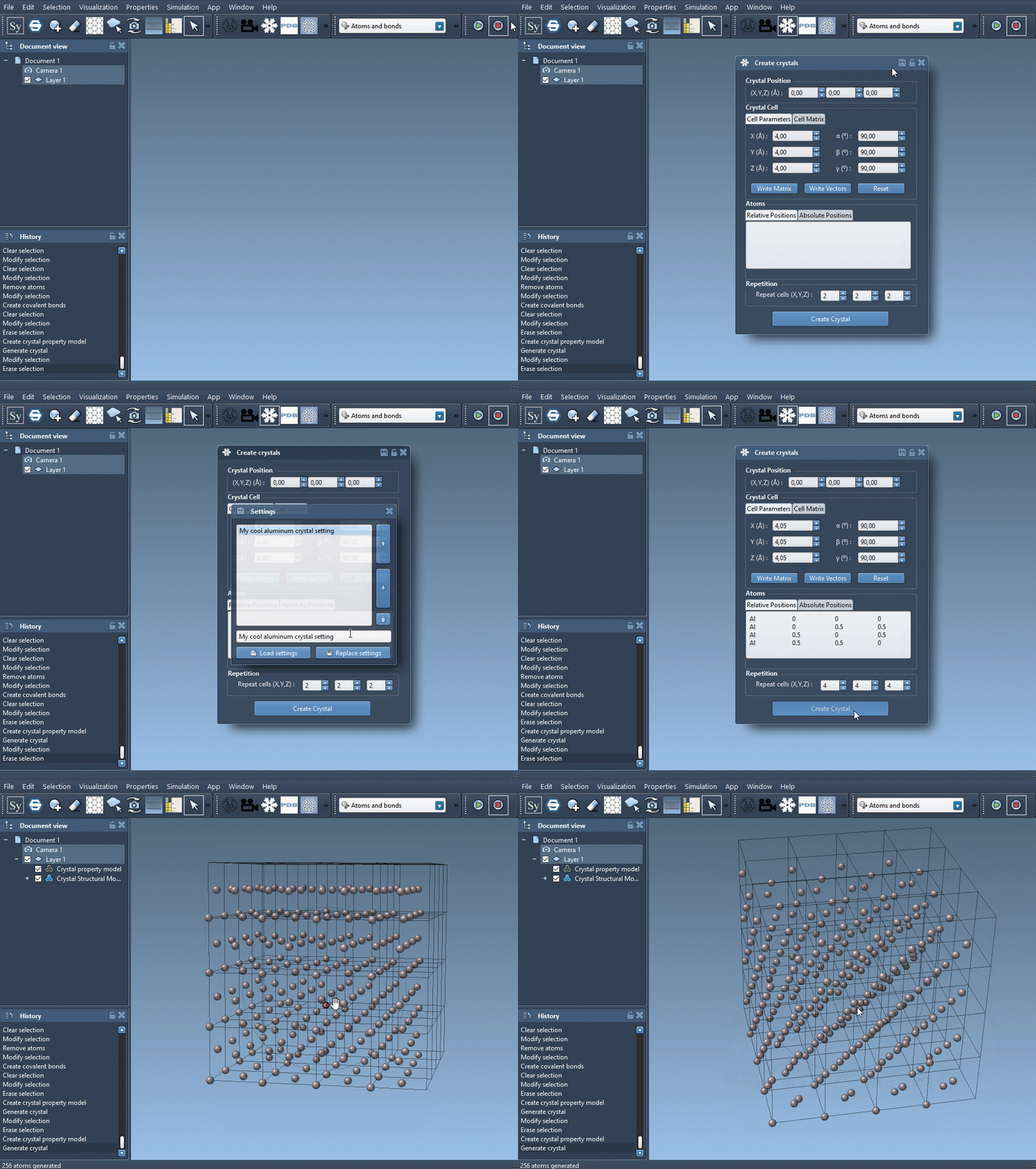
For a useful comparison, keep the two models’ generation choices consistent where possible, and record which CIF produced each model. That makes it easier to distinguish a structural change associated with occupancy from a change caused by different model settings. A visual comparison is a helpful first check, but it does not by itself establish the energetic or physical consequences of a defect.
This small edit is also a useful reminder when importing other crystals: inspect the CIF’s site-occupancy information before treating every listed position as a fully occupied atom. For a broader workflow—including importing crystals, cutting slabs by Miller indices, and creating unit cells from scratch—see the original Crystal Creator tutorial.
Note: SAMSON and all SAMSON Extensions are free for non-commercial use. Get SAMSON at samson-connect.net.