



Building a carbon nanotube model can involve a frustrating trade-off: interactive tools make it easy to position a structure, but small changes in mouse movement can make it harder to reproduce a desired geometry. When you need a defined tube axis, length, and chirality, a parameter-driven workflow can make the model easier to inspect and rebuild.
SAMSON’s Nanotube Creator supports both interactive construction and a graphical interface. The key is choosing the mode that matches the task: use the viewport to sketch a tube quickly, or use the interface when you want to enter positions and n/m values directly. The values define the nanotube’s chiral vector, which determines its structure and radius.
Choose the workflow before you build
For a quick exploratory model, activate Nanotube Creator from the viewport’s left-side menu under … > Materials > Nanotube Creator, or open Find everything… with Shift+E and search for the editor. Only one editor can be active at a time in SAMSON.
In interactive mode, the first mouse drag sets the tube axis and length. The status bar provides live feedback about the axis orientation and length, including the n parameter. After releasing the mouse button, move the pointer to adjust the radius, which changes the m parameter, then click again to confirm. Watching the status bar as you work is useful when you want to select particular integer values rather than rely only on the visual size of the tube.
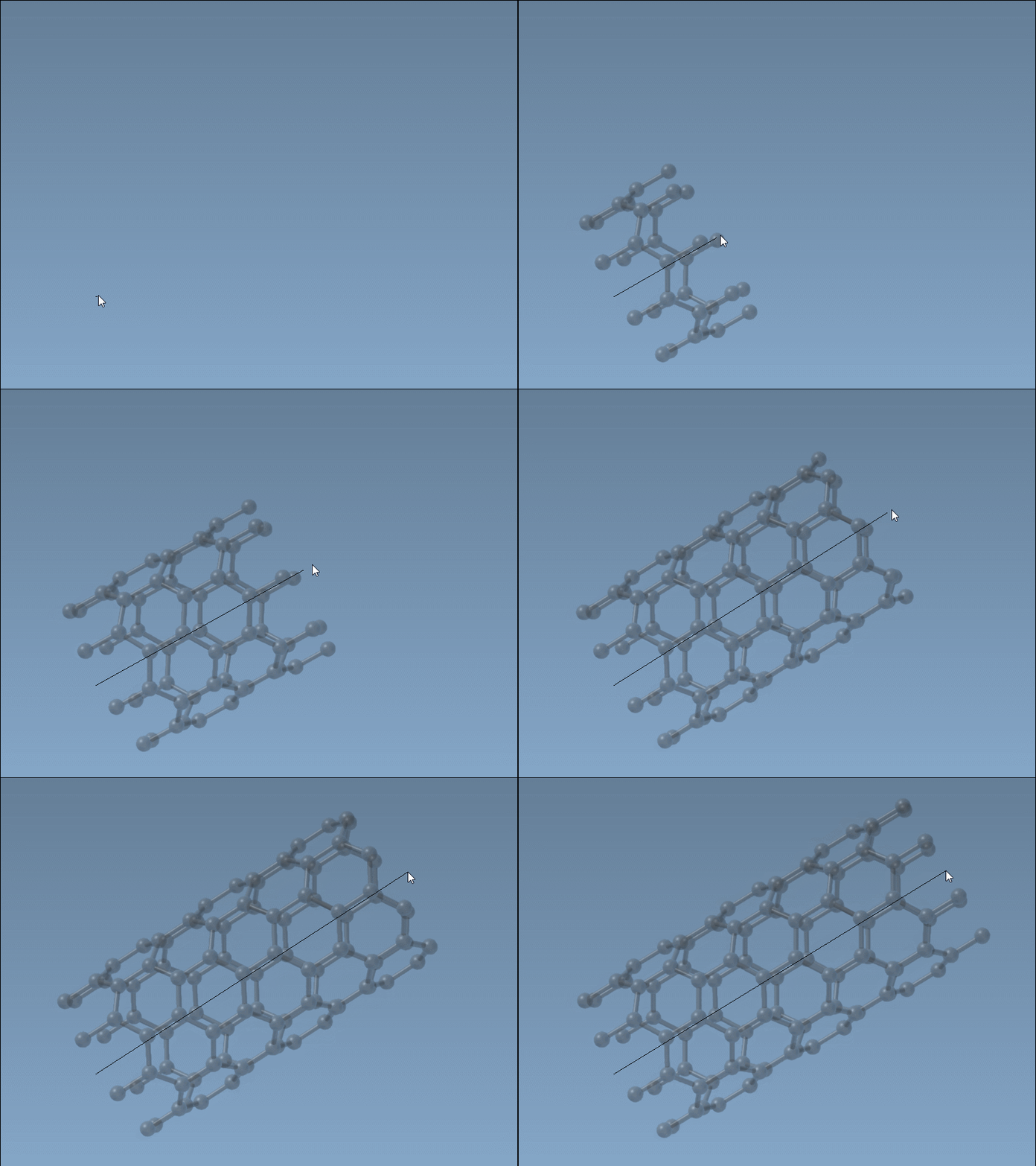
Use coordinates when repeatability matters
For a more controlled setup, activate the editor’s graphical interface. If its interface is hidden, reselect the editor to show it. Enter the start and end positions to define the tube’s axis in 3D space, then set the n and m values and click Build. This separates two decisions that can be difficult to manage by eye: where the tube lies and what its chiral indices are.
For example, to make a tube along the x-axis with a length of 40 Å, use start and end positions (0, 0, 0) and (40, 0, 0). Keeping those coordinates fixed while changing the indices provides a straightforward way to build related models with the same axis and length. It also makes the inputs easier to record for a later rebuild.
Build a multi-walled example
A multi-walled model can be created by building several tubes with the same start and end positions, changing the indices for each build. Using the 40 Å coordinates above, build these three tubes in sequence:
- Set
n = 6andm = 6, then click Build. - Set
n = 10andm = 10, then click Build. - Set
n = 14andm = 14, then click Build.
The result is three concentric carbon nanotubes. Keeping the axis coordinates unchanged is important to this example: it gives each tube the same direction and length while the different index values produce the nested structure.
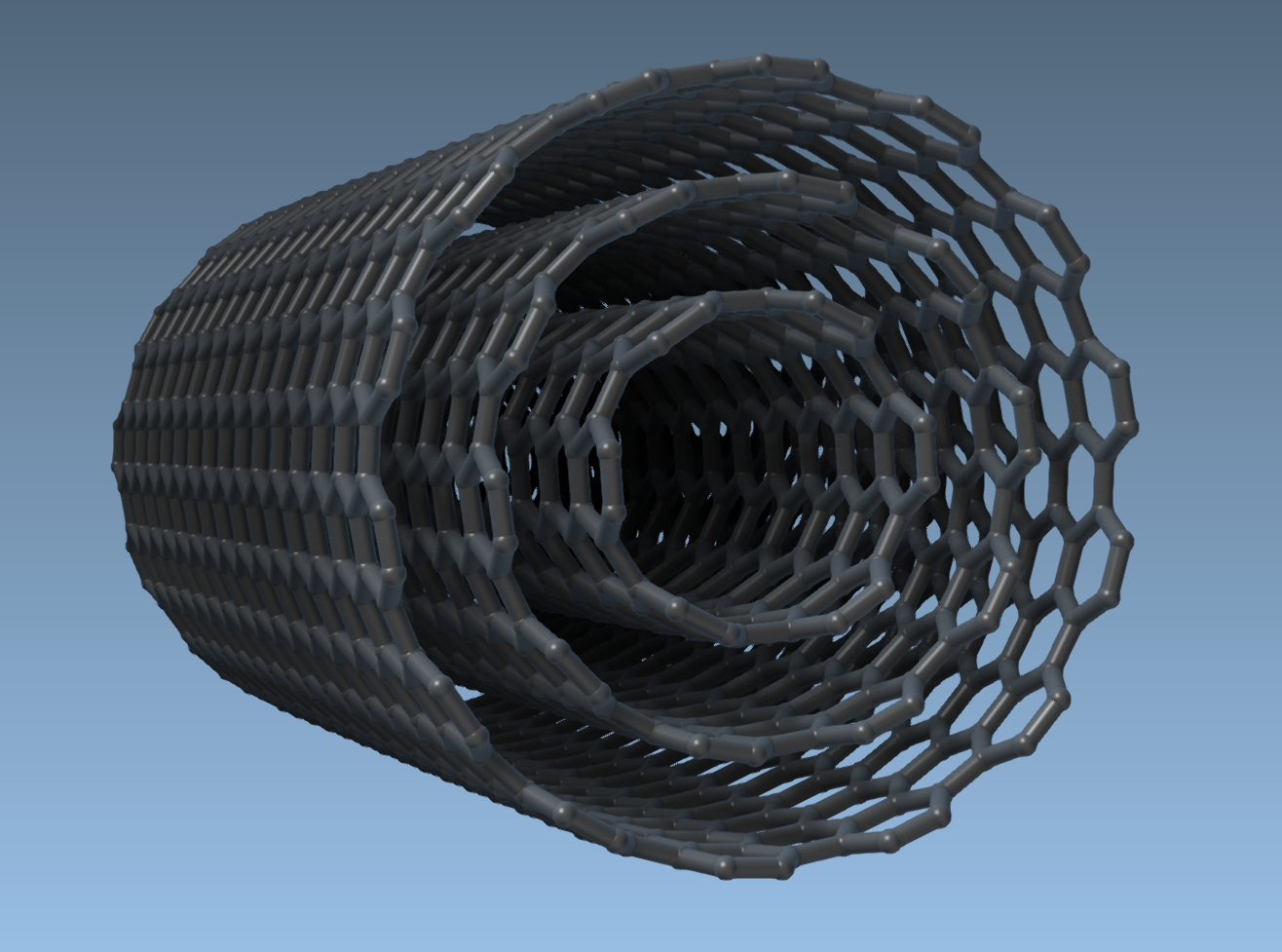
A useful modeling habit
Before building, decide whether your priority is a quick visual draft or a set of explicit geometric inputs. For a draft, the viewport offers immediate feedback. For a model you may want to reproduce, note the start and end coordinates and the n/m values. These steps create the geometry; they do not, by themselves, establish that a particular nanotube has desired mechanical or electronic properties. Further modeling or simulation is needed to study those questions.
Once the structure is ready, you can create an image using the visualization guide, or explore the documented carbon nanopore modeling example.
For the complete walkthrough, see the SAMSON carbon nanotube modeling tutorial.
Note: SAMSON and all SAMSON Extensions are free for non-commercial use. Get SAMSON at samson-connect.net.