



A molecular path can be difficult to interpret when the structure is moving through many frames. Watching atoms change position may make it hard to see the larger story: where is the ligand or residue group moving as a whole? A center-of-mass pathline offers a compact way to follow that motion alongside the path itself.
In SAMSON, the Pathlines visual model displays the center-of-mass (COM) trajectory of selected atoms along one or more paths. It can help make ligand unbinding routes, domain movements, and other group-level motions easier to inspect. It is a view of motion, not a substitute for examining the atoms and structure that produce it.
Choose what the line should represent
Before creating a pathline, decide which atoms you want to track and which path or paths you want to inspect. In the Document view, select the atom group and the path nodes. To select multiple nodes, hold Ctrl on Windows or Linux, or Cmd on macOS, while selecting. For example, selecting a ligand focuses the pathline on that ligand’s COM rather than the COM of the entire system.
There is a useful default to remember: if no atoms are selected, SAMSON uses the entire system; if no paths are selected, it uses all paths in the document. That can be convenient for a quick overview, but it may not answer a focused question. If the result looks broader than expected, check your selections first.

Create the pathline
- Open Visualization > Visual model > More…. The documented shortcut is Ctrl/Cmd + Shift + V.
- Choose Pathline of the center of mass, then click OK.
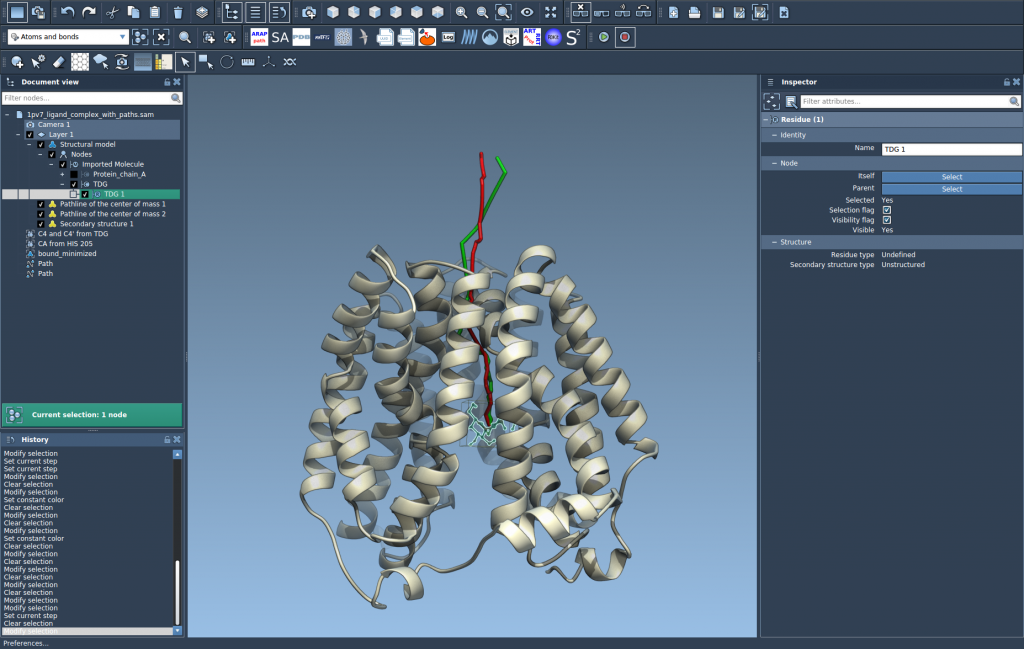
The resulting visual model shows the COM motion of the selected atoms along the selected path or paths. This gives you a compact spatial trace to compare with the molecular structure and the path animation.
Use the trace as a guide, not the whole analysis
A pathline is especially useful when you want to follow a group through a route without losing sight of its overall displacement. For a ligand, it can make an unbinding route easier to follow; for a protein complex, it can help reveal the direction of collective domain movement. The line represents the COM of the selected atoms, so it summarizes their motion rather than showing every atom’s individual trajectory.
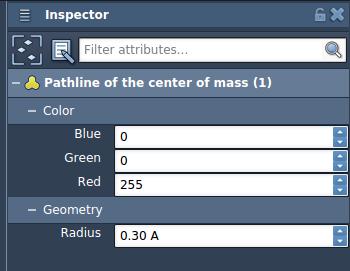
To inspect the motion, double-click a path in the Document view to start or stop it. Right-click the path to access its Path options. You can also select the path and open the Inspector to access its controllers. If the line is difficult to distinguish, select the pathline visual model and adjust its color or thickness in the Inspector.
One practical detail: deleting a path also removes its associated pathline. Deleting atoms used for a pathline modifies the visualization, so check the selected atom group before making structural changes.
The sample used in the tutorial contains lactose permease (1PV7), the ligand thiodigalactoside (TDG), and unbinding paths generated with Ligand Path Finder. It is a helpful example of how selecting a ligand and a path can turn a complex structural motion into a trace that is easier to discuss and inspect.
For the complete walkthrough, see the Pathlines tutorial.
Note: SAMSON and all SAMSON Extensions are free for non-commercial use. Get SAMSON.