



A molecular pathway can be easy to inspect and surprisingly awkward to use in another workflow. You may have a ligand moving along an unbinding route, but your next step needs coordinates—not just an animation inside the modeling environment. Exporting every atom can also leave you with more data than the analysis requires. A useful approach is to decide two things before exporting: which path frames you need and which atoms you want to track.
SAMSON’s Export Along Paths extension writes atomic coordinates along selected paths to PDB files. You can export all atoms represented by a path, or define one or more specific atom sets—such as a ligand—to export. That makes it possible to prepare trajectory coordinates for downstream analysis while keeping the output focused on the molecular component of interest.
Start with the path, not the export button
A path in SAMSON is a node that stores atomic trajectories for a group of atoms. In the Document view, double-clicking a path starts or stops moving atoms along it. Before exporting, identify the path or paths that answer your question. For instance, are you examining a ligand’s exit route, or comparing several alternative routes? Selecting the relevant paths first helps keep the export tied to the analysis you intend to perform.
The tutorial’s example uses a sample containing lactose permease (1PV7), the ligand thiodigalactoside (TDG), and two unbinding paths. It is a useful reminder that a structural model may contain many atoms even when the question concerns one small molecule.

Choose an output style that fits the next step
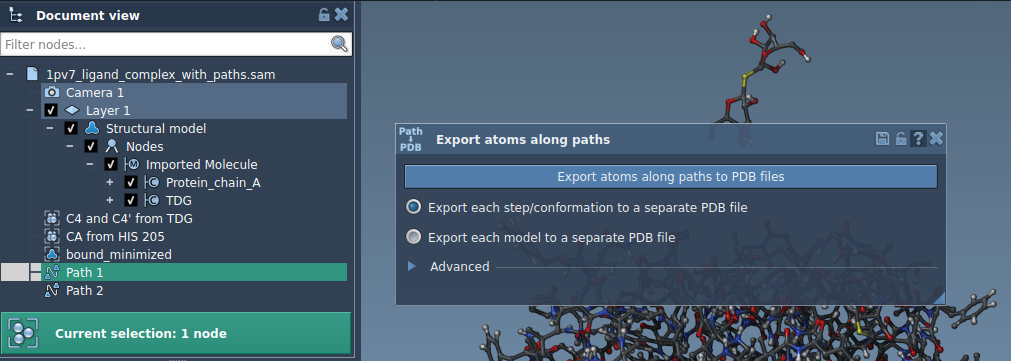
After opening Home > Apps > All > Export Along Paths, select one or more paths in the Document view. The app offers two export modes:
- All frames in a single PDB file: choose this when you want the frames collected in one file.
- Each frame as a separate PDB file: choose this when your workflow calls for individual frame files.
The app prompts you to choose a destination folder and file prefix. If the default sampling is not suitable, expand Advanced to change the frame export interval. Think about how much of the path you need to represent: the interval determines how frequently frames are exported, so it is worth checking this setting before generating files.
Keep the export focused on a subset
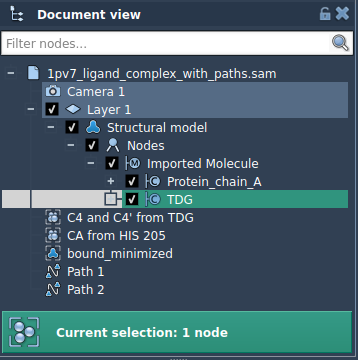
To export only selected atoms, expand the Advanced panel, select the desired atoms in the Document view, and click Add. For example, selecting the TDG ligand defines it as a model to export. This is especially helpful when the scientific question is about ligand movement and you do not need coordinates for every atom in the surrounding structure.
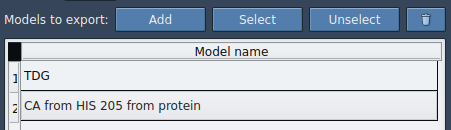
The export list can contain multiple atom sets. You can rename a model by double-clicking its name, and use Select or Unselect to highlight the atoms included in a set. If you need to redefine a set, use Reset or the corresponding context-menu option. These controls make it easier to keep track of what each exported group represents, especially when preparing separate ligand, binding-site, or backbone selections.
A quick pre-export check
- Have you selected the intended path or paths?
- Do you want one PDB containing all frames, or a separate PDB for each frame?
- Are you exporting all atoms, or have you added the intended atom set in Advanced?
- Is the frame export interval appropriate for the path data you want to inspect?
- Have you chosen a destination folder and a clear file prefix?
This process is useful when preparing coordinates for reaction-coordinate studies, free-energy workflows, enhanced sampling, visualization, or other downstream analysis. The key practical choice is to match the exported atoms and frames to the question you are asking, rather than exporting a larger dataset by default.
For the complete walkthrough, see the Export atom trajectories along paths documentation.
Note: SAMSON and all SAMSON Extensions are free for non-commercial use. Get SAMSON.