



A crystal model can look like a simple list of atoms, but a small misunderstanding about coordinates or the unit cell can change the structure you build. The key is to separate two ideas: the unit cell, which describes the repeating pattern, and the number of times that pattern is repeated to create the model. With Crystal Creator in SAMSON, you can define both and generate a periodic crystal.
Start with the unit cell
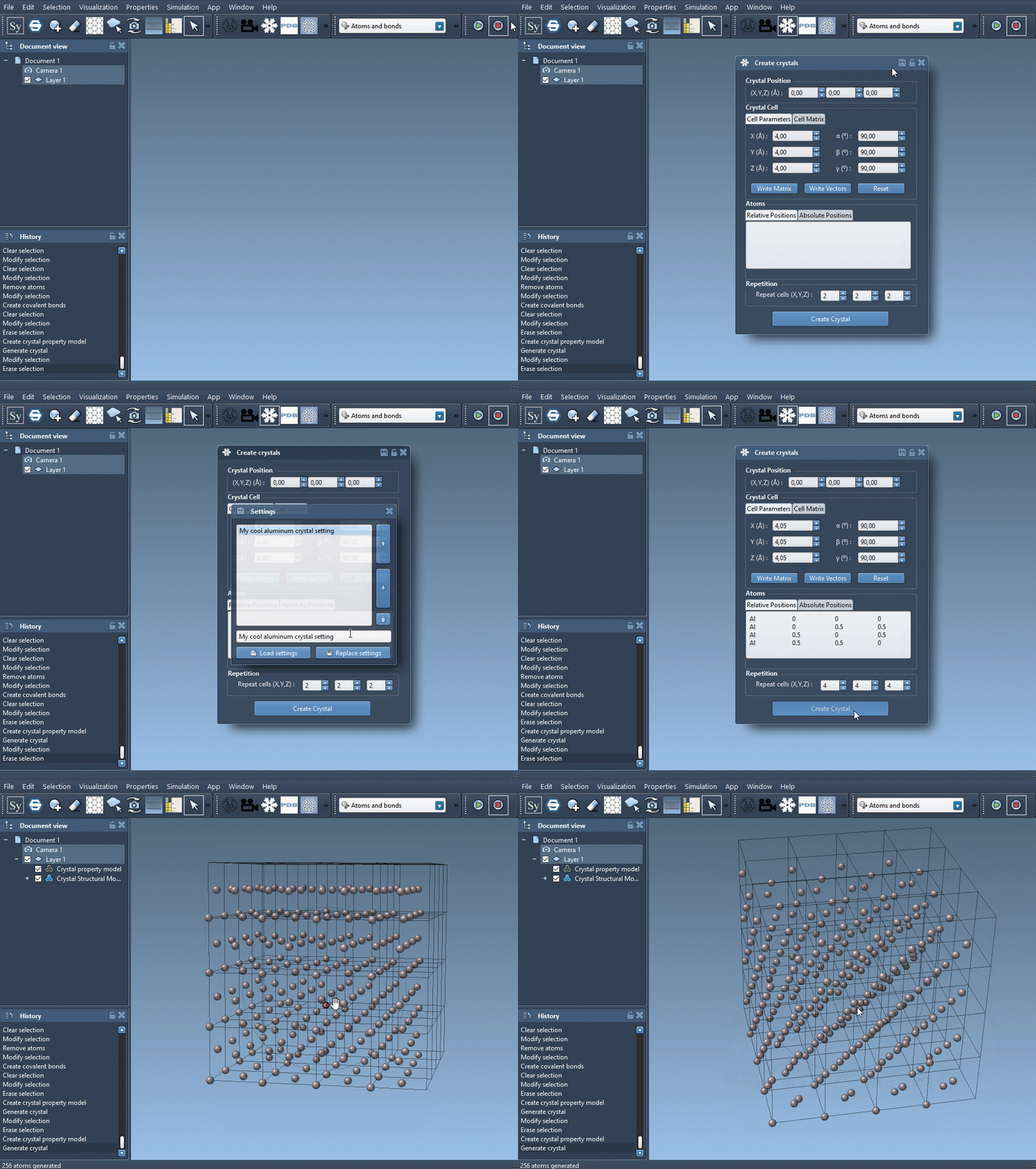
Open Crystal Creator from Home > Apps > Materials > Crystal Creator, or search for it using Shift+E. First choose the unit-cell shape. You can enter its cell parameters in one tab or enter the unit-cell vectors in another; Write Matrix/Write Vectors switches between the two notations.
Next, enter the atoms in the unit cell, one per line, with an atom label followed by its x, y, and z coordinates:
|
1 |
<atom symbol> <x-coordinate> <y-coordinate> <z-coordinate> |
Pay particular attention to which coordinate convention the selected tab uses. In the relative-position tab, coordinates are proportions of the unit-cell vectors: for example, 0.5 marks halfway along a vector. In the absolute-position tab, coordinates are given in angstroms. The same numbers therefore do not mean the same positions in both tabs.
The atom symbol must begin with its chemical element symbol. You can add characters after the symbol, without a space, to distinguish labels—for example, C0 and C1. Once the unit cell is defined, choose how many unit cells to generate.
Two useful starting structures
These examples provide a practical check that the cell and coordinate convention are set as intended. Both use a cubic cell and relative coordinates.
For face-centered cubic aluminum, use a lattice parameter of 4.05 Å and enter:
|
1 2 3 4 |
Al 0 0 0 Al 0 0.5 0.5 Al 0.5 0 0.5 Al 0.5 0.5 0 |
For diamond, use a cubic cell with a lattice parameter of 3.60 Å and enter:
|
1 2 3 4 5 6 7 8 |
C0 0 0 0 C1 0.25 0.25 0.25 C2 0 0.5 0.5 C3 0.5 0 0.5 C4 0.5 0.5 0 C5 0.25 0.75 0.75 C6 0.75 0.25 0.75 C7 0.75 0.75 0.25 |
These are unit-cell contents, not a complete large crystal written atom by atom. Crystal Creator uses the cell and its positions to generate the requested repeated model. If the result does not look right, check the selected coordinate tab, the cell dimensions, and the atom positions before changing the number of cells.
Import first, then inspect or modify
If you already have a structure, you can instead open a CIF (Crystallographic Information File) in SAMSON. The import dialog lets you choose the number of unit cells and whether to import only the data without symmetries, as well as whether to display the mesh. CIF files can be found through resources such as the American Mineralogist Crystal Structure Database and the RRUFF Project Database.
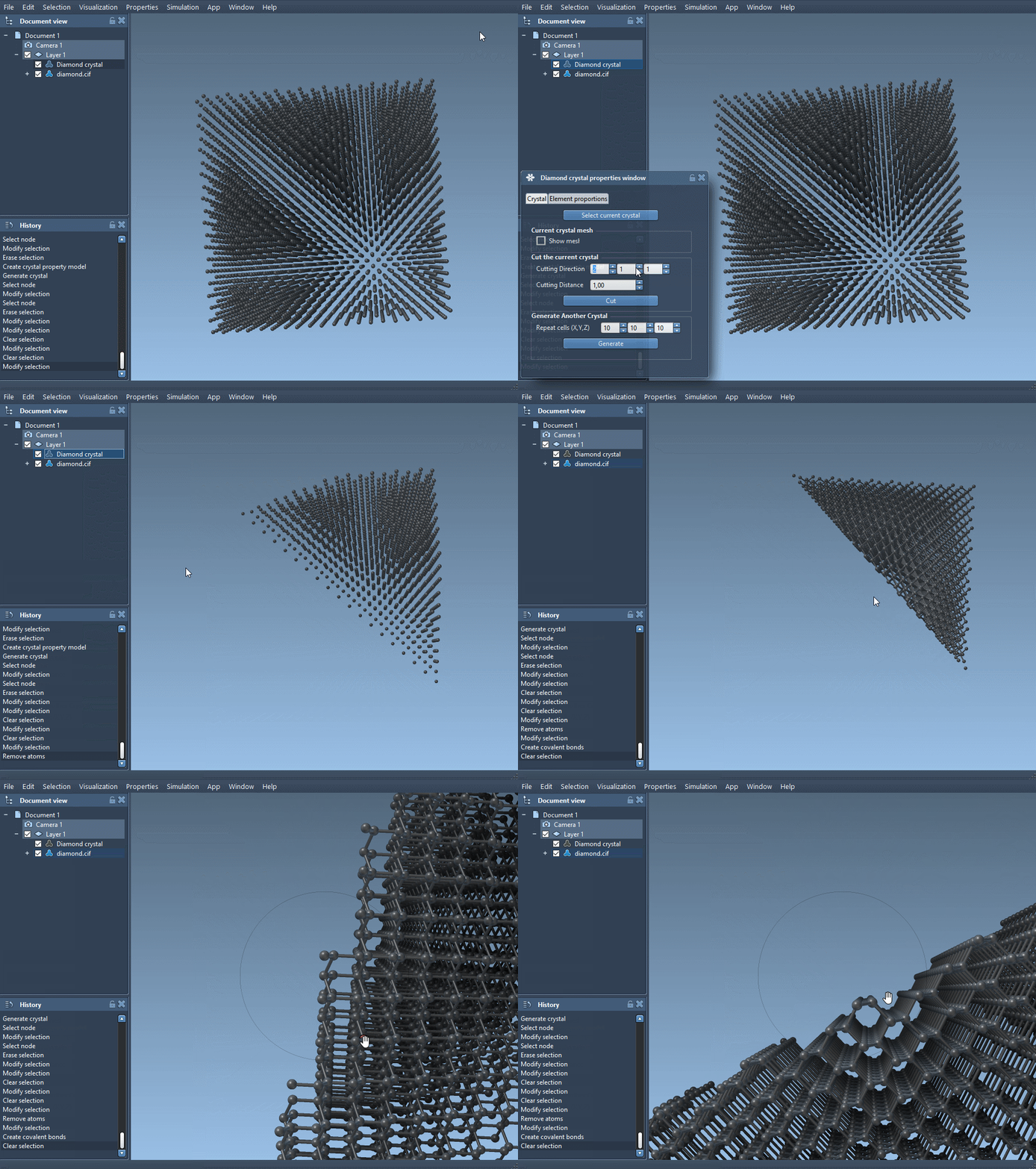
After importing, the crystal structure and its property model appear in the data graph. Open the property model’s properties to find the crystal, show its mesh, cut it, or generate another crystal. The cutting controls use three values for the Miller indices and a fourth value for the cut’s distance from position 0. For example, cutting a diamond crystal along [111] reveals its compact hexagonal structure.
Keep settings and validate occupancy
Crystal settings can be saved and loaded from the save icon in the property window, which is useful when you want to return to a custom unit cell later. For CIF structures with defects or substitutions, the second properties tab includes a check atoms ratio tool. It reports whether the generated model respects the specified presence or absence ratios at each atom site.
For a guided walkthrough of importing CIF files, inspecting crystal properties, cutting slabs, and building models from unit-cell data, see the Crystal Creator documentation.
Note: SAMSON and all SAMSON Extensions are free for non-commercial use. Get SAMSON.