



When a ligand has a part you want to explore, making alternatives one at a time can turn a simple design question into repetitive SMILES editing. The challenge is not just changing a fragment: each new structure must stay connected to the rest of the molecule in the intended way, and the resulting candidates need to be easy to review.
SAMSON’s RDKit-based SMILES Manager offers a table-based workflow for replacing a specified fragment with a set of alternatives. It can help you build a small, organized candidate library from a starting molecule—without treating the resulting molecules as validated designs or predictions of improved properties.
Think in attachment points
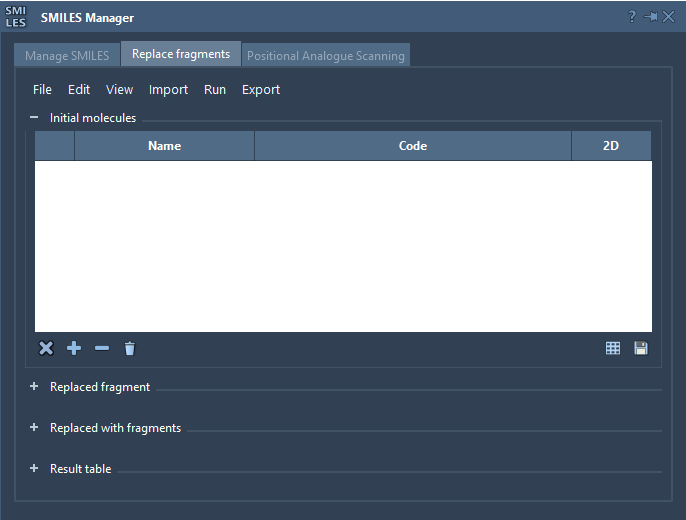
A replacement is defined by three ingredients: an initial molecule, the fragment to remove, and one or more fragments to insert. The target and replacement fragments use the attachment labels [*:1] and [*:2] at their two ends. Those labels make the intended connections explicit, so check that they are present and positioned appropriately before running the replacement.
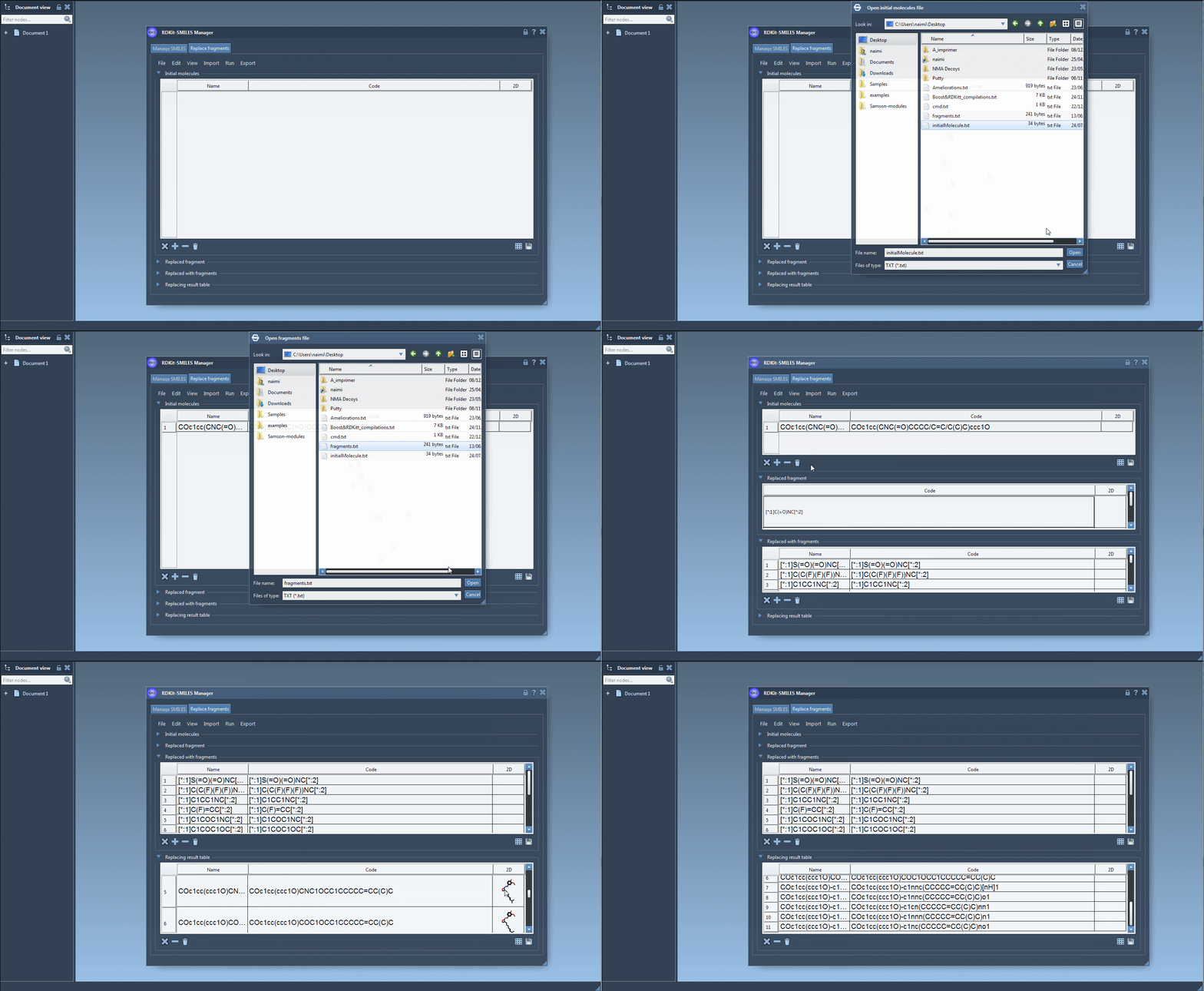
In the tutorial’s example, the starting molecule is COc1cc(CNC(=O)CCCC/C=C/C(C)C)ccc1O, and the target fragment is [*:1]C(=O)NC[*:2]. The replacement list includes several alternatives, such as [*:1]S(=O)(=O)NC[*:2] and [*:1]C1CC1NC[*:2]. These are examples for demonstrating the workflow, not recommendations for a particular biological target.
A practical workflow
- Load the starting molecule. In the Replace fragments tab, import initial molecules from a file, add them manually, or use a selection from the active SAMSON Document. For a first test, use one molecule so it is easier to inspect what the operation changes.
- Specify the fragment to replace. Enter the target pattern or import it from the active document. Confirm that the pattern uses the two attachment labels at its ends, as in
[*:1]C(=O)NC[*:2]. - Prepare the alternatives. Add replacement fragments manually or import them from a file. Keeping the alternatives together in the table makes it easier to compare the resulting SMILES and 2D depictions.
- Run the operation. Choose Replace fragments from the Run menu. The generated results appear in the Results table.
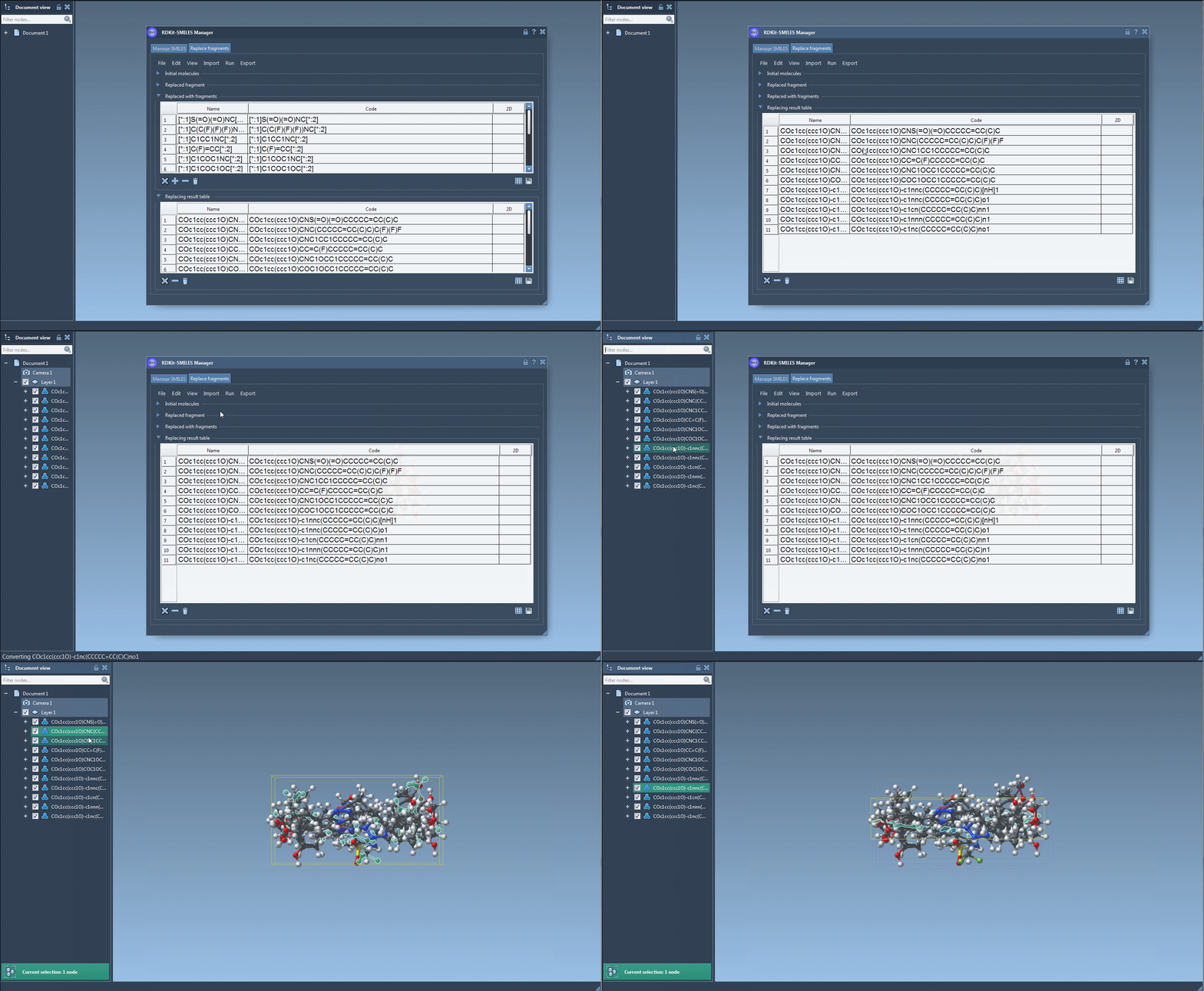
- Review before moving on. Inspect the result codes and 2D depictions. The SMILES Manager highlights invalid SMILES entries and displays an error image instead of a 2D depiction. A readable depiction is useful for review, but it is not evidence that a candidate has desirable properties.
Keep the output useful
It is tempting to treat a generated list as a finished library. A more useful approach is to treat it as a set of hypotheses: compare the structures, keep the candidates relevant to your design question, and then decide which need further modeling or analysis. SMILES Manager lets you export results to the active document and generate 3D structures; those steps make the candidates available for subsequent work, but do not themselves assess their performance.
The same table-based interface supports viewing and saving 2D depictions, including grid images, which can make a set of candidates easier to scan or share with collaborators. If you are working with many results, a grid can provide a quick visual overview; retain the molecule names or identifiers so each depiction can be matched back to its entry.
Fragment replacement is most useful when you have a specific region to vary and a clear reason to compare alternatives. Explicit attachment points, a compact set of candidates, and a careful review of the output help keep the exercise reproducible and interpretable. For the full instructions and additional SMILES Manager features, see the original SMILES Manager tutorial.
Note: SAMSON and all SAMSON Extensions are free for non-commercial use. Get SAMSON at samson-connect.net.