



Few things interrupt a molecular modeling workflow like selecting a residue and discovering that you have also selected its backbone, side chain, or other related nodes. The problem is often not the selection itself, but the way the filter interprets your input.
In SAMSON, typing LYS into the Document view’s Filter nodes… box filters by node names. Because the names of lysine residues, backbones, and side chains can all contain LYS, pressing Enter may select more nodes than intended. In the documentation’s example, a structure with five LYS residues produces 15 selected nodes. That’s a useful reminder: a name search is convenient, but it may not select only the molecular entity you mean.
For a more precise selection, use the Node Specification Language (NSL): residue.type LYS, or its shorter form, r.t LYS. Enter the expression in the Document view’s filter box and press Enter. This specifies the node type and residue type, rather than matching any node whose name happens to contain the letters LYS.

A practical selection workflow
- Start with the level you need. Decide whether you want atoms, residues, or another kind of node. The viewport selection filter controls the node level used by the rectangle selection editor and some other editors.
- Use a name filter for a quick browse. In the Document view, type a name such as
LYSto narrow the displayed nodes. Remember that filtering is not selection: press Enter to select the nodes that match. - Switch to NSL when precision matters. Use
r.t LYSto target LYS residues specifically. This is especially helpful when names overlap across a residue and its component nodes. - Check the result. Review the selection summary in the Document view, or inspect the selected nodes in the Inspector. If the count looks unexpectedly high, check whether your filter matched names rather than a specific node property.

Turn a useful query into a reusable tool
If you use the same NSL expression repeatedly, save it as a selection filter. Open Select > Find (or use Ctrl/Cmd + F), enter the expression, click Save, and give the filter a name. For example, r.t LYS or r.t HIS can be saved as LYS and HIS residues. The custom filter then appears in the selection-filter list, ready to use again.
For a particular structure, you can also save a selection as a group. A group refers to the selected nodes rather than containing copies of them, so selecting the group selects the referenced nodes that still exist. This is useful when you want a named, persistent selection in the document.
For faster, temporary switching between selections, use Quick Groups. Make a selection, then assign it with Shift + a number or Shift-click a Quick Group slot in the Document view. Press the corresponding number to switch to that selection; double-press the number to zoom to it. Quick Groups can hold up to 10 selections and can be redefined as your workflow changes.
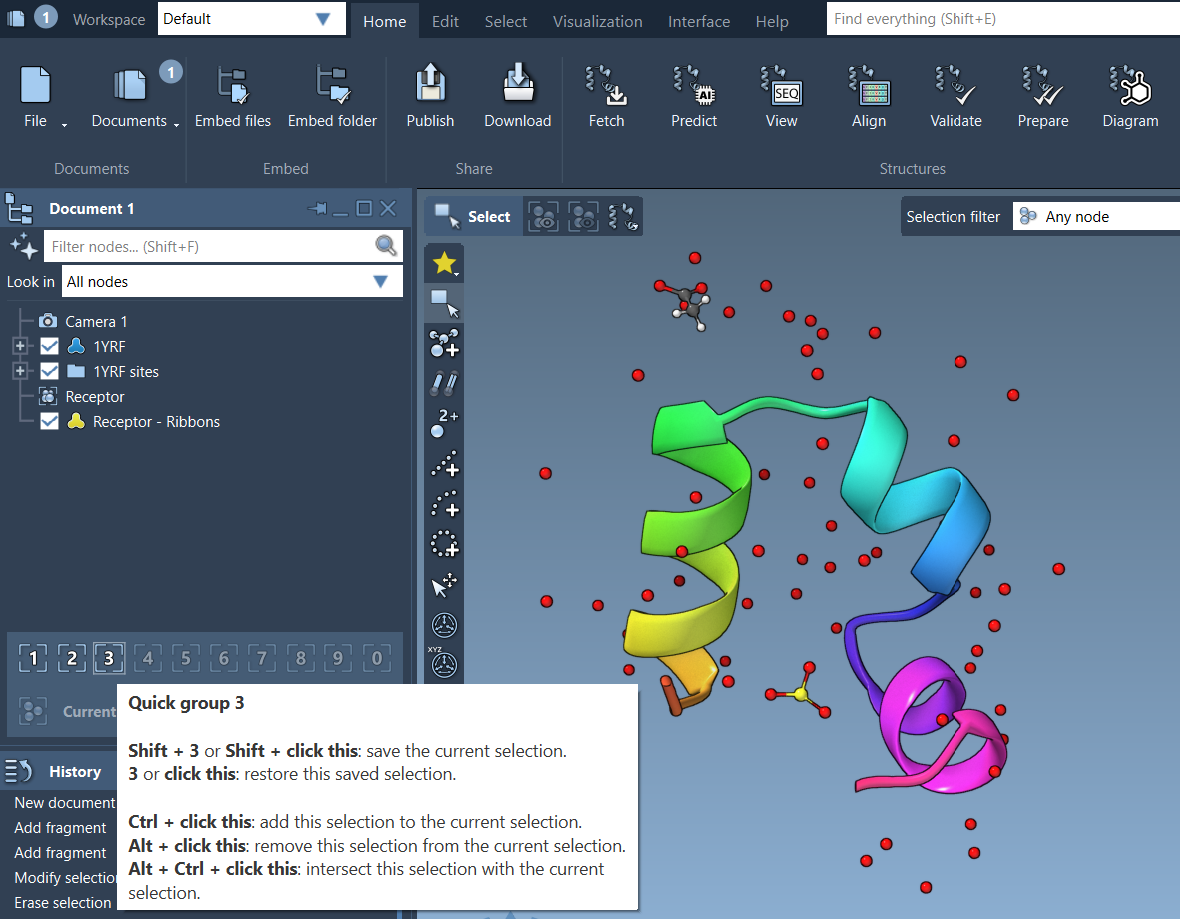
The key is to match the selection method to the task: name filtering for quick discovery, NSL for property-based precision, saved filters for repeatable queries, and groups or Quick Groups for selections you want to revisit.
For more selection methods and details, see the SAMSON selection guide.
Note: SAMSON and all SAMSON Extensions are free for non-commercial use. Get SAMSON.