



A molecular transition path can look reasonable and still need refinement. If you already have a sequence of structures—perhaps a ligand moving out of a binding site—the challenge is to improve the intermediate states without rebuilding the pathway from scratch. In SAMSON, the Parallel Nudged Elastic Band (P-NEB) app is designed for this step: it optimizes a candidate path using the Nudged Elastic Band method.
NEB optimizes the intermediate images while spring forces help keep neighboring states distributed along the path. The P-NEB app also implements the climbing image method, which can be enabled to search for the saddle point. The key practical distinction is that P-NEB refines an existing path or set of conformations; it does not generate the initial pathway for you.
Start with a candidate pathway
Before launching the app, prepare a path or a set of conformations for the atoms whose motion you want to study. A path stores a trajectory, while each conformation stores the positions of a selected group of atoms. If you have two relaxed endpoint structures but no intermediate states, first create a sequence between them—for example, by linear interpolation—or use a path-generation tool such as Ligand Path Finder. P-NEB can then refine that starting guess.
For a quick test, the tutorial provides a Zinc ligand unbinding example. A second sample contains the lactose permease protein-ligand complex 1PV7 with thiodigalactoside (TDG) and unbinding paths. These examples let you try the workflow with either a smaller system or a protein-ligand case.
Set up the refinement
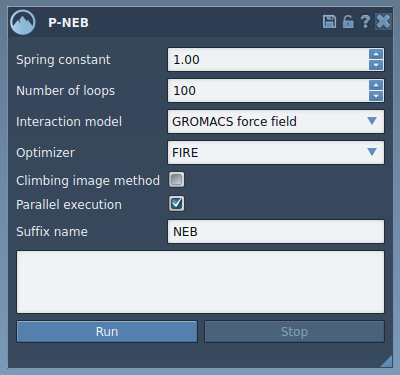
Open P-NEB from Home > Apps > All > P-NEB, or find it with the Find everything… search box. The tutorial’s example settings are a spring constant of 1.00, 100 loops, the Universal Force Field interaction model, and the FIRE optimizer. Check Parallel execution to run one thread per conformation. Leave Climbing image method unchecked for the first run; you can repeat the calculation with it enabled afterward. Use a suffix such as NEB to identify the output.
These are tutorial settings rather than universal values for every molecular system. The important thing is to make sure the required P-NEB extension and FIRE state updater are available, and that the input path or conformations are loaded before you run.
Refine a path, then inspect the result
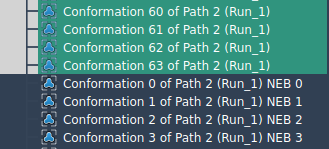
Select the path node in the Document view and click Run. When the Universal Force Field setup asks whether to use existing bonds, choose that option and confirm. P-NEB will initialize and compute; progress is shown in the status bar. When the run finishes, a new path appears in the document. You can select it and inspect it with the Inspector, or double-click it to start and stop its animation.

If your input consists of separate conformations, select the set and click Run instead. The output is a new set of conformations. However, for the same system and number of steps, the tutorial notes that this takes longer than applying P-NEB directly to a path. When appropriate, select the conformations and use Conformation > Create path from conformations to combine them first.
This workflow is useful when you have a route worth exploring but want its intermediate structures relaxed before further analysis. It also makes the boundary between two tasks clear: generate a candidate pathway first, then refine it with P-NEB. To see the complete tutorial and its sample inputs, learn more in the P-NEB documentation.
Note: SAMSON and all SAMSON Extensions are free for non-commercial use. Get SAMSON.