



A familiar challenge in molecular design is deciding what to change next. A ligand may have several positions that look modifiable, but editing structures one by one can make it hard to explore alternatives consistently. Positional analogue scanning offers a practical way to generate a set of related structures from one starting molecule—so you can inspect substitutions side by side before moving on to 3D analysis.
In SAMSON, the SMILES Manager can scan a starting molecule for a SMARTS pattern and generate analogues by replacing that pattern or attaching a new atom or group. The important idea is to define the structural feature you want to explore, then let the scan create candidates for review.
Start with a clear structural question
Before opening the tool, decide what you want to vary. Are you interested in replacing a particular atom type, or in attaching a small group at positions that share a common feature? A focused question makes the pattern easier to define and the resulting series easier to interpret.
Load a molecule by entering its SMILES string, or select a molecule already in the SAMSON document and choose Use selection. The tutorial demonstrates the workflow with a molecule from a cited medicinal chemistry paper. You can use your own structure instead; the useful part is the sequence of steps, not the example compound.
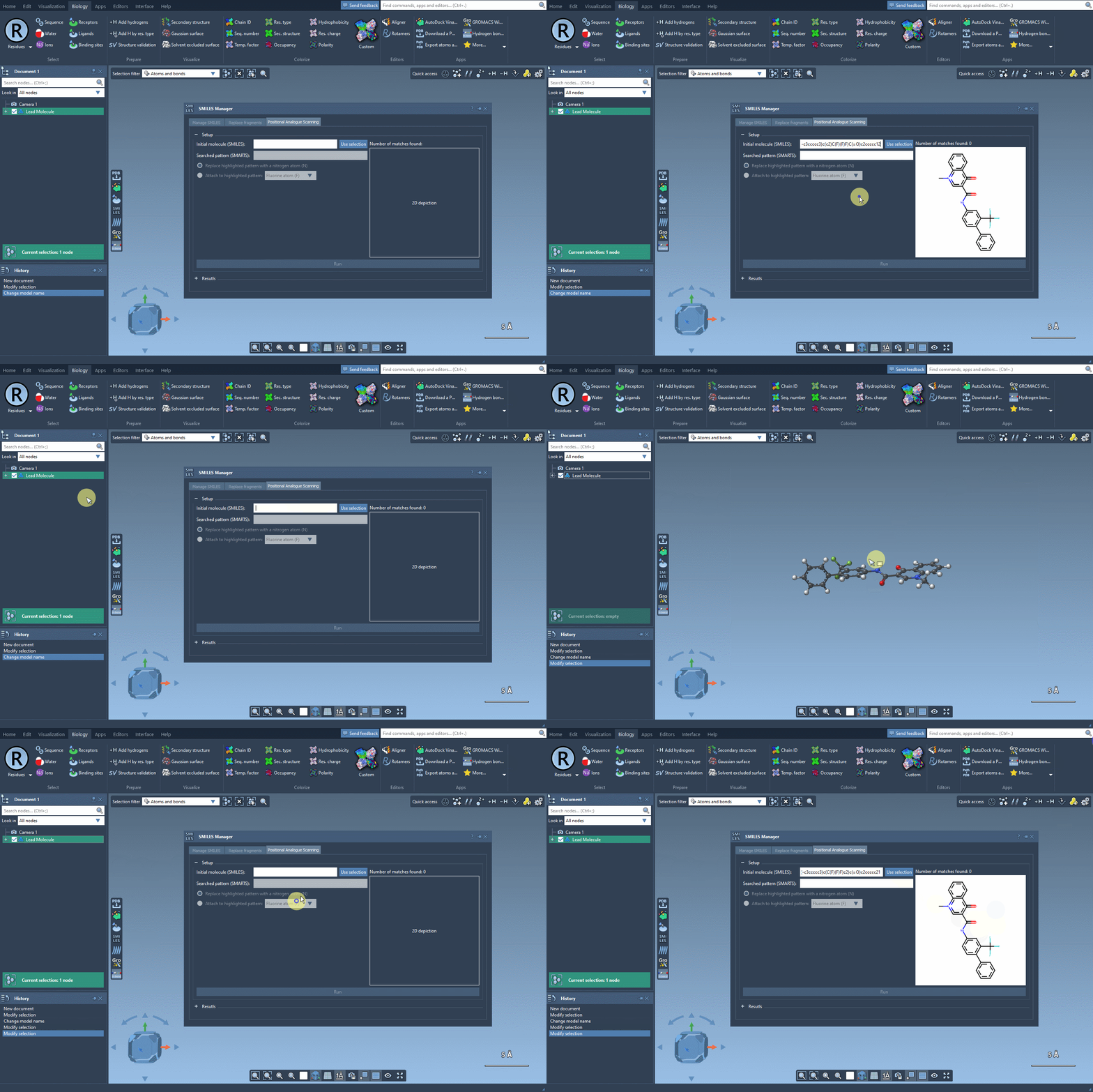
Use SMARTS to identify positions
Enter a SMARTS pattern that represents the feature you want to scan. In the tutorial, the pattern is [cH], which describes an aromatic carbon bearing a hydrogen. The matches are highlighted in the starting structure, making it easier to see where the scan may act.
This is a useful point to pause and check the match. A pattern that is too broad can select more positions than you intended; one that is too narrow may miss relevant positions. Confirm that the highlighted atoms correspond to your design question before generating a series. SMARTS is the selection rule here: it tells the tool what to find, not which analogue will perform best.
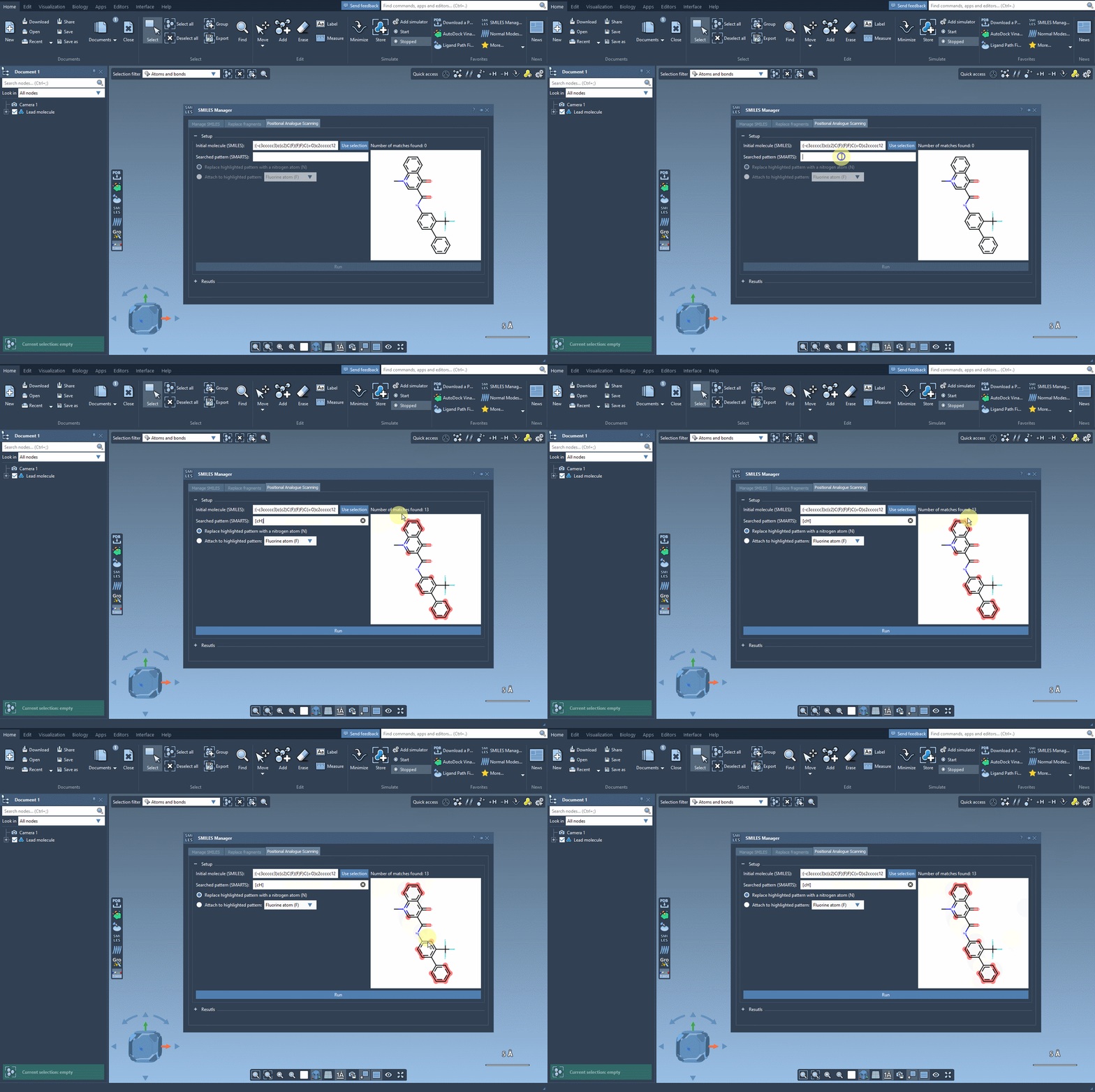
Choose replacement or attachment
Once the pattern is set, choose whether to replace the matched feature or attach something to it. The example replaces the selected aromatic carbon pattern with nitrogen. Other options shown in the tutorial include attaching fluorine or a methyl group. Click Run to generate the analogues and view their SMILES codes and 2D depictions in the results table.
These alternatives answer different design questions. Replacement explores a change to the matched feature; attachment explores adding a group at the match. Keep the transformation tied to the hypothesis you want to examine, and inspect the generated structures rather than treating every output as automatically suitable for the next stage.
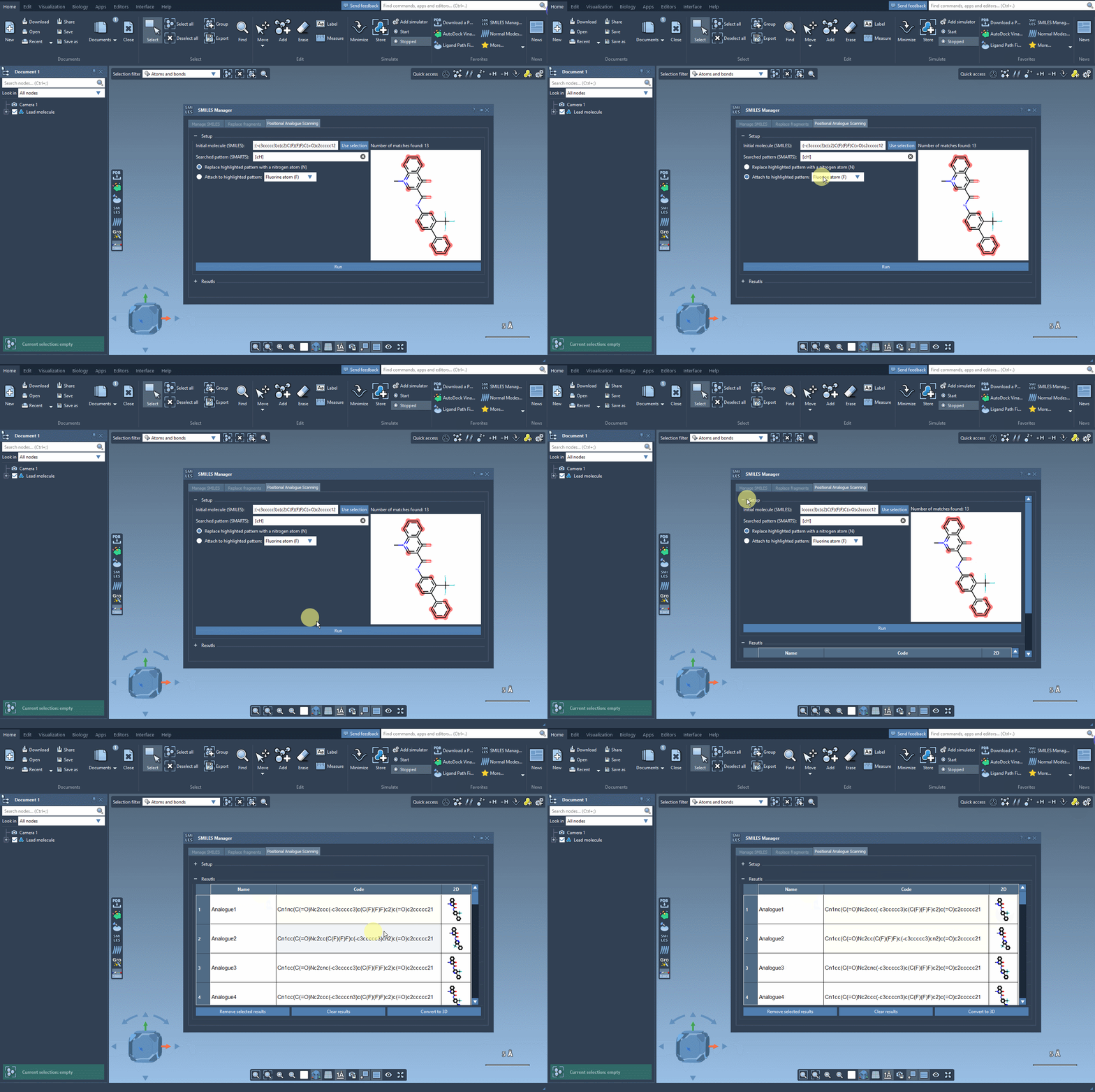
Make the result table part of the review
The results table is more than a list to export. You can double-click a name or SMILES cell to edit it, open a 2D depiction at a larger size, and hide or show the depictions using the table’s 2D header. You can also remove selected rows or clear the table. These controls help keep a working set readable as you compare the candidates.
For a useful comparison, keep track of what each analogue represents and check that its structure matches the intended change. A series is most informative when you can connect each candidate to the position and transformation that generated it.
Move from 2D ideas to 3D evaluation
When you are ready to inspect a candidate in three dimensions, generate a 3D structure from its result or use Convert to 3D for the generated analogues. A 2D depiction helps communicate connectivity, but it does not by itself establish how a molecule will behave in a binding site.
From there, the structures can be taken into a workflow such as docking with AutoDock Vina Extended, followed by examination of interactions with the target. Docking and interaction analysis are follow-up evaluation steps, not conclusions provided by the analogue scan itself. Comparing the structures and their results can help you decide which changes merit closer study.
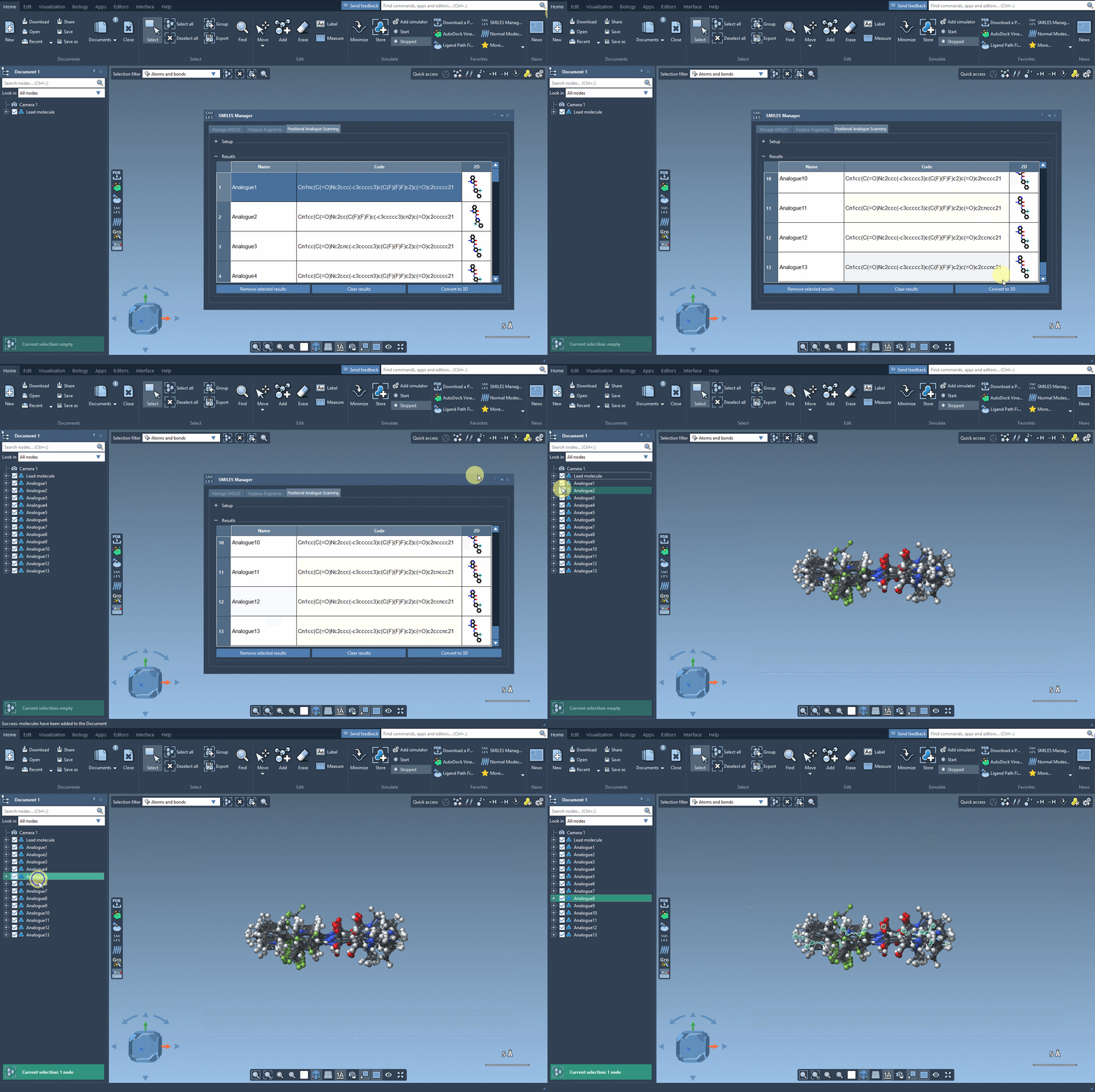
The full positional analogue scanning tutorial includes the complete walkthrough. For broader SMILES importing and organization, see the SMILES Manager tutorial.
Note: SAMSON and all SAMSON Extensions are free for non-commercial use. Get SAMSON.