



Two protein structures can show different conformations, but comparing the endpoints alone does not reveal how the molecule might move between them. For molecular modelers, building a continuous path is often the difficult next step: the structures need to be matched, their connectivity handled, and the resulting intermediates inspected before they are used in further analysis.
SAMSON’s ARAP Interpolator can generate a sequence of intermediate conformations between two protein structures. This tutorial walks through a diphtheria toxin example, using chains A from PDB structures 1DDT and 1MDT. The important practical idea is to prepare the structures and define how atoms and their connections correspond before asking the app to interpolate.
Prepare the endpoints first
Fetch 1DDT and 1MDT in SAMSON using Home > Fetch. The example works with chain A. In 1MDT, remove chain B, then use Home > Prepare on both structures to remove alternate locations, water, ligands, and ions. This cleanup is not just cosmetic: disconnected components can prevent the interpolation from running. If you see the error “Cannot proceed because the structure does not make one connected component,” check that both structures have been prepared and that unwanted components are removed.
Next, create a conformation for each cleaned structure using Edit > Conformation. Name them clearly, for example 1DDT A and 1MDT A. These named conformations become the start and goal of the path.
Make the matching and connectivity choices explicit
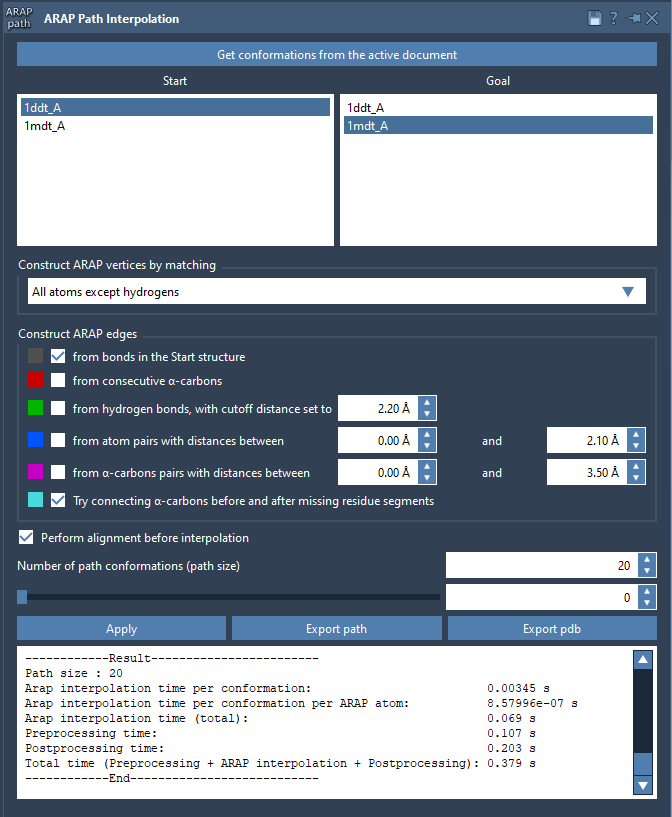
Open Home > Apps > Biology > ARAP Path Interpolation, load conformations from the active document, and choose 1DDT A as the start and 1MDT A as the goal.
For this example, choose All except hydrogens under atom matching. This matches non-hydrogen atoms between the conformations and uses the matched start atoms as ARAP vertices. Other options are available when a different representation is appropriate: all atoms, only α-carbons, or only backbone atoms. The key is to choose a matching scheme that fits the structures and the question you are investigating.
For the ARAP edges, select from bonds in the Start structure and Try connecting α-carbons before and after missing residue segments. The first uses start-structure bonds to define connectivity; the second adds connections across segments where residues are missing. These settings help specify which local relationships the interpolation should preserve. The app also offers other edge-building options, such as consecutive α-carbons or distance-based pairs, but the documented example uses the two choices above.
Generate and inspect the path
Enable Perform alignment before interpolation to align the start conformation with the goal before calculating the path. Set Number of path conformations to 20; this count includes both endpoints. Click Run to compute the interpolation.
Once the calculation finishes, use the app’s slider to move through the conformations. Scrubbing the path is a useful first check: it lets you see whether the structural change progresses continuously and where the largest visible changes occur. The app also creates an ARAP edges visual model. Toggle it in the Document view to inspect the connectivity used to construct the path; edge colors indicate the selected construction types.
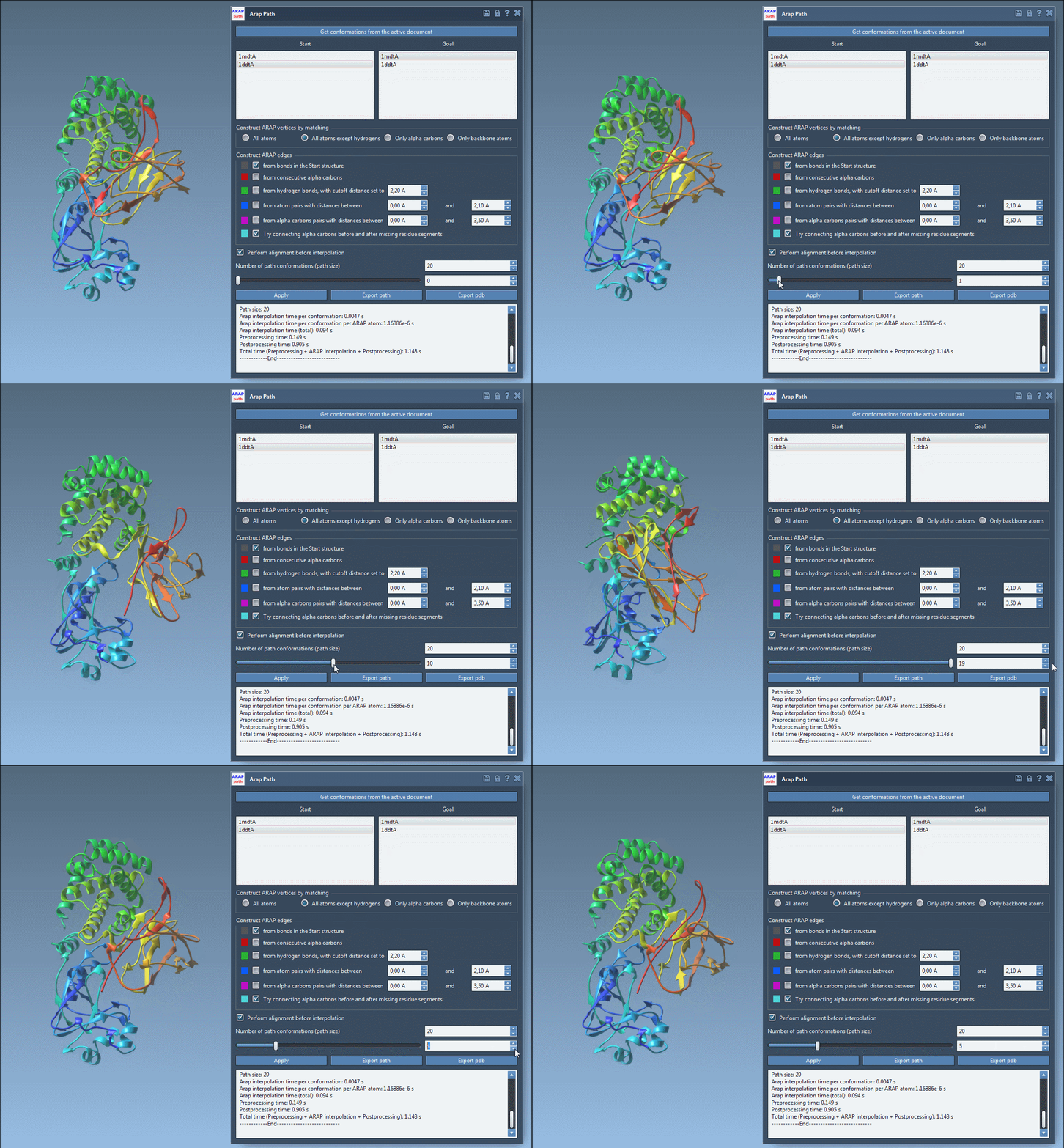
You can export the result as a path object in the current SAMSON document, or export the whole path and its conformations as PDB files. Treat the interpolated sequence as a geometric transition path to examine or use as an input for follow-up work—not, by itself, as confirmation of a physical mechanism. The documentation points to umbrella sampling, steered molecular dynamics, and P-NEB refinement as possible next steps.
For the complete walkthrough and related options, see the ARAP interpolation tutorial.
Note: SAMSON and all SAMSON Extensions are free for non-commercial use. Get SAMSON.