



Moving an atom in a molecular model can solve one problem and create another: a bond that should break may remain in place, or a new connection may be difficult to form while the existing topology is fixed. Rebuilding bonds by hand interrupts the editing process and makes it harder to explore how a structure might reorganize.
Interactive Modeling Universal Force Field (IM-UFF) is designed for this kind of interactive editing. Unlike a static-topology setup, it can update bond formation, bond breaking, bond order, and atom typization as the atoms move. That makes it useful when you want to manipulate a structure and let physically based inter-atomic forces guide local adjustments while the connectivity can change.
A quick setup
- Open a document containing the molecular system you want to edit. Start with a small or medium system so changes to the topology are easier to observe.
- Choose Edit > Simulate > Add simulator.
- Select Interactive Modeling Universal Force Field as the interaction model, choose a state updater such as FIRE, and press OK.
- In the IM-UFF parameter window, leave Static topology (UFF only) unchecked. This selects interactive modeling rather than standard UFF with a fixed topology.
- For easier mouse-driven bond formation, leave Keep vdW for manipulated unchecked as well. With this setting, atoms being manipulated are excluded from van der Waals interactions; checking it computes those interactions for all atoms.
- Start the simulation using Edit > Simulate > Start.
There is no separate setup window for IM-UFF. Once the model is selected, its parameter window includes the interactive modeling options and displays the total energy and individual energy terms while the simulation runs.
What to expect while editing
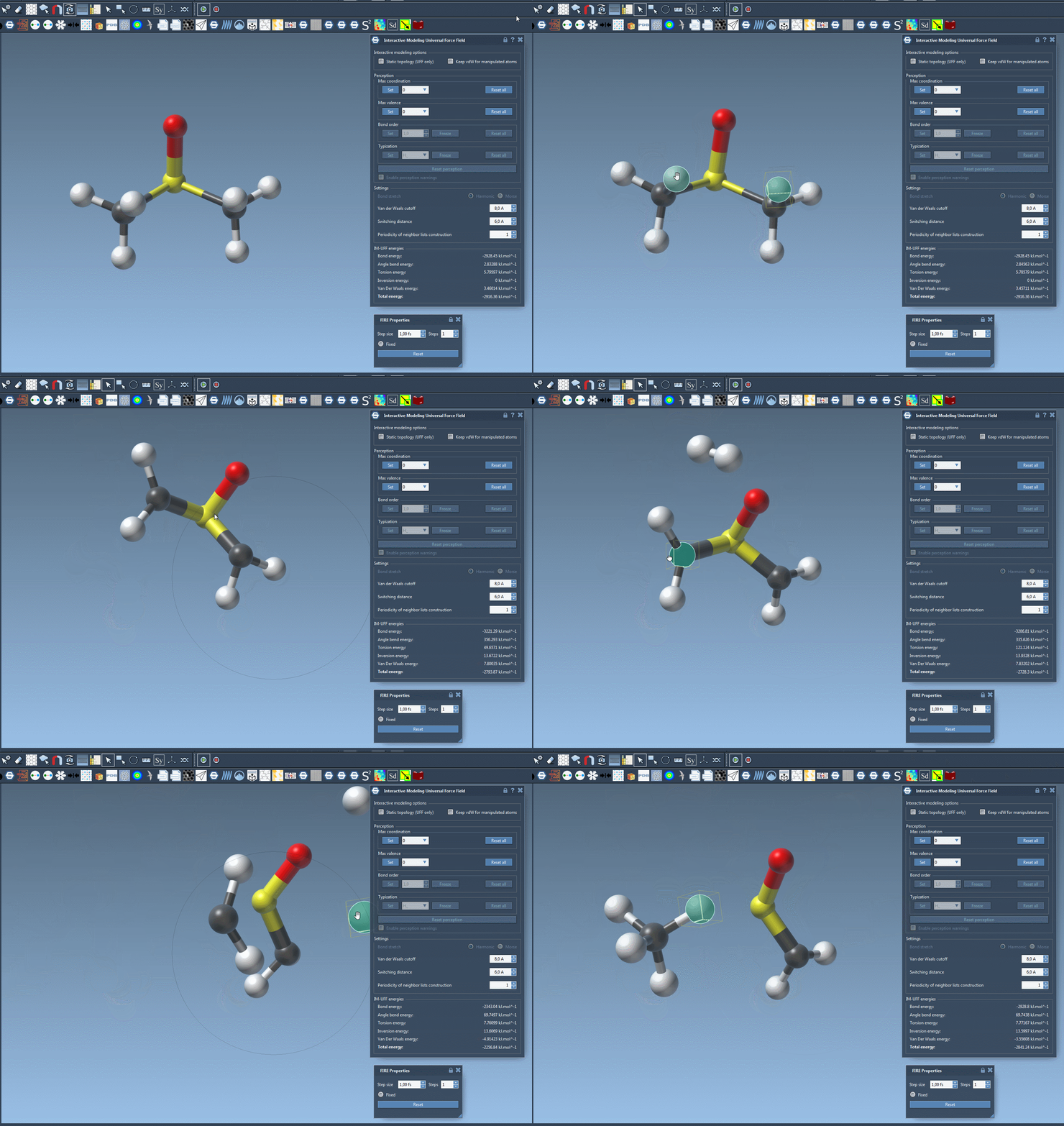
Move an atom a small distance first. Nearby atoms and the structure can adjust locally while the existing bonds remain intact. If you move an atom much farther, bonds to its neighbors can break and the topology updates. Bringing atoms closer together can allow new bonds to form. In other words, topology changes are part of the interactive process rather than a separate manual cleanup step.
Choose the mode that matches the task
The Static topology (UFF only) checkbox is a useful distinction to keep in mind. Checked, it switches to standard UFF behavior with a fixed topology; unchecked, it uses IM-UFF so connectivity and typization can evolve with atom positions. If you only need to evaluate or edit a structure without topology changes, the companion UFF tutorial describes the static workflow.
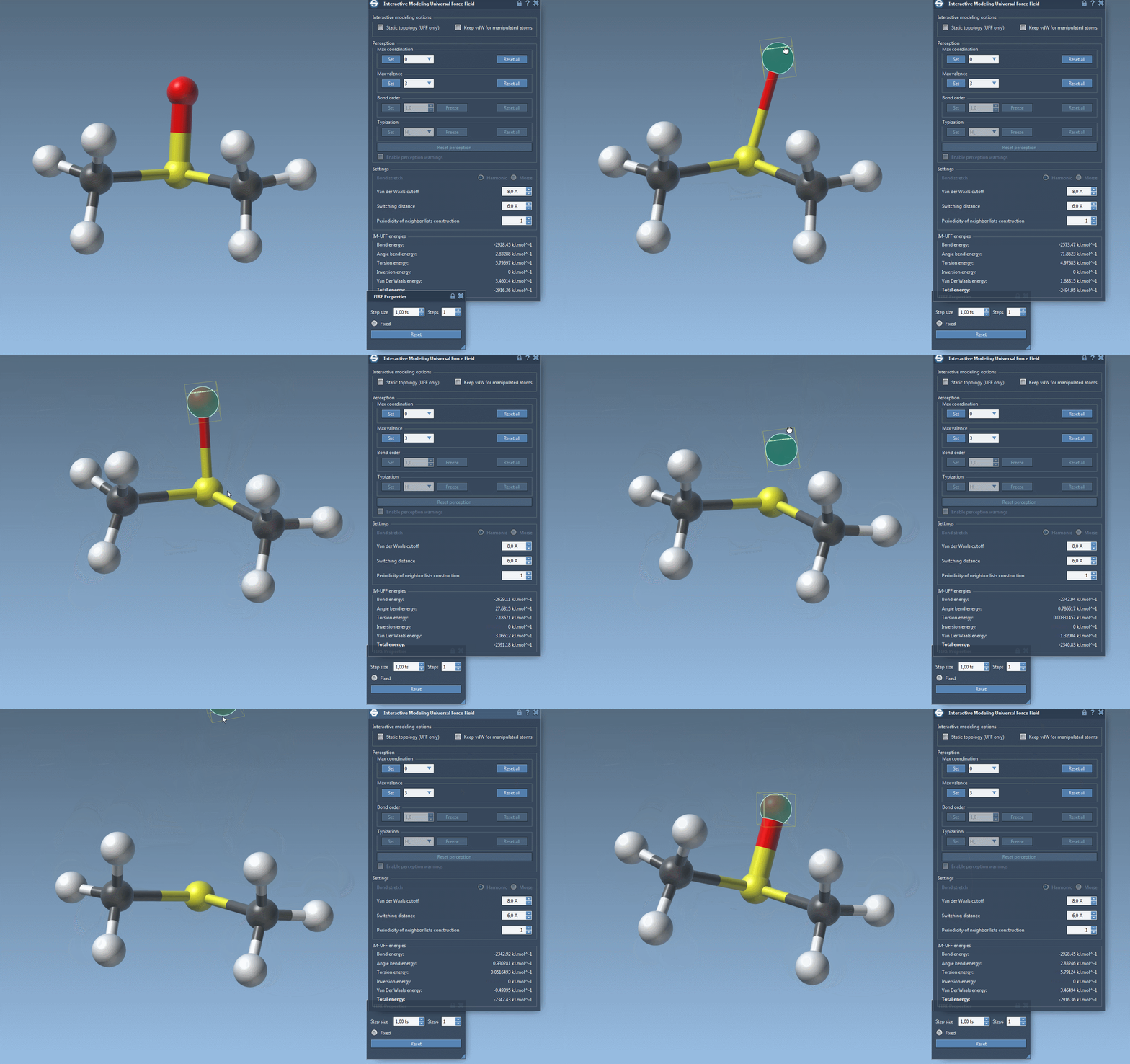
IM-UFF also allows customization of van der Waals cutoffs, switching distance, and neighbor-list construction periodicity. Automatic typization options are available, but while interactive modeling is active, bond order and typization are not set directly: they vary continuously with the current atom positions. Maximum coordination and maximum valence can still be set in this mode. These details matter when comparing behavior across settings; changing a parameter or switching modes can affect what you see during manipulation.
A useful first experiment
Try the workflow on a small structure: start the simulation, make a gentle displacement, and observe the local response. Then move an atom farther and watch whether its neighboring bonds change. Finally, bring atoms closer and check whether a new connection forms. Comparing this with static-topology UFF can help clarify whether a result comes from the interactive topology behavior or from the underlying force-field setup. Treat the simulation as a modeling aid, and inspect the resulting structure for the needs of your work.
For the complete instructions and references, see the IM-UFF tutorial.
Note: SAMSON and all SAMSON Extensions are free for non-commercial use. Get SAMSON.