



A familiar bottleneck in molecular modeling is turning a promising scaffold into a useful set of alternatives. Editing molecules one at a time is slow, and a long list of SMILES strings is difficult to inspect by eye. The Replace fragments tab in SAMSON’s SMILES Manager offers a more organized way to explore defined substitutions: provide a starting molecule, mark the part to replace, and supply candidate fragments. The result is a table of generated molecules that you can review before moving on to 3D structures or further analysis.
This is most useful when you have a specific region of a molecule you want to vary while keeping the rest of the scaffold in place. It can help organize an early analogue exploration, but it does not tell you which candidate will have the best properties. Generated structures still need the appropriate chemical checks and downstream evaluation for your project.
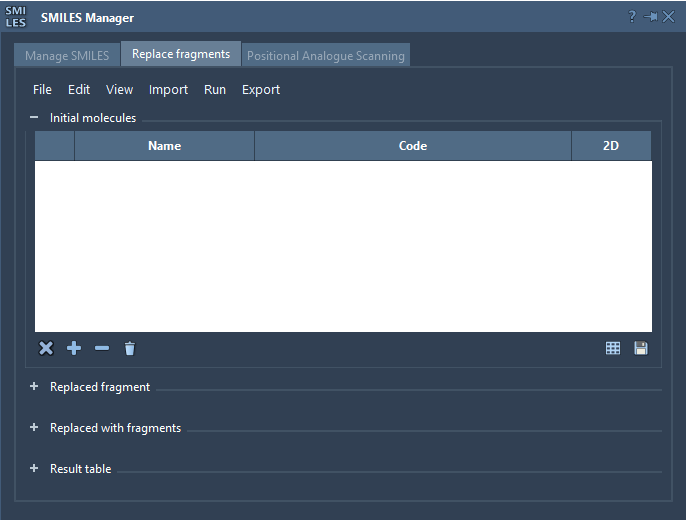
Define the edit before generating candidates
The key to a useful replacement set is a clear definition of the molecular edit. You need three inputs:
- An initial molecule: the molecule in which the substitution will occur.
- A target fragment: the part of the initial molecule you want to replace.
- Replacement fragments: the alternatives to insert in place of the target.
For the tutorial’s example, the initial molecule is COc1cc(CNC(=O)CCCC/C=C/C(C)C)ccc1O, and the target pattern is [*:1]C(=O)NC[*:2]. The replacement list contains different linkers and ring-containing fragments. Each candidate is supplied as a SMILES pattern with attachment points labeled [*:1] and [*:2].
Those labels matter: in RDKit’s syntax for this feature, the two mapped wildcard atoms identify the ends of the fragment pattern. In practical terms, they tell the replacement operation where the fragment connects to the rest of the molecule. Check that the target and replacement patterns describe the intended connections before running a large set. A misplaced or incorrectly defined attachment point can make the generated result different from the edit you meant to explore.
A repeatable workflow
- Load the starting molecule. Use Open initial molecules in the File menu, add a molecule manually, or import the SAMSON selection through the Import menu.
- Specify the target. Enter the fragment pattern to remove, or import it from the active SAMSON Document using SAMSON Selection as replaced fragment.
- Build a candidate set. Import replacement fragments from a file or add them manually. Keep their attachment-point labels consistent with the target pattern.
- Run the replacement. Choose Replace fragments from the Run menu.
- Review the results. Generated molecules appear in the Results table. Inspect their SMILES and 2D depictions, then export selected results to the active document if you want to continue working with them there.
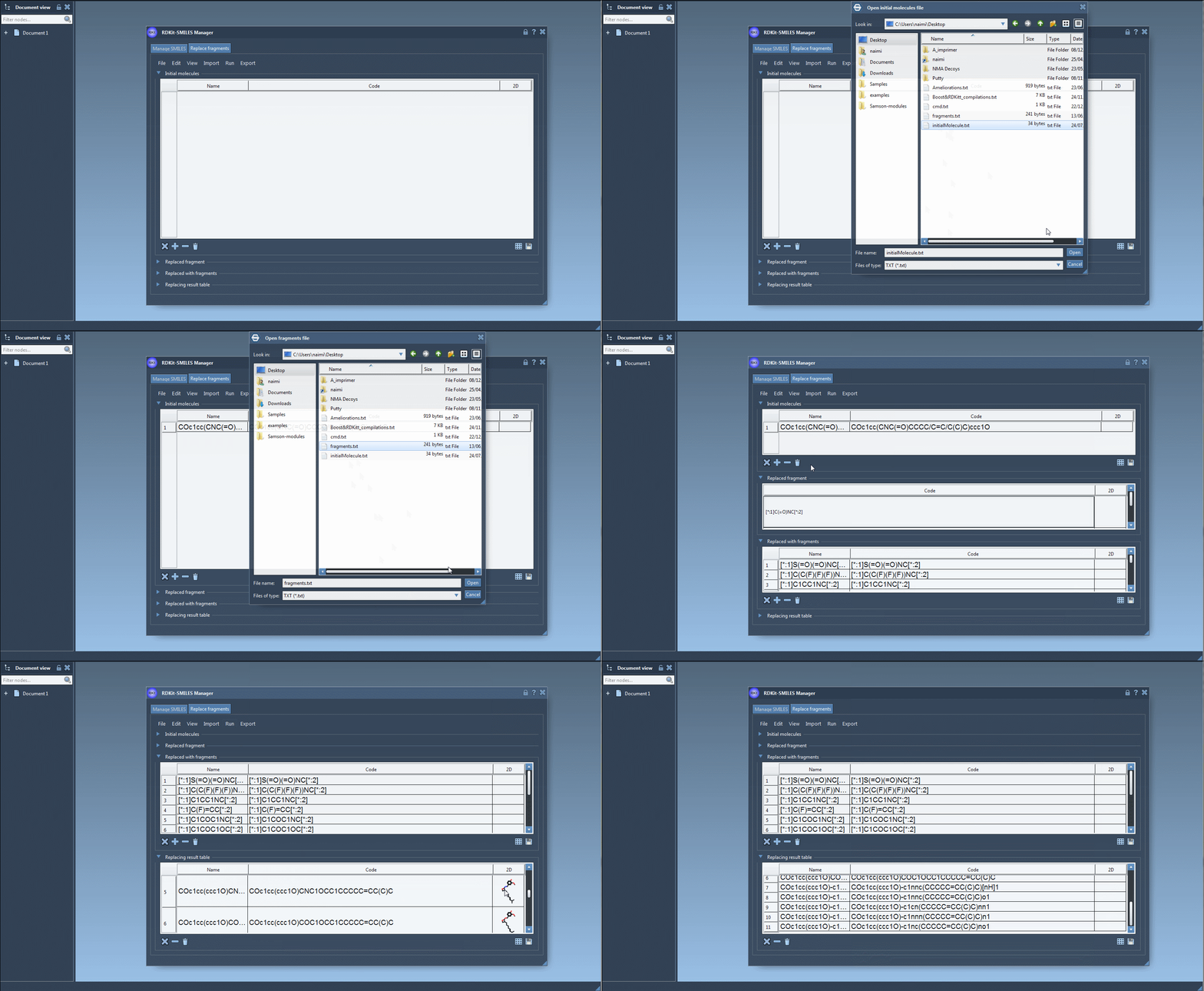
Make the output easier to assess
A generated list is a starting point, not a conclusion. Use the table to compare structures and names, and consider saving a grid image when a visual overview would make the candidate set easier to discuss or review. The SMILES Manager can also generate 3D structures from selected entries, which can be added to the active document. That step gives you structures to inspect and use in subsequent modeling workflows; it does not, by itself, establish that a candidate is stable, synthesizable, or better than the starting molecule.
One practical habit is to keep the original molecule and the replacement list together with clear names. This makes it easier to trace which edit produced each candidate when you later compare structures or prepare them for other analyses. If a result is unexpected, revisit the target pattern and its two attachment points before expanding the set further.
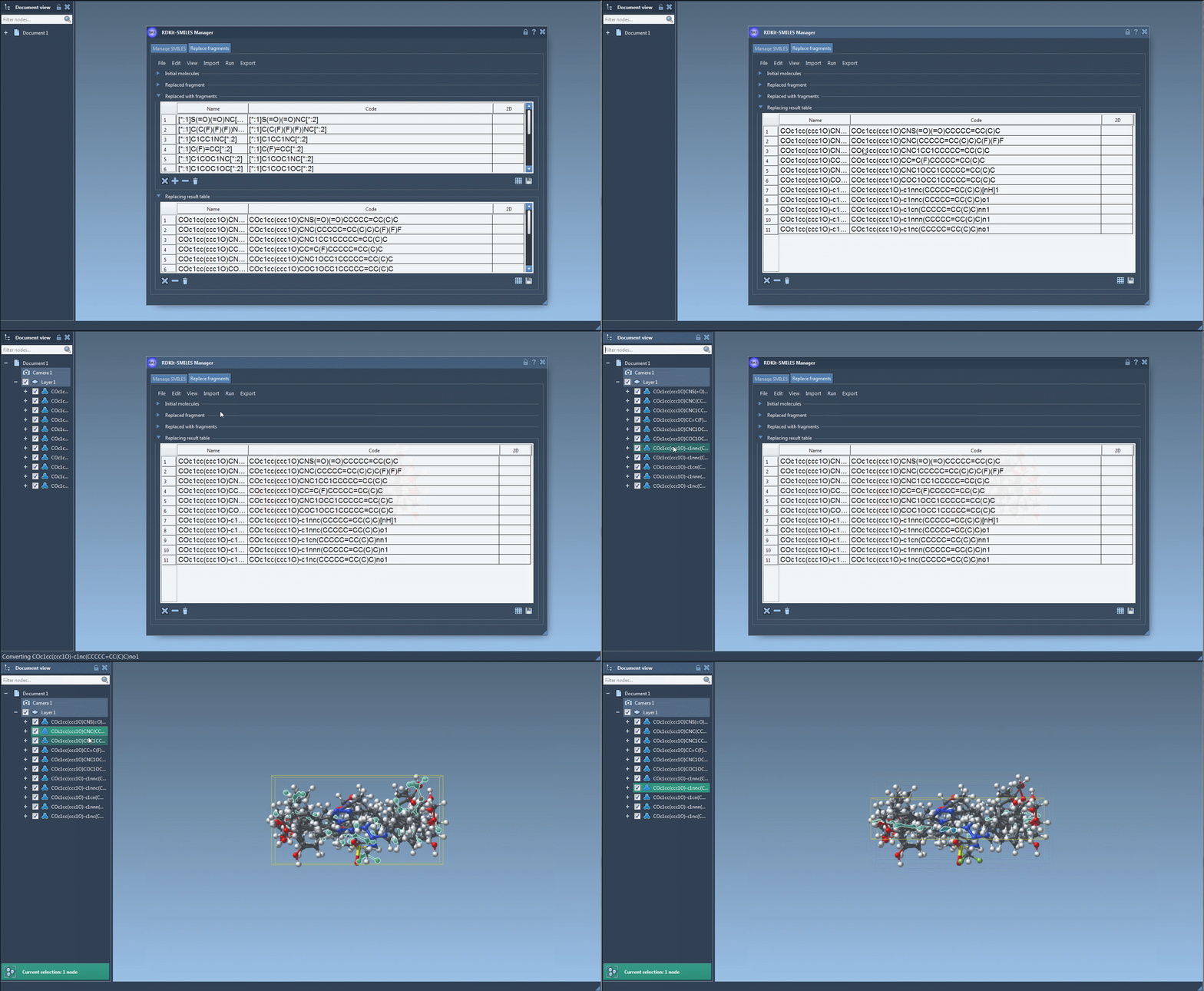
Fragment replacement is therefore a way to make a focused structural question easier to explore: what alternatives can I create by changing this defined region while retaining the surrounding scaffold? For the full walkthrough and details on importing, editing, visualizing, and exporting SMILES data, see the SMILES Manager tutorial.
Note: SAMSON and all SAMSON Extensions are free for non-commercial use. Get SAMSON.